
Screen setup
The top frame is present on all screens and contains the following information:
-
Revelation helpdesk logo: Links back to the Revelation website.
- Your icon: Direct link to edit your own user profile for both internal and external users. Also allows for quick access to Ticket Monitor, Email Signature, @Tag Settings and Interface Options (Masthead button size and background pattern if desired) through the drop down arrow.
-
 : Links to the Admin area. You will only see this if you have access based on security levels.
  : Logout of the system
- Search Bar: for quick searching access, without needing to use the full Search interface
 : Activates Focus mode.
 : Burger Menu to access masthead navigation icons.
- Revelation Graphic: Graphic can be replaced with a customized graphic for your company. This configuration is done in the database during system configuration by YellowFish. The logo also takes you to your Revelation helpdeskhome page from anywhere in the system. If you have the Personalization module activated, the graphic can be changed at any time.
-
Masthead: Navigation buttons are dependent upon a user’s access rights. As an example, Reports are not available to internal Users with User level permissions, so the button would not be visible.

The buttons, left to right, are as follows:
- Home
- Log a Ticket
- Slices
- Ticket Manager
- Chat Manager
- CSAT
- Gameplan
- Search
- Knowledgebase
- Assets
- Reports
Depending on your version of Revelation and your permissions level, you may not see all of these buttons.
For most of the Navigation buttons available in the Masthead, there is a small arrow in the lower right corner that indicates a drop-down menu. Right click on each button to see them.
- Home button - List views, Dashboard views, change to Map or Timesheet view
- Log a Ticket - Any templates set up for new tickets.
- Slices - System, Self-Service
- Ticket Manager - Ticket Totals Overview, Live Tickets View
- Chat Manager - Chat Overview, Active Staff, Live Chats
- Gameplan - Dashboard, and other views.
- Search - System, Saved and Recent searches
- Knowledge Base - Add articles, view your saved searches
- Assets - Add new assets
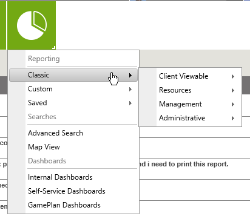
- Reports - Classic, Custom, Saved, Advanced Search, Map View, Dashboards (Internal, Self-Service,Gameplan)
Icons
|
ICON |
TYPE |
USE |
| Red Text | Advanced Feature | Any text in red within the help guide indicates an Advanced Feature which should be used with caution. |

|
Burger Menu | Click to get full access to nav controls |
 or or  |
Focus Button | Open/close Navigation buttons, left/right column bars with one click |

|
Double Arrow | Allows you to drag a column or a pop-up to another location |
|
 |
Pencil |
Indicates areas where edits can be made |
|
|
Save button |
Saves changes made |
|
|
Cancel button |
Cancel changes without saving |
|
|
Deletes associated item |
|
|
|
On or Off | Indicates if a module is active or not active |
|
* |
Asterisk |
Indicates a required field |
|
|
Calendar |
Java Script drop down calendars have been added throughout the site next to date fields |
|
|
Clock |
Set time in a ticket |
|
|
Attach button |
Attach files to tickets, if turned on in Admin area. Drag and drop files here or click to find files. |
|
|
Refresh |
Refreshes the current screen |
|
|
Pin |
Pins ticket(s) to docking area on the home page; Pin will also show in the ticket number on the home page in Grid view. |

|
Gameplan | Indicates the ticket is part of a Gameplan project on the home page in Grid view. |
|
  |
Star | Located in the Ticket Description bar, allows users to highlight certain tickets important to them. |

|
Share | Click on the button to share the ticket, search, etc. by @tagging a colleague. |

|
Auto Close | Indicates a ticket is set to Auto Close at a predetermined date/time. |

|
Send Email | Click on this button to send an email from within your ticket. |

|
Full Screen | Change Send Email screen from within ticket to full screen for ease of editing |
|
|
Envelope |
Indicates the Action Note was emailed to contact using the Send Email function from within the ticket or an email was received from the End User. |
|
|
Default |
Denotes the default item for the selection |

|
Recurring holiday | Denotes a recurring holiday under Working Hours |
|
|
Spell Check button |
Check spelling based on dictionary set in Admin area |

|
External - Internal - Both | Icons used in Knowledge Base and Home Page |

|
True-Sync | Indicates a user (internal or external) synced to Revelation by True-Sync |
|
|
Parent ticket |
Indicates a Parent ticket |
 | Child ticket | Indicates a Child ticket |
|
|
Team Identifier |
Indicates team has been specified for a Ticket Status |
|
|
Stopwatch |
Indicates a ticket with a Stopwatch running in an action |

|
Preview | Preview Knowledge Base article |

|
Revelations - inactive | Revelations available, not activated |

|
Revelations - active | Revelations activated |

|
Binoculars | Reveal additional information on selection in Admin area |
|
|
Admin Area button | For Admin and Super Admin level users |

|
Log Out | Log out of Revelation |
|
|
Version button |
Indicates item is part of core, select, prime or Gameplan versions. (See below for legend) |


 or
or 


With addition of modules, there are additional icons. These will be shown in the Help sections for the modules.
Version legend
Throughout this help guide, you will see these icons in the top right corner of the pages.
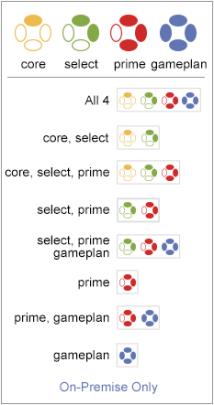
They will help you identify which parts of the help guide are relevant to your version of Revelation helpdesk.