

When you click on the CSAT button on the masthead, you will be taken to the Customer Satisfaction report. This is based on the ratings given to tickets by End Users. The scale is one to five stars, with five being the best. This rating system is turned on in the Admin Area. If it is not turned on, you will not see the CSAT button on the masthead. Who can see the rating system is set up in the Admin area.
The Customer Satisfaction page allows you to select Client Type, Client, Region, Project, Rating levels, Closed Date, Closed By (including Staff Plus if checked), Location, Assigned Team and/or Assigned Staff. As with any search/report, you can save the results once they have rendered so they can be run at any time. You may also select to set your chosen filters as the default for when the report is opened.
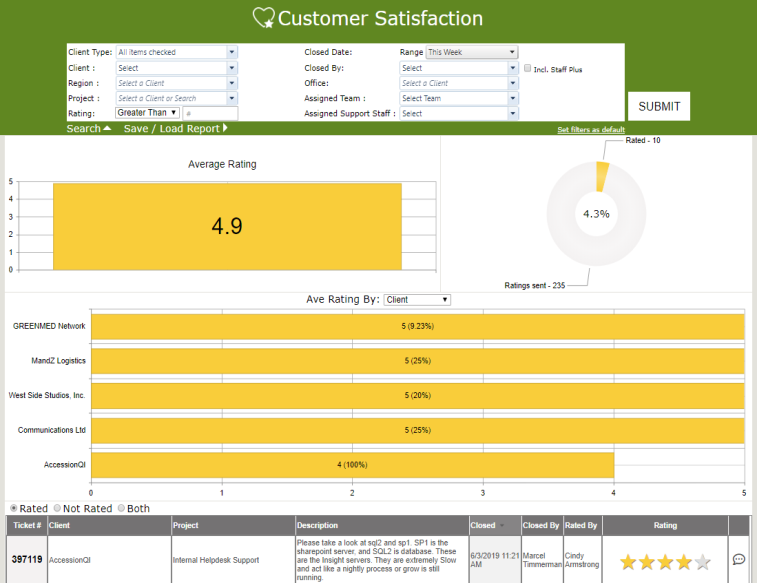
From the Client Type drop down, you can select all of your Client Types or only specific ones for viewing.
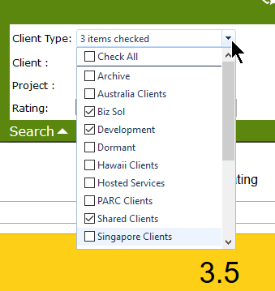
The chart area shows the following information, based on the selections made:
- Average Rating - based on the overall number of ratings returned. If you mouse over the bar, it will tell you how many tickets were rated.
- Donut Chart shows how many rating emails were sent versus how many were returned.
- Ave Rating By: Select one of the following from the drop down: Client, Tickets Closer, Project, Location, End User
- Changing the selection will change the bar chart labels. Shown above is Client. If it was changed to Tickets Closer, it shows the technician who closed the ticket. Project shows the project name, with the client name in parens; Location shows the location with the client name in parens. End User gives the names followed by the client name in parens.
Beneath the chart is a list of the tickets which were rated. You can also choose to see which tickets were NOT rated to give you an idea on who might not be responding. The option to see both Rated and Non Rated tickets is also an option.
The grid gives the ticket number, client, project, description, when it was closed, who closed it, who rated it and the rating. If a comment was included, there will be an icon at the end of the line. Clicking on any ticket will bring you to the ticket.
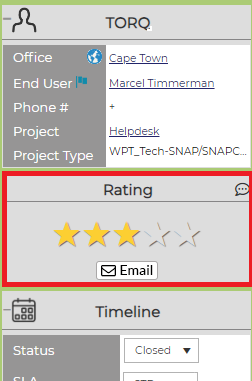
If you need to resend the Rating email, click on the Email button under the star ratings. To view any comments provided, hover over the balloon icon to the right of the heading.
NOTES:
- Customer Satisfaction must be turned on in the Admin area.
- If the button is not visible in the nav, the report is available on the Reports tab, under the Administrative section, for those with permissions to see it.