
Based on permissions set in the Admin area, you may be able to create new Slices.
Saving Slices
These can be saved as a Personal (visible only to you), System (visible to all in your Revelation helpdesk instance) or Self-Service (visible to selected End User Customers/Client Types).
Create a Slice
To create a new Slice, open the options from the right side of the screen and select the +New button.

NOTE: If Team Control Panel is active, you will only have Slices available which are within the limits put on by the System Administrator.
To create a New Slice, click on the +New button. You will be given the option to create a new blank slice, import a slice from a file or download available slices from the cloud.
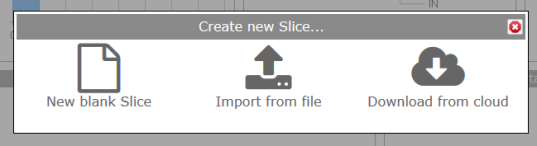
Selecting New blank Slice will take you to a page similar to the Edit Slices page. However, all of the grids will be blank so you can start your Slice from scratch. (To get a description of the other two options, see Slices Home Page.)
You will need to create a view Name at the top of the page before saving and you will have the option to save it as a Personal, System, Team or Self-Service view.
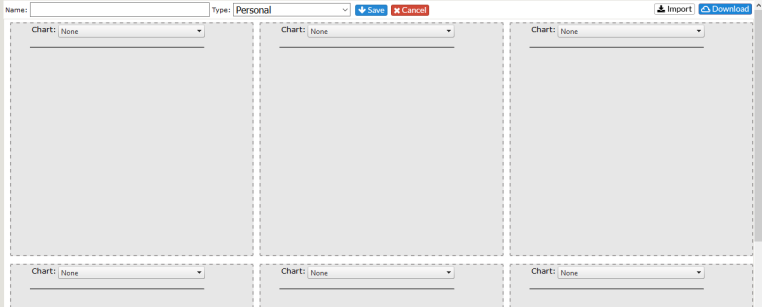
Visibility can be Personal – only appears in your view menu, System – appears in everyone’s view menu, Team – appears in the view menu for all members of your team, or Self-Service - appearing on the Self-Service Interface,
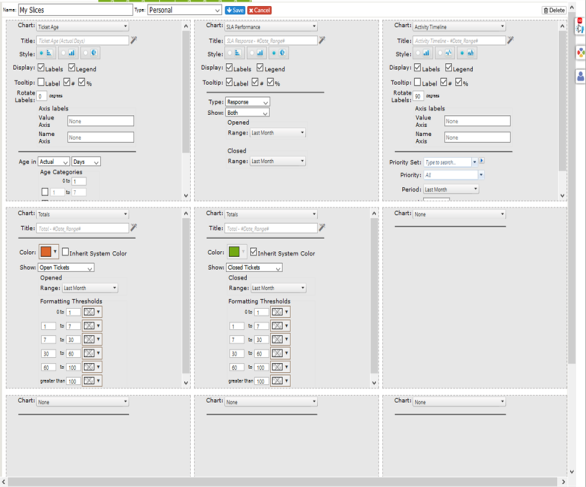
The view allows for up to nine charts in a 3x3 grid. Each chart will expand to fill the row so if you only put one chart on the top row when you save, it will expand to fill the entire row. Click here to see the options available for the charts.
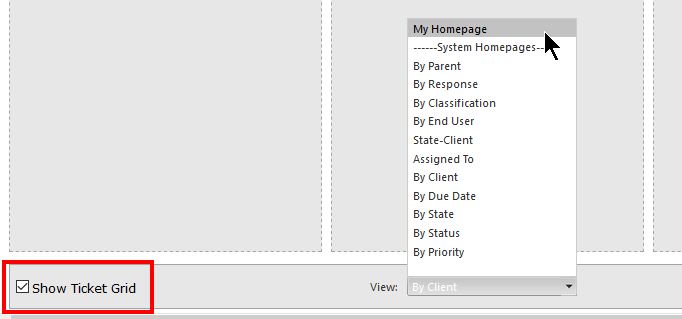
At the bottom of the grid is a check box where you have the option to Show Ticket Grid. If checked, when you click on your Slice, you will have the option to show the tickets relating to the Slice in a new window (default, or in a grid below the Slices page. You will also have the option to select the view. The drop down is not visible if the option is not checked.
Once you've created your view, the charts will appear on your Slices home page. Or you can select a different chart from the Select area on the Slices home page or right clicking on the Slices button in the Nav.