The Team Control Panel is a dashboard which allows Admins and Super Admins to see, on one page, all the settings by team.
The Settings tab shows the settings either on (Green) or off (Amber), and allows you to edit each one.
- Features (such as Chat, Pin Dock, Revelations, etc.)
- Action Note Options
- Lot a Ticket Options
- Available Templates for
Within each area, a pencil icon denotes items which can be edited for the team. Clicking on the pencil will bring up the Members settings for the particular option to edit the item if you have the rights to edit. For example: Super Admins can edit all items under Basics, while Admin level users cannot. Shown below is a Staff Plus User view.
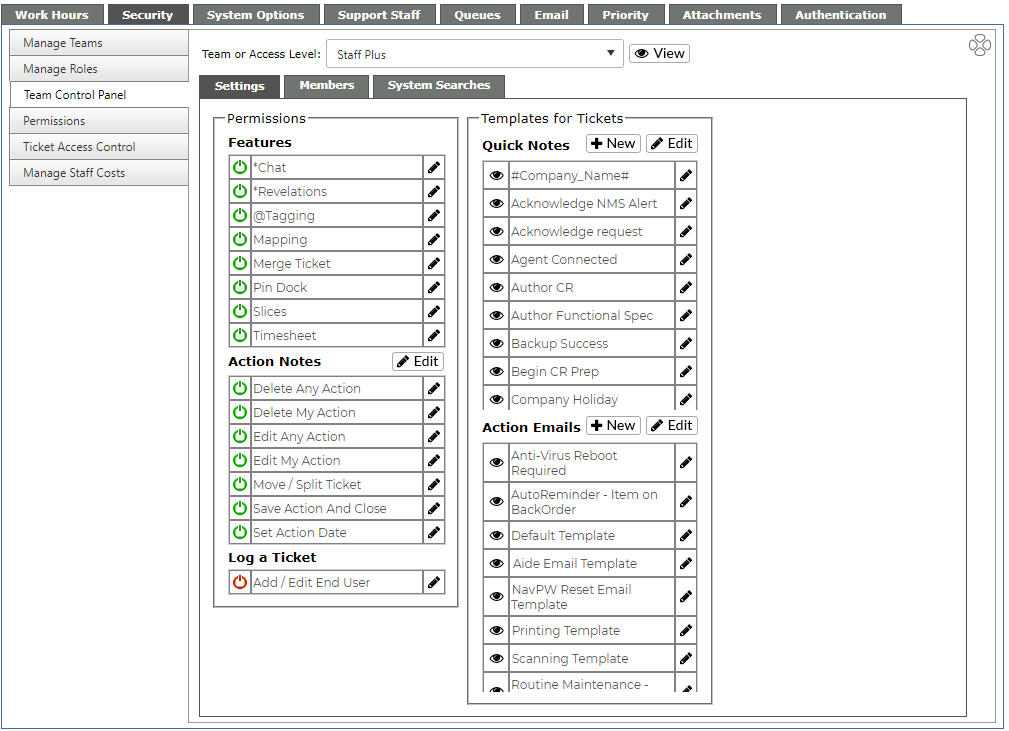
- The colored indicators are as follows:
- Green - All members of the team can see the item, because it is associated with the access level or the team.
- Amber - Some members have this option available; the option is defined by access level and some staff are at the required level.
- Red - No members of the team have this option available; the option is associated with an access level which no member of the team has.
- The eye icon by items in the second column will allow you to view the text and settings for those items
- Clicking on the arrow in front of the Ticket Type options will show the associated sub-types for those Ticket Types.
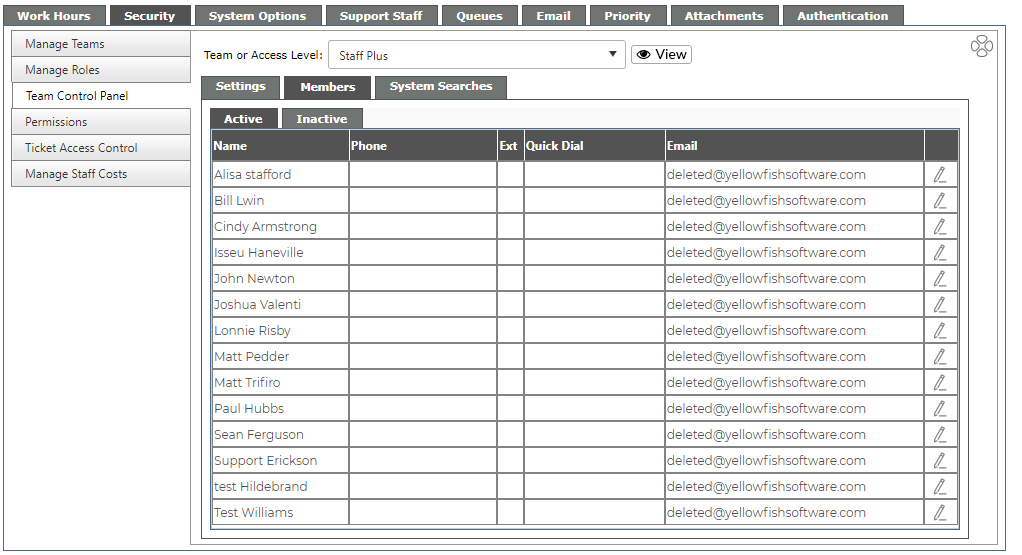
The Members tab Shows Active and Inactive members of the Team. Users can switch between member types using the appropriate tab headings.