
Delete an Action from a Ticket
Action Note Buttons
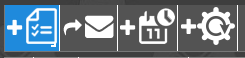
From left to right: Add an Action; Send Email; Add a Calendar Event; Convert Ticket to Template or Workflow.
Add Action to a Ticket
When adding an action to an existing ticket:
-
Click on the ticket, the ticket description page will appear
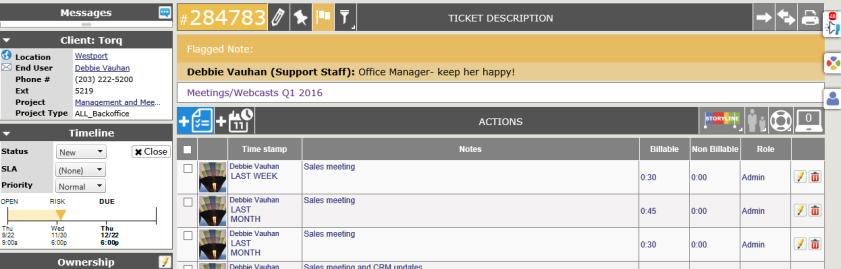
NOTE: If there are no attachments or the stopwatch feature is not used, the columns where the icon would show will not be visible.
If Profile images are in use, the image will appear at the beginning of the note. For instructions on adding your profile image, click here.
Add Action Note
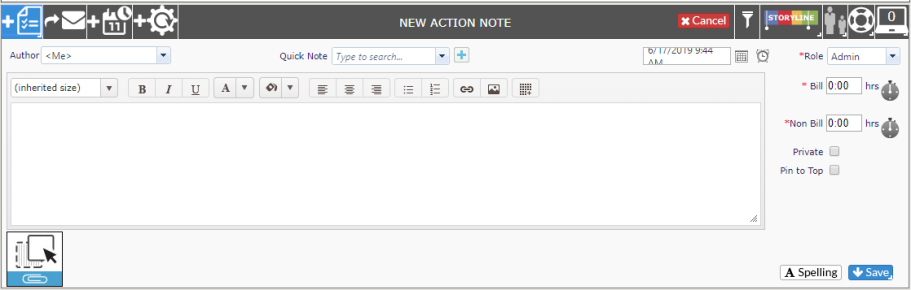
- Click on the blue Add Action button at the top of the action list.

-
The default Author is the person logged into Revelation, and it shows in the Author window as <Me>. If you are entering the action for another staff member, select the appropriate name from the drop down in the Entered by area.
-
If the information is something you add regularly, check to see if there is a Quick Note in the system with the text. If not, you may want to ask your system administrator to add one.
-
Enter your notes, including the billable/non-billable time and rate.
- To refer to a website within the Action Note, type in the URL. Revelation helpdesk will change it to a hyperlink which will take you to the site in a new tab of your browser.
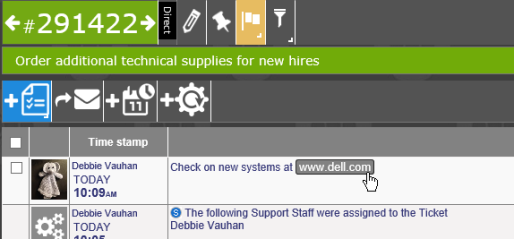
- If you need to refer to another ticket in Revelation, add the ticket number to the Action Note and surround it with double brackets. For example: [[123456]] will link to ticket 123456 in Revelation. The number will be highlighted in the title or in the action note.

-
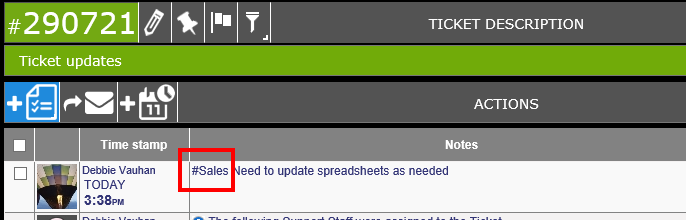
Adding a hastag (#) to text within an Action Note, will allow users to search for the term from Quick Search or a full Search.
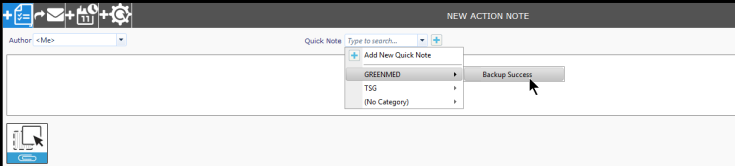
- If you wish to use a Quick Note, select one from the drop down.
-
-
If a Quick Note is not available, and you are authorized to add one, you may click on the add link to the right of the drop down to add a new Quick Note. If you are not authorized to add a Quick Note, this will not be visible.
- If set up in the Admin area, you may have Quick Notes for specific clients or groups within Revelation.
-
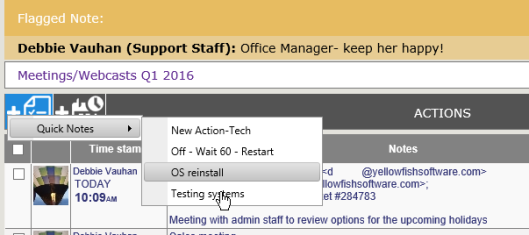
- You can also add a Quick Note by right clicking on the Add Action button. This brings up a Quick Notes tool tip. Follow the arrow to the appropriate Quick Note. It will open a new Action Note, insert the selected Quick Note, and allow you to update the billable/non-billable time, reassign the action, etc. as with any other new Action Note.
If the Quick Note changes any status, or adds time, you will see a note once the Quick Note is selected and added to the Action Note.
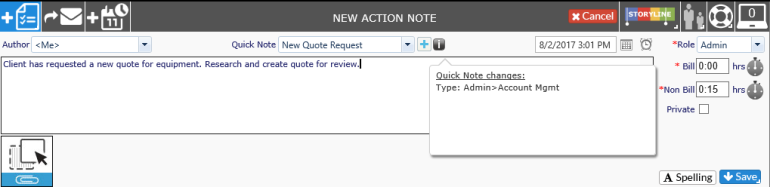
NOTE: The Quick Note will not change the Action Note until you hit Save.
If you have permission, you will be able to create a new Quick Note by clicking on the plus sign to the right of the drop down in the Action Note.
- User and Manager levels will not be able to create draft Quick Notes; any Quick Note created by these levels will be published. Only Admin and Super Admin level users can create drafts.
If you wish this to be a Private note, only visible to internal staff, check off the Private box. (This feature must be enabled in Ticket Options to show.)
-
-
A Private note is not visible to clients using the End User interface and it will not be printed in a report.
-
Private notes may be available or visible to Staff Plus users; depending on the configuration.
-
Private notes are not available to Core use
-
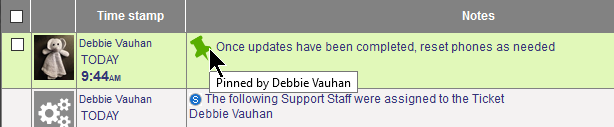
- NOTE: When a note is pinned, the end user will see it, as long as it is not a Private Note, in the Self Service Interface.
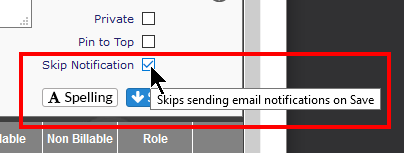
- Check the Skip Notification box if you don't want an email notification to be sent out by Revelation helpdesk when the action is saved. These emails are based on the settings in the Alerts area of the projects. This is set in the Admin area.
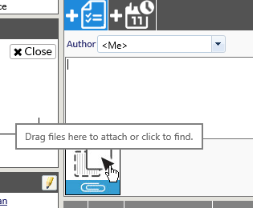
If Attachments is activated, you will be able to drag files from your computer to the note to attach it to the specific ticket. You can also click on the icon to browse your computer for the file to attach.
- If you want to pin this ticket to the Dock bar on your home page, click the Pin icon in the bar with the ticket number at the top.
-
Click on Save when you are done
-
To close this ticket, either use the status pull down menu on the left of the screen or simply click on the Close link next to the pull down.
- By clicking on the envelope icon next to the Add an Action button, users have the ability to create an email entirely within Revelation. It will automatically copy that email into an Action upon sending. For more information, see Sending Email in this help guide.
- NOTE: To ensure this is working, Administrators must enable "Email to Ticket Action Note" under Email Settings.
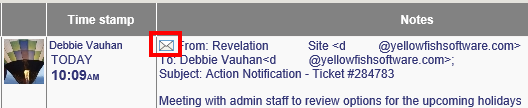
- You will receive a notification if the email was successfully sent. When completed, the text will be included as part of the ticket as a note. There will be an email icon at the start of the note.
- If available, you may apply an existing template or workflow to the ticket. For more information on this, see Convert Ticket to Template or Workflow in this help guide.
Save and Close
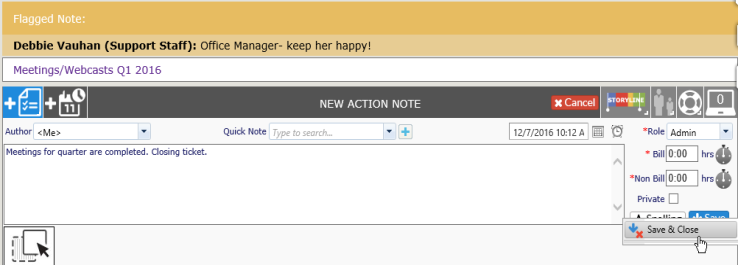
If the action being added is the final action needed in the ticket, you can right click on the Save button in the action. This gives you the option to Save and Close the ticket in one step.
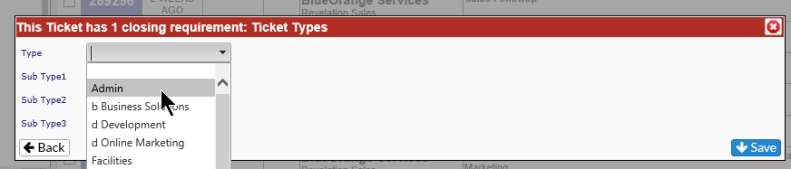
NOTE: If the ticket is missing information which is required before closing a ticket (i.e.: Ticket Type and Sub-Type), you will receive a warning from Revelation with the option to fill in the missing information. Once the information is updated, click on Save to Save and Close the ticket.
Delete an Action from a Ticket
If necessary, an existing action note can be deleted from a ticket. Simply click on the red garbage can icon at the end of the note. You will receive a notice to verify you want to delete the action. Once confirmed, the note will be deleted.
NOTE:This removes time against the user and the ticket. System notes cannot be deleted from a ticket.