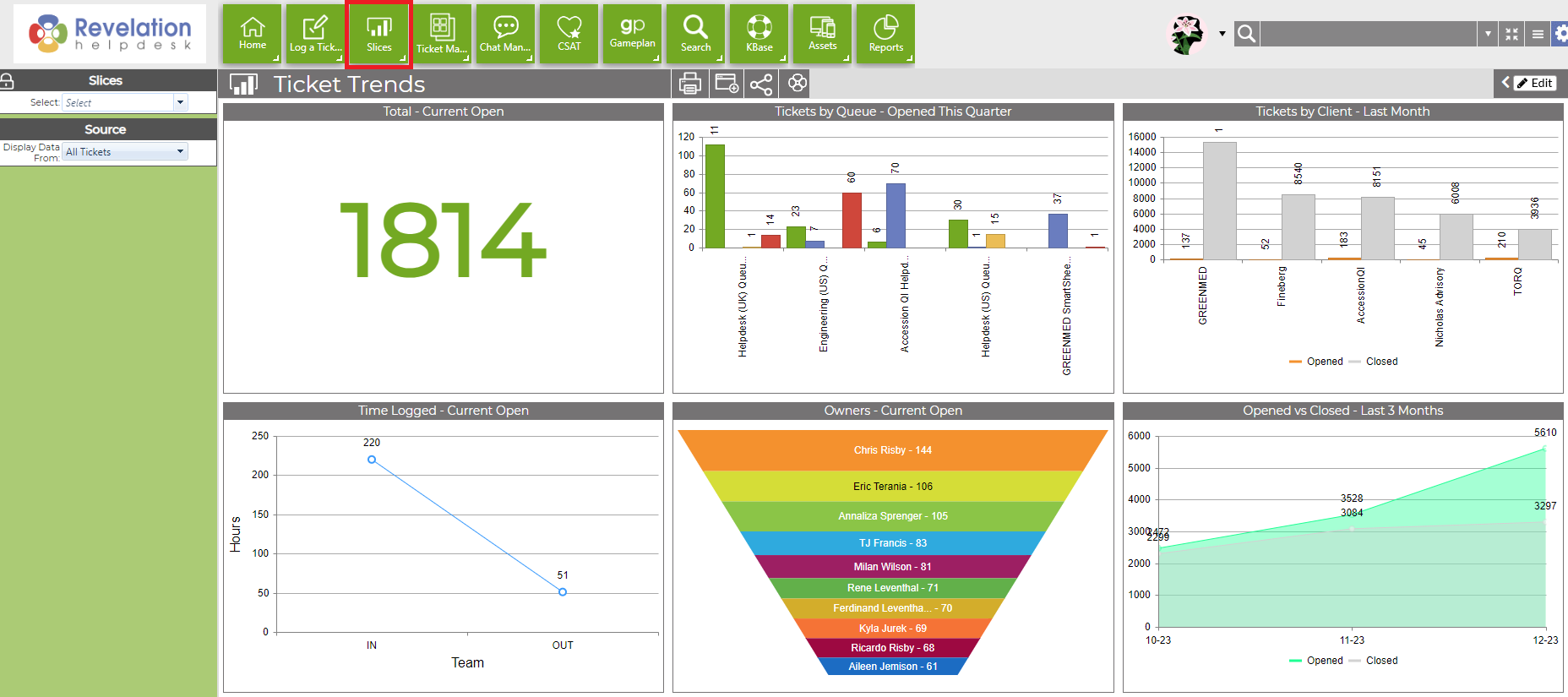
Slices can be configured to display up to 15 charts in a 3 x 5 grid, with an optional ticket list underneath . If you only use two charts across, Revelation will fit the charts to the screen. Multiple views can be created and switching between them is easy.
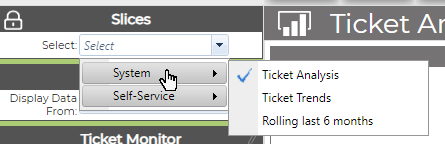
To view Slices, click the button in the Main Navigation bar at the top of the page. Or right click the button and select from the drop down of available Slices. You'll see options to view your Personal Slices, System Slices or, if active, Slices set for the Self-Service Interface. These are client-facing Slices and can be set by client or client type
You can add your Slices view to Revelations for quick access. Just click on the Revelations icon in the top bar.

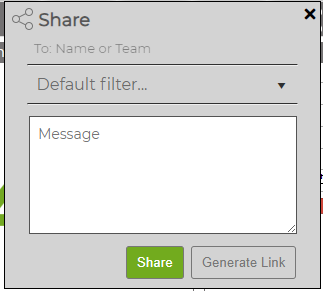
Share your slice by clicking on the Share icon.
You can choose who you want to share your slice with by clicking the To: Name or Team field and selecting the relevant users from the drop-down menu. If necessary, you can also add a message to the slice you are sharing in the Message text box - when you share the slice, your message will be included in the email.
You can either share your slice through Revelation (by clicking Share), which will send a notification to the recipient's Messages box, or you can generate a link to send (by clicking Generate Link).