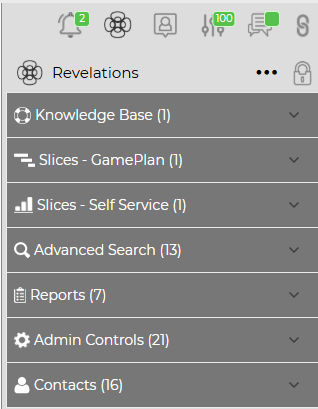
On the right side of the Home Page is Revelations. It is a listing of saved areas within Revelation, including reports, searches, dashboards and, if available to the user, places within the Admin area.
If it is collapsed, you will see an icon on the upper right side of the home page. You will see the Revelation icon just below the Activity Feed icon, if it is active.

When you click icon, it will fly out and hover over the home page; move the mouse off the feed and it will collapse. If you want to keep it open all the time, click on the lock icon which is visible when the fly-out is open. This will keep Revelations open all the time; the width of the home page will adjust accordingly.
NOTE: If your screen resolution is less than 1280 pixels, you will not have the option to lock the window.
NOTE: If both the left column and Revelations column are unlocked, the entire home page will show just tickets.
|
If you have no Revelations saved, you will see this image on the flyout. |
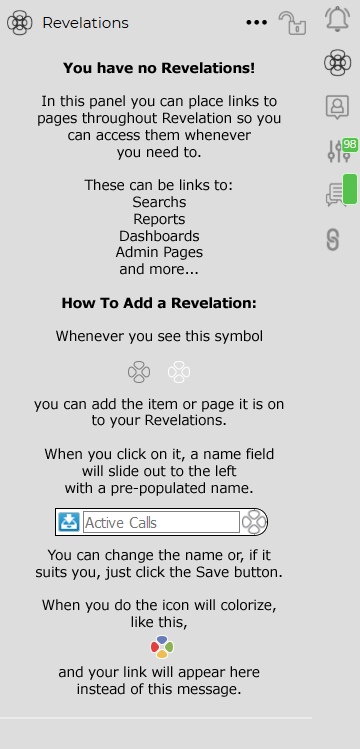 |
Add to your Revelations
- Click on the Revelations logo next to the item you want to save
- A box opens - type in the title you want to use, or leave it at the default title
- Click on the blue Save icon

The Revelations icon will go from blank to full color, indicating it has been saved to your Revelations list.

Run Revelations
- Open the fly-out if it is not already open
- Click on the item you want to run
It will take you to the page to run the report/search, or to the bookmarked area within Revelation helpdesk.
If it is a report, you will still have to click Display; if it is a saved Search, it will run automatically.
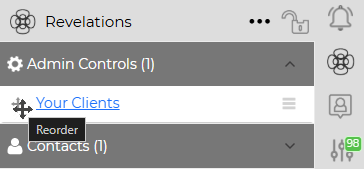
Reorder Revelations List
- Click on the four-way arrow to the left of the item
- Hold your mouse key and drag the item to its new location and release the mouse.
Edit/Delete a Revelations Shortcut
- Open the fly-out (if it is not already open)
- Click on the three lines next to the item you want to edit or remove
- A drop down will appear
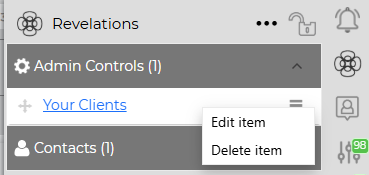
- Click on Edit to rename the item on your list. Remember to save the change.
- Click on Delete to remove the item from the list completely
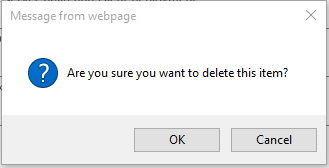
When you click on Delete, you will see a dialog box asking if you want to delete.