
Configure the Self-Service Interface by Client Type
NOTE: Only Super Admins can make changes in the Self-Service area.
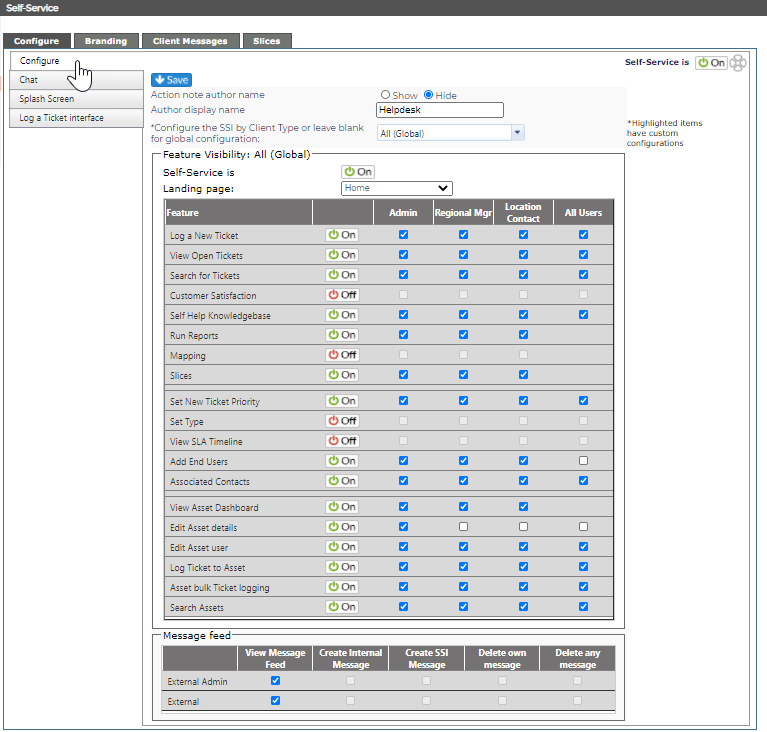
Action note author name
By selecting Show, the End User will see who wrote the action note. If Hide is selected, you will have the option to put in the preferred "Author display name" which your End User will see instead of the Technician's name.

Configure the Self-Service Interface by Client Type
The drop down will show all of the Client Types set up in your copy of Revelation helpdesk. If left at All (Global), all client types will be affected by the changes. If you select a specific client type, any changes will over-ride those selected for Global. For example: if Tech clients have the Self Help Knowledgebase visible to all Users, and the Global is set to not see it, any client type other than Tech will not see the Self Help Knowledgebase at all.
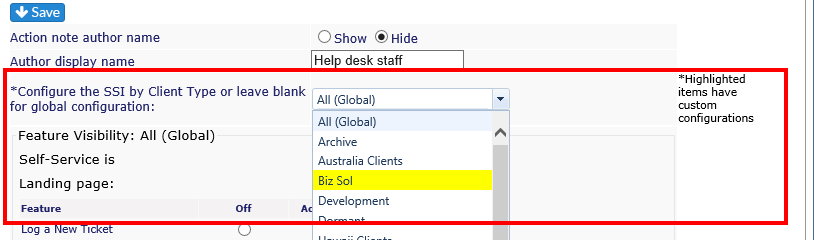
Once the changes are saved, the Client Type will be highlighted so you can tell which group has been edited outside of the global configuration.
Select Landing Page
The drop down sets the page where the End User will land upon logging into Revelation. If the option is set to Off, it will not be available in the drop down.
|
Home |
The standard landing page, showing open tickets, etc. |
|
Log a Ticket |
Takes user direct to Log a Ticket screen |
|
Search |
Search for tickets |
|
Self Help |
Knowledge Base page |
|
Reports |
Links to last 12 months of reports published for client |
Feature Visibility Options
This part of the module allows you to select which features show on a client's End User Interface page. You have the option to allow the particular feature to be seen only by External Admins, Regional Managers, Location Contacts, by all level of client users, or not at all.
Set the option by selecting the appropriate check box on the grid. Remember to hit Save when you are done.
As with many modules within Revelation, if a particular module is not active, the option will not be visible. If Self Help Knowledgebase is disabled, Self Help will not appear as an option on this grid.
|
Log a New Ticket |
Log a Ticket tab will be visible and user can log new tickets based on their access level. |
|
|
View Open Tickets |
View currently open tickets |
|
|
Search for Tickets |
Provides a Search tab to allow for searching of tickets by status, etc. |
|
| Customer Satisfaction | Ability to see the CSAT button in the nav. What areas the user will see is based on their level |
|
|
Self Help Knowledgebase |
Provides access to Knowledgebase articles which have been tagged for External Users |
|
|
Run Reports |
Allowed users may view published reports for up to the last 12 months. |
Not available for User level. |
|
Set New Ticket Priority |
If active, allows user to set priority level on new tickets. If not active, there will be a check box for "Check if Multiple Users are affected" |
|
| Set Type | ||
| View SLA Timeline | See the SLA timeline in tickets where the SLA is active. | |
|
Add End Users |
Allows users to add additional end users for the client. |
|
| Asset Dashboard | View the Assets for the company |
|
| Edit Asset details | Allows users to edit the details in an asset | |
| Edit Asset user | Allows users to edit the asset user | |
| Log Ticket to Asset | Allows users to log a ticket to an asset | |
| Asset bulk Ticket logging | Allows users to add log multiple tickets with multiple assets | |
| Search Assets | Allows users to search for assets |
Message Feed Option
This part of the module allows you to select if messages will be visible to the External User and the External Admins. To create messages for External Users, see the Client Messages tab in this section.