The Notifications feed is similar to some current social media platforms: you can add items, but you will not be able to edit the text after it is posted. To do any editing, you will need to delete the existing message (if allowed) and repost with the corrections.
Add a new notification:
| Click on the new notification + icon on the right side of the Your Feed Bar | 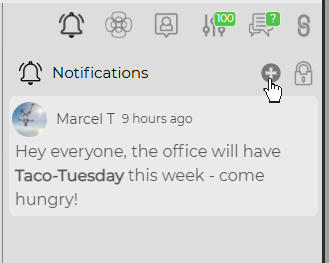 |
| Type your message in the Send notification pop-up window. | 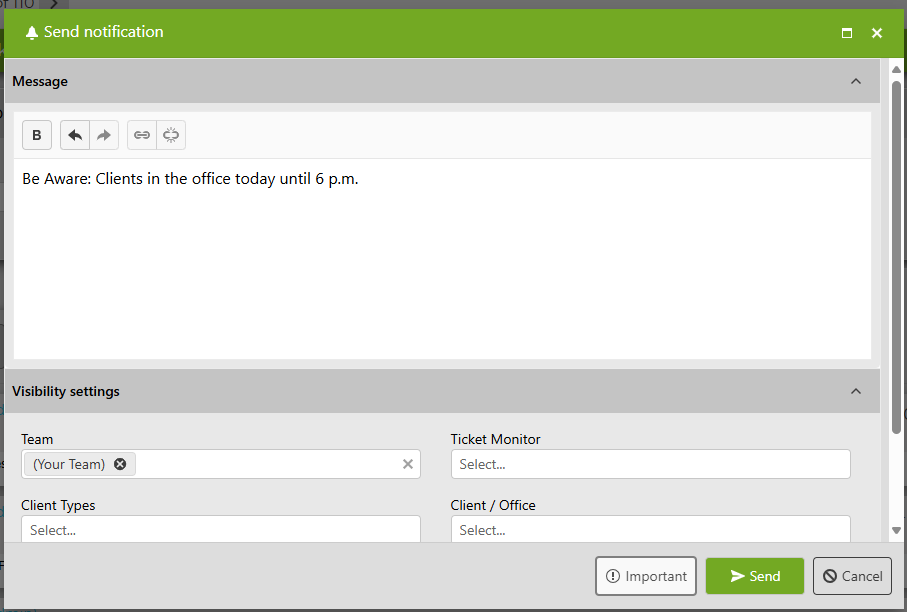 |
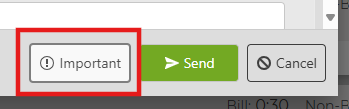
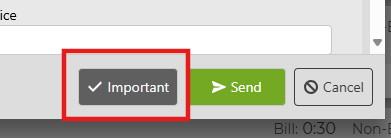
| If the message is important, click the Important box - a check mark will appear once selected. |
|
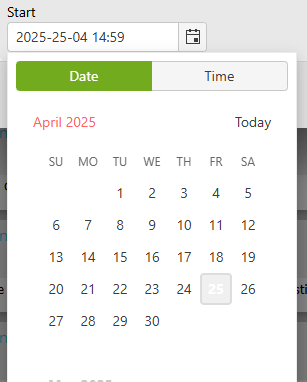
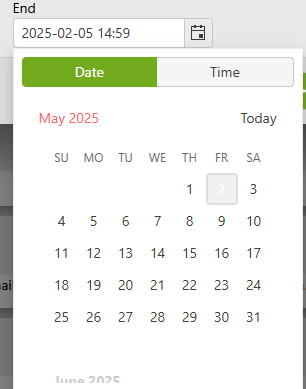
Use the Start and End calendars to select the notification period. Click Set to confirm the date and time.* Note: Minimum time for expiration is 1 minute; maximum time is 60 years. |
|
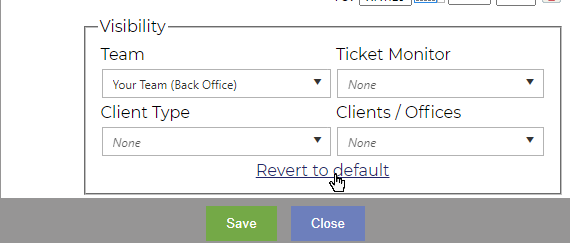
| Choose the visibility of the message based on your Team, your Ticket Monitor (if active in the Admin area), the Client Type and/or the Client.* | 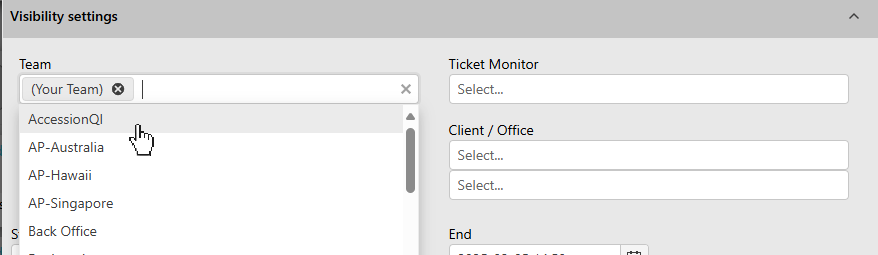 |
|
If you decide you just want the default items or if you wish to restart the selection process for Visibility, click on the Revert to default link above the Save and Close buttons |
|
| Click Send to post the message. |

*This option may not be available based on settings in the Administration area.
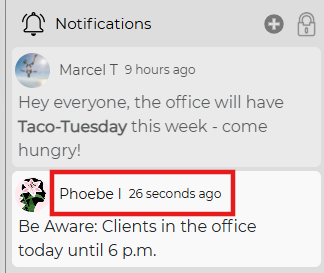
When the message is posted, it will have your profile image (if active), your user name and when the item was posted.
Close a message
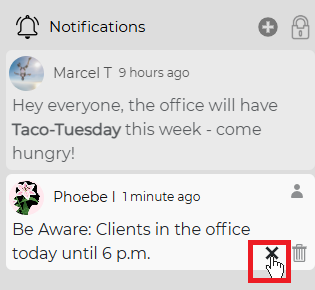
To close a message without deleting it from the system, click on the X to the right of the notification to dismiss it.
Delete a message
If you have permission to delete a message, you will see a trash can icon to the right of the X.
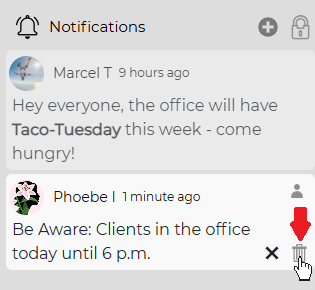
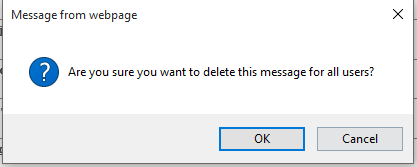
If you click on the trash can icon, you will be prompted to confirm you want to delete the message from the system.