
At the very top of the screen are links to the following information:
- Logo -Links to the Revelation helpdesk website.
- Chat Settings - Set Chat for Internal and External, Internal only or off. Shows who is currently online.
- Internal and External - both balloons lit; Internal only - top balloon unlit; Off - both balloons unlit
- Your name and image - drop down. For details on these options, please see Personalized User Settings.
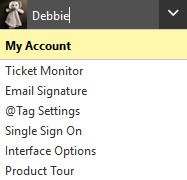
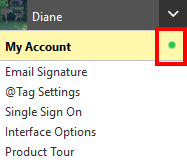
- If you see a green dot next to My Account, it signifies there may be restrictions on what you can see based on the Ticket Access Control area. See your System Administrator if you have any questions.
- Wheel - Admin area to add information to the system (clients, companies, locations, users), manage time, setup configuration - Administrator and Super Administrator only
- Question Mark - this help guide
- Red X - Log out of Revelation
- Quick Search box
- Focus button
- Burger Menu
Utilizing the green buttons across the top of the Home Page allow you to quickly access the following components from any screen in Revelation. These buttons are visible no matter what page you are on in Revelation. (NOTE: Depending on settings in the Admin area, you may not see all the buttons.)

A small arrow in the lower right corner of a button indicates a drop down with a contextual menu. The example below shows the flyout from the New Ticket button.
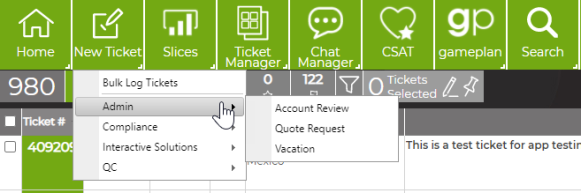
In order of appearance, the buttons are:
-
Home: Returns you back to your Home Page - All users
- Right click to access the various Home Page views
-
Log a Ticket : Log a new ticket into the system - All users
- Right click to access any Ticket Templates available to you
- Ticket Manager: Provides Administrators and Managers global ticket statistics (Only visible if activated in Admin area.)
- Chat Manager: Provides Managers chat statistics & data (Only visible if activated in the Admin area.)
- CSAT: Customer Satisfaction information based on end user ratings.
- Gameplan - Project management tool (only visible if activated in the Admin area)
- Right click to access the Gameplan dashboard or overviews.
-
Search: Search for tickets, company, locations, contacts, knowledge base, etc. - All users
- Right click to access the System, Saved or Recent searches
-
KBase: Knowledgebase home page
- Asset Management: Dashboard showing the number of assets by type and by ticket. (Only visible if activated in the Admin area.)
-
Reports: Run reports on client time, staff time, ticket types, resources, etc. - Administrators and Managers
- Right click to access
-
If your Administrator has added any Custom Navigation options, they will show up after the Reports button.
If you see a green bar across the top of the page, it may be a System Message. These messages will come from YellowFish Software, announcing updates or providing important information on your software.

To clear the message, click on the red X within the Message.