
By default, the Burger Menu is on the right side of the screen. By clicking on your name at the top of the screen and selecting Interface Options, you can turn it off, or move it to the left side of the screen. (Please note: when you do this, the Focus Button will move as well.)
NOTE: If the Burger Menu is turned off in the Admin area, you will not be able to turn it on for your view.
Clicking on the menu will hide the main navigation bar. The buttons will collapse, giving you more screen space for you view. To access the navigation controls, right click on the 'burger' to see all the options available to you.
With Nav buttons open

With Nav buttons closed

To bring the main navigation bar back, click on the Burger Menu again.
Using the Burger Menu
By right clicking on the Burger Menu, you will see all the options you would normally see from the buttons on the navigation pane. This includes Saved Searches and Saved Reports. You will see arrows next to items with more options available to you.
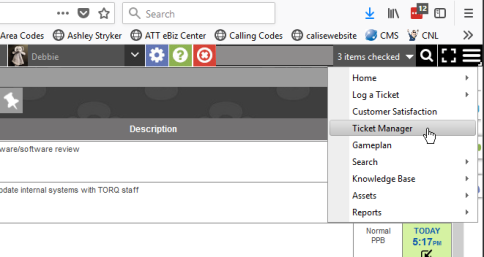
Focus Button
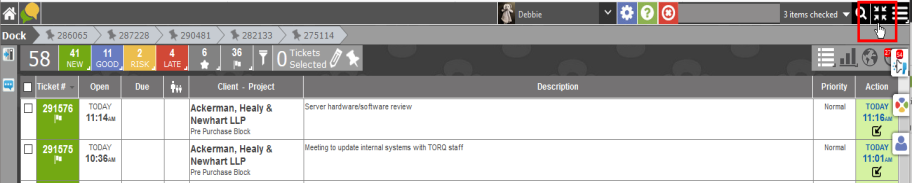
With the Focus Button, you can open and close the Navigation buttons, as well as the left and right column tools with one click.
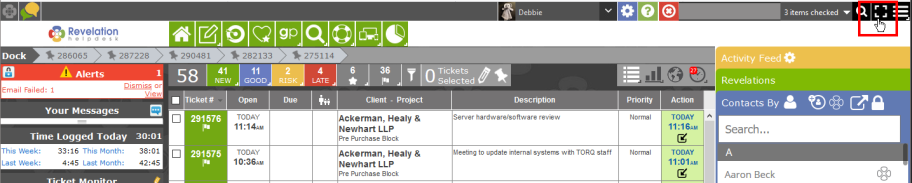
Closed:
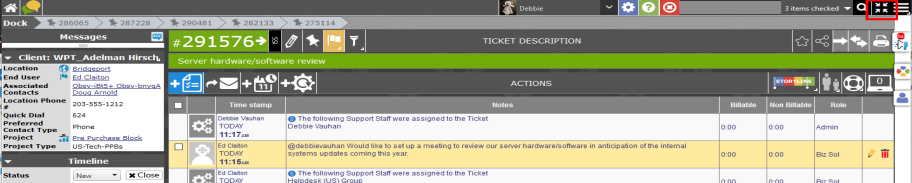
NOTE: When in a ticket, the information in the left column will still be visible. This cannot be closed down.
Move or Turn Off the Burger Menu-Focus Button
The Burger Menu and Focus button can be located on the left or right side of your screen. Or you can select to turn it off.
- Click on your name in the top bar.
- Select Interface Options
- Choose the location of the Burger Menu - Left, Right or Off
- Click Save
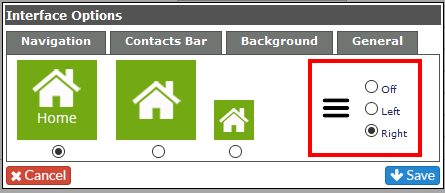
As long as the Burger Menu is available, you will be able to adjust its location on your screen.
Note: If you turn off the Burger Menu, the Focus Button will also be removed.