*Please note: This featured if only available to users who are Managers or above; and only if the Chat feature is enabled in the Admin section.
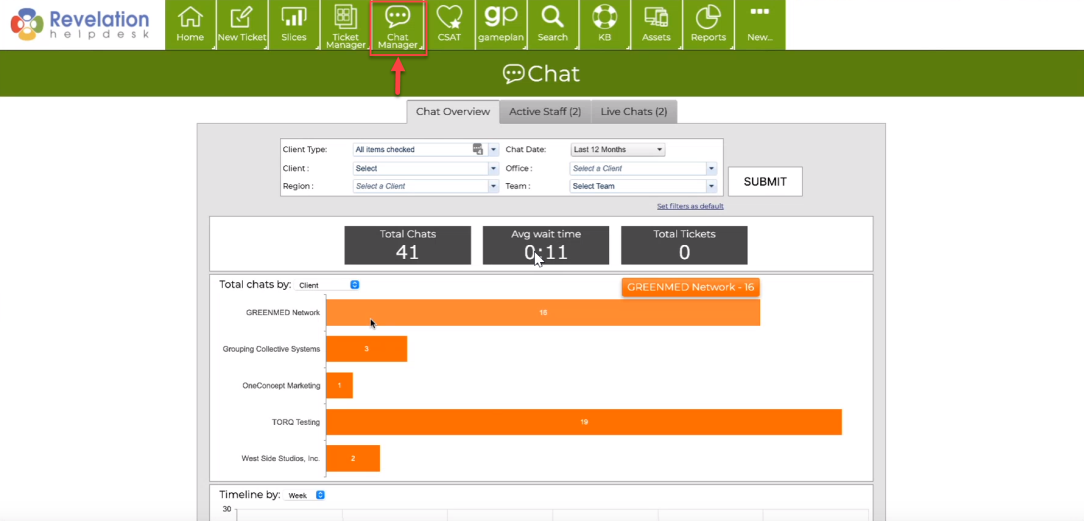
Once you select the Chat Manager from the Navigation bar, you will be given three toggles to select from:
This will provide an overview and totals, that you can adjust based on filters (client type, client, region, chat date, office, and team).
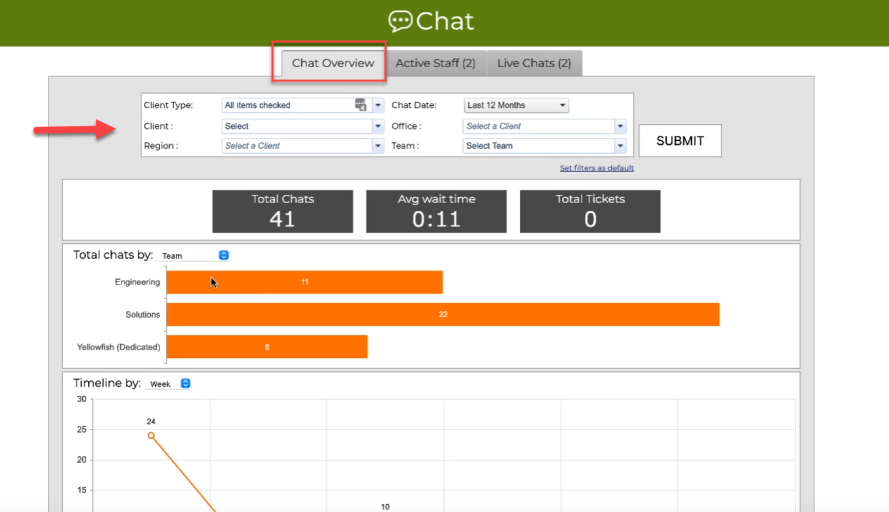
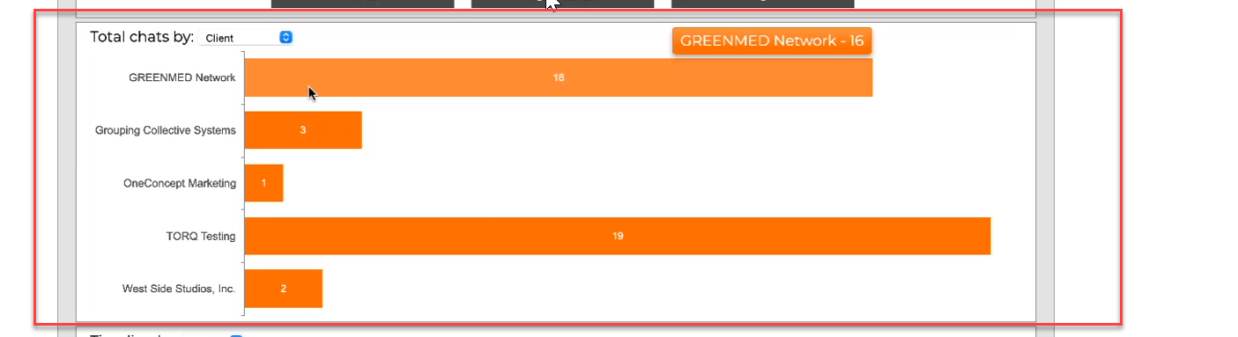
The following visuals will be displayed below the Total Chat by:
A.) Total Chat - which you may filter by Client, Support Staff, Team, Office, or Region
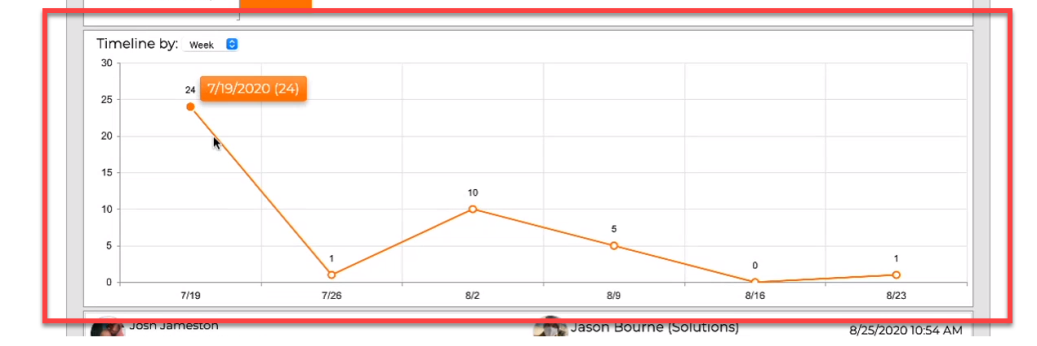
B.)Timeline by- which you may filter by day, week, or month
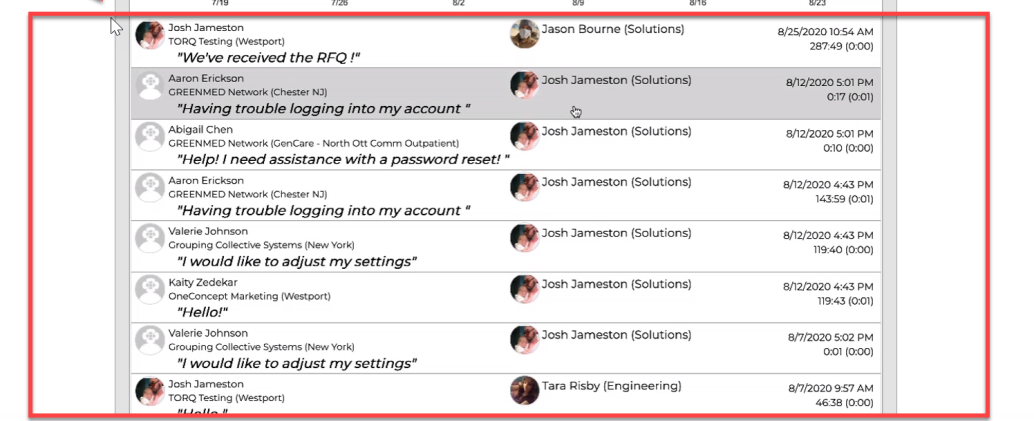
C.) Chats (with the chat message, user information & details displayed). By clicking on a live (or previous) chat, a window will display to view the entire
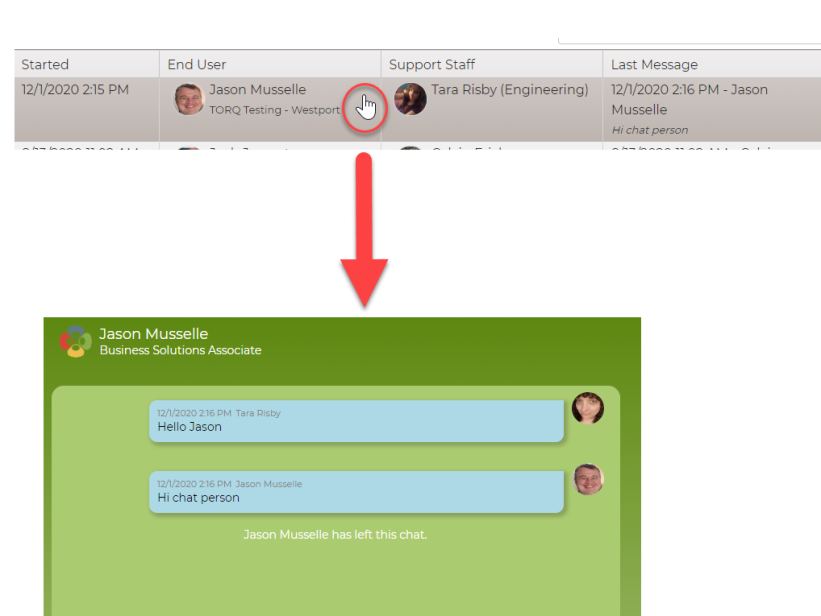
By clicking on a live (or previous) chat, a window will display to view the entire chat conversation.
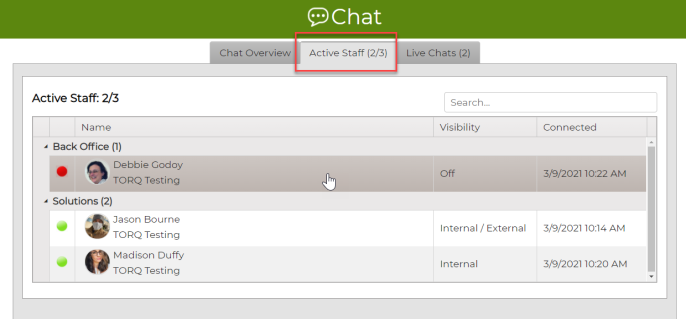
By selecting Active Staff, you will be able to view their name, visibility (internal, external, or off), and when they had connected.
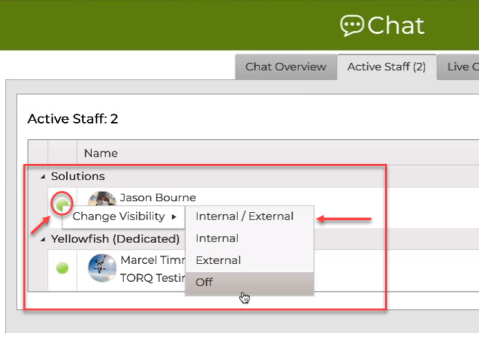
When you click on any active staff in the list, you will be provided the option to change their visibility from the Chat feature.
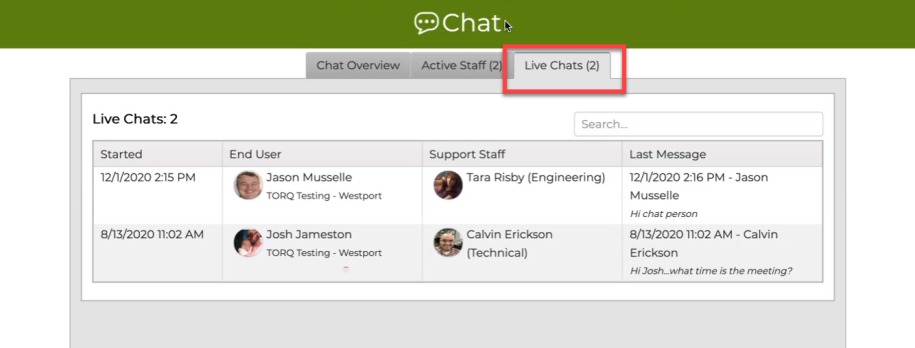
By selecting Live Chats, you will be able to view chats happening in real time. It will also provide the date & time of when the chat started, the end user and support staff, and when the last message was sent. You can also do an search for any Live Chats that are available.