
From this section (Helpdesk Setup>System Options>Chat), you can set several options for internal and external users.
Remember to click on Save after you have completed your changes.
NOTE: Some changes will not take effect until users log out and log back in.
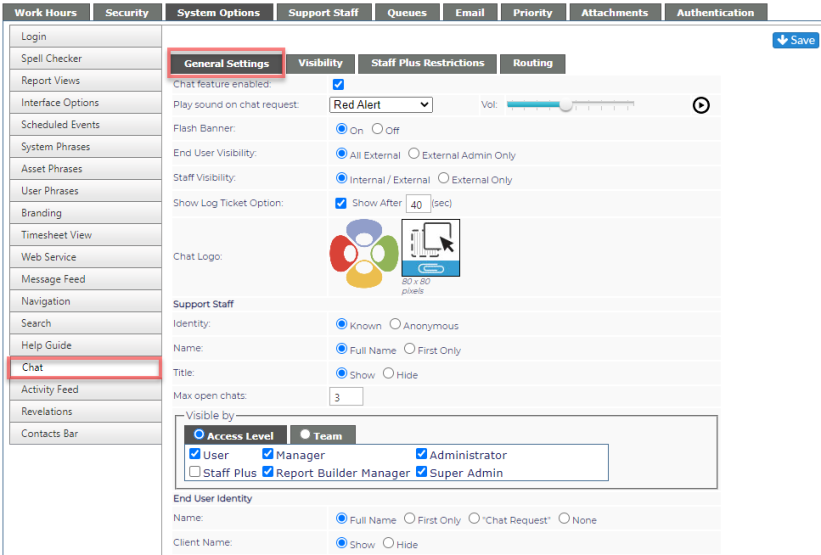
General Settings
| Chat feature enabled | Check box turning the feature on or off in the system. |
| Play sound on chat request |
Select one of the sounds from the drop down to play when a chat request comes in.
|
| Vol | Select the default volume for the sound to play |
| Flash Banner | The banner above the buttons will flash when there is a new message. Turn this on or off from here. |
| End User Visibility | Select if all External users can see Chat or if it will only be available to External Admins. |
| Staff Visibility | Select Internal/External if all users will be allowed to be visible within Chat; or if external users only |
| Show Log Ticket Option | Option to log a ticket will appear after the time noted. |
| Chat Logo | Change the logo to your company logo, etc. |
| Support Staff | |
| Identity | Provides the staff name or an anonymous tag |
| Name | Shows Full Name of the participants or only the First Name |
| Title | Show or hide the Staff's title |
| Max open chats: | Default is 3; maximum 5 |
| Visible by | Set the visibility by either Access Level or Team |
| End User Identity | |
| Name | Shows the client's full name, first name only, no information or a Chat Request notation. |
| Client Name | Show or hide the client name as well as the End User's name. |