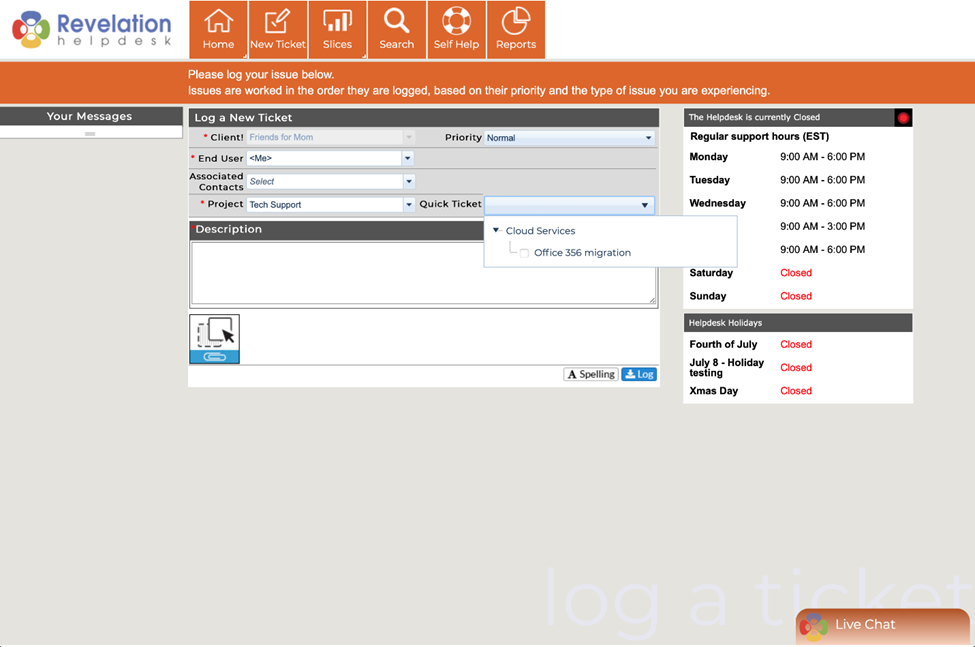
From this area, Super Admins are able to configure the Log a Ticket portion of the Self Service Interface. The interface provides notes regarding logging tickets into Revelation helpdesk which can be set by Client Type(s) and/or specific Client(s).
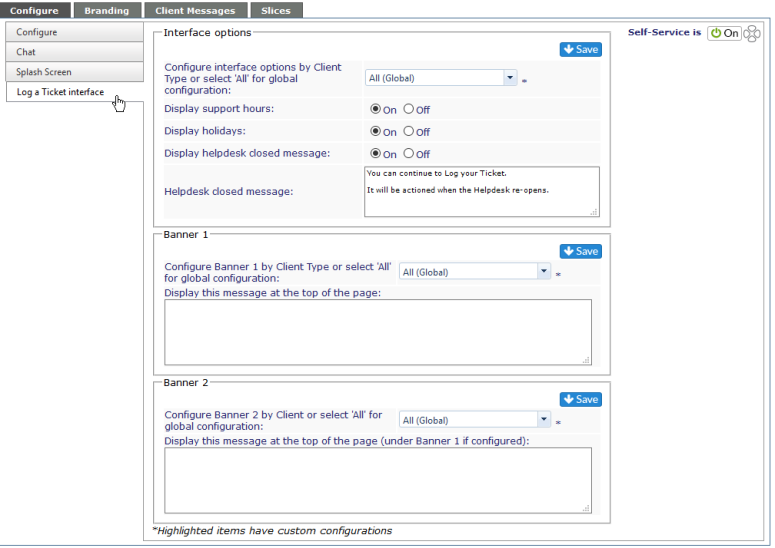
Interface Options
Leave the drop down at All (Global) and any of the following configurations will be across all of your clients. If you want only specific Client Types to see these options, select the Client Type from the drop down. Make your adjustments to the Support Hours and Holiday displays, and hit save.
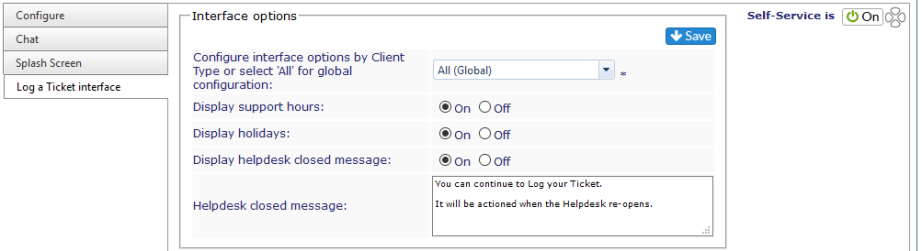
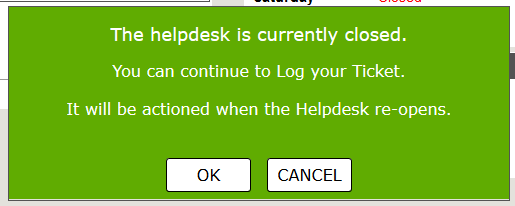
To set the helpdesk closed message, simply type the message you wish to show to your clients. This will display anytime the helpdesk is closed, whether out of hours or holidays.
Banner 1
This banner will be at the top of the page when the Client logs a new ticket. This can be set by Client Type or left at All (Global) to have it appear for all clients.
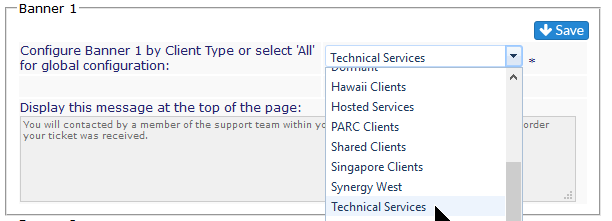
If a Client Type is selected, you will see a check box for Inherit global configuration. The Display this message at the top of the page area will be grayed out and not available for editing.
NOTE: Both Banners support hyperlinked URLs. Type in the full URL needed and the link will be created automatically.
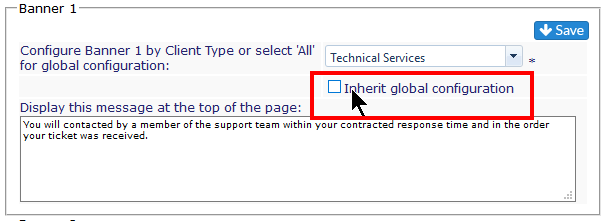
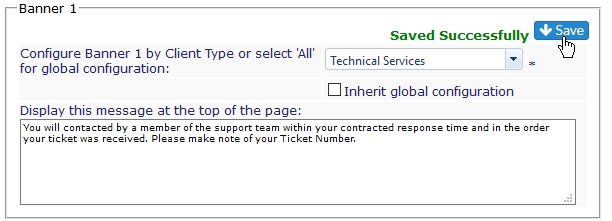
To make a change for a particular Client Type, uncheck the box and the Display area will be available for editing. and specific message for the Client type can be added. When finished, click the Save button at the top of the Banner 1 box.
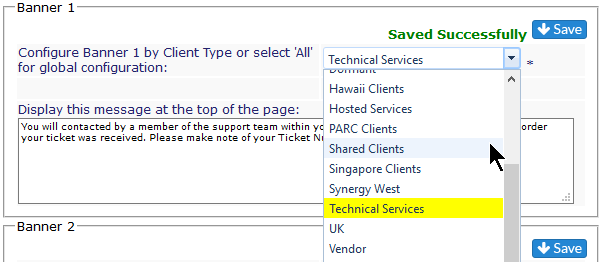
The Client Type will be highlighted in yellow when the drop down is viewed.
Banner 2
A second banner can be added, by Client, to the Log A Ticket page. If the box is left blank, nothing is shown. If text is added, and the drop down is set at All (Global), all clients will see the message. If a specific client is selected, a targeted message can be added. The setup is done the same way as for Banner 1.
- Select the client from the drop down
- Add the text
- Click Save
Any client with a specific message will be highlighted in yellow when the drop down is viewed.