NOTE: Administrator level users will be able to see the Teams and Roles, but are not authorized to make any additions or changes. Only Super Admins have the ability to add/edit/inactivate/delete teams or roles.
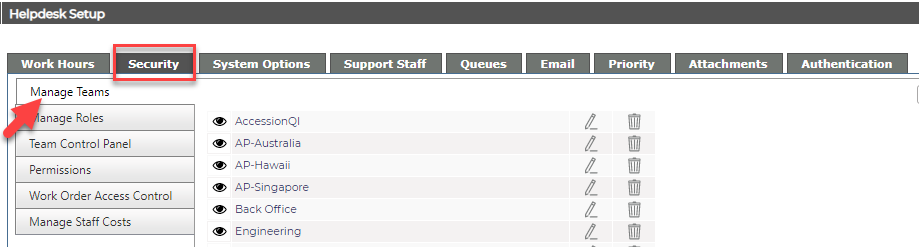
To Add a Team
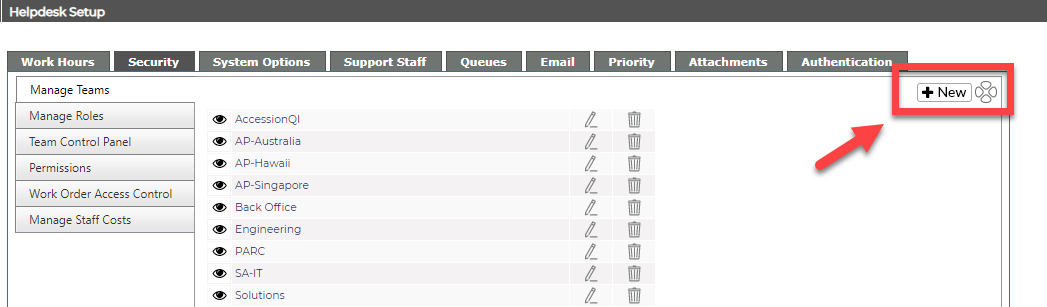
Click on the +New button at the top of the screen
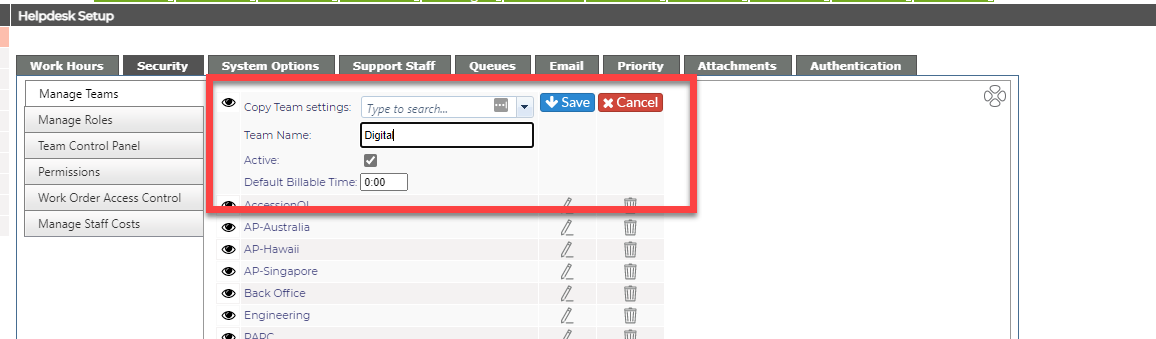
Enter the Team name, and choose active. Then, enter the default billable time for that particular team. This will automatically add the specified amount of time to an Action Note for members of that team. Remember to click on Save when done.
Clicking on the magnifying glass in front of a Team name will take you to the Team Control Panel.
To Copy Team settings
Sometimes, you may want to copy a team's settings for a new team as they will be similar. To copy a team, click on New and select the team to copy from the drop down. You will then add in the Team Name, ensure Active is checked if applicable, and add in the Default Billable Time.
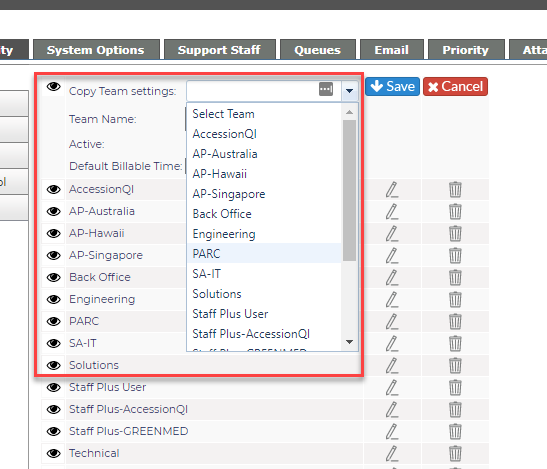
NOTE: Copying the Team Settings does not copy the team members. A staff member can only be a assigned to one team.
To inactivate a Team
Uncheck the Active box. It will display at the bottom of the list in italics and the font will be gray.
To Edit a Team
Click on the pencil icon next to the team name. Edit the Team name in the open box.
To Delete a Team
Click on the garbage can icon at the end of the line for the Team Name. When deleting a Team, a warning message will appear to ensure you want to delete the Team.
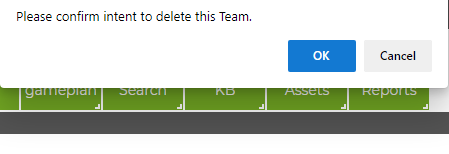
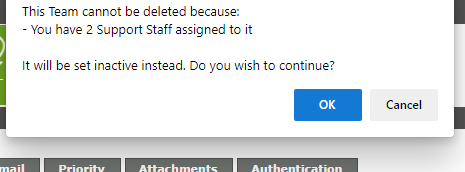
If there is Support Staff assigned to the Team you are attempting to delete, you will be unable to delete the Team until you unassign the Support staff. However, a message will appear with the option to set the Team to inactive.