
From this sub-tab, Admins and Super Admins will be able to Add, Edit and Delete Workflow Types.

Add a Workflow Type
The first step in creating a Workflow Template is to ensure there is a template type set up first.
If the template type is new, click on Add New at the top of the screen and type in a name for the template which will be descriptive enough for all to use.
-
Ensure Active is checked off for the template to be available
-
Assign the teams, based on your system.
-
Click Save
You can now create a non-recurring workflow or a recurring workflow based on the template type.
Edit a Template Type
By clicking on the pencil icon next to the name of the template type, you can edit the type, assigned teams and turn the type active/inactive.
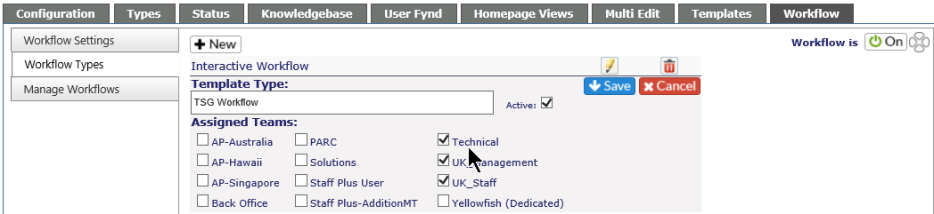
Click on the Save icon to keep any changes or the Cancel icon to retain the current settings.
Turn a Workflow Type Inactive
Click on the pencil icon next to the name of the template type you wish to turn Inactive.
Uncheck the Active Box; click on the Save icon to keep the change or the Cancel icon to retain the current setting.

When a type is turned inactive, it will move to the bottom of the list, and the name will be grey and italicized.
Delete a Workflow Type
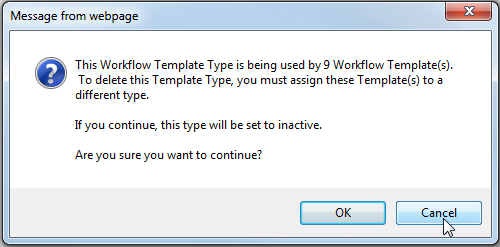
To delete a Workflow Type, click on the red X in line with the name of the Workflow. You'll receive a warning message.
If the workflow is in use, you will see the following:
If the template is not being used, you will see the following:
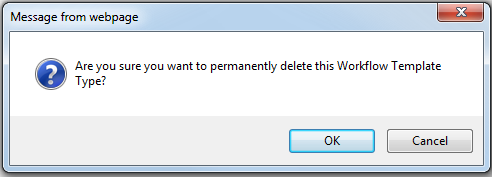
If you wish to proceed, click OK. If you wish to retain the type, click cancel.