Multi User Edit allows users of Revelation to edit multiple users at the same time as well as Bulk Ticket logging for the users. Ability to use this feature is based on their user level or team membership. Only Super Admins can activate or deactivate this module for Revelation.
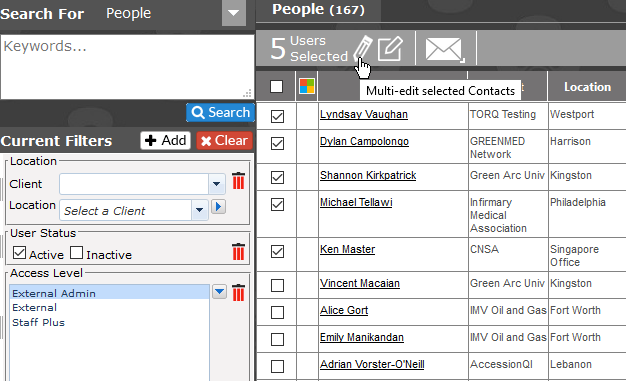
When you select users from one of the ways listed above, the Multi Edit bar will appear showing the number of users selected, the edit pencil, log a ticket icon and email icon.
Multi User Edit Settings
Multi User Edit can be done from the following areas in Revelation:
- End User list in Client Manager
- Search
To edit multiple contacts, select the users, then click on the pencil icon:
A dialogue box will appear allowing you to edit available Contact Details.
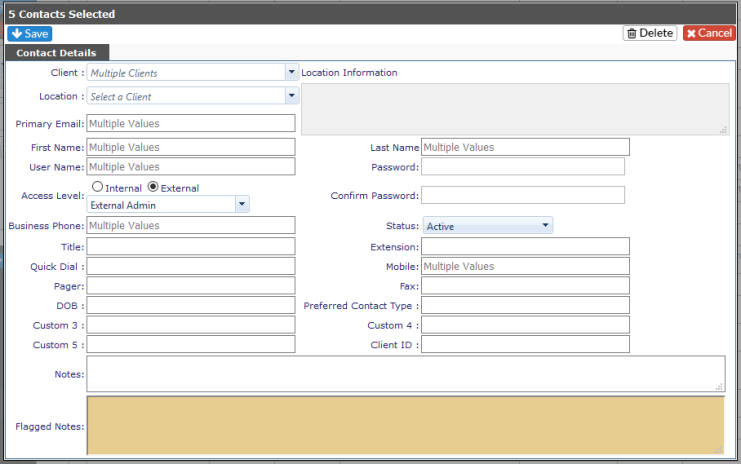
Once any changes have been mace, click Save. The updates will be saved to all the selected End Users. If you click Delete, all the users will be deleted from Revelation. If you don't want to make any changes, click Cancel.
Bulk Ticket Logging
Bulk Ticket Logging can be done from the following areas in Revelation:
- End User list in Client Manager
- Search
Select the users from either the End User List for one client, or from Search for multiple clients and click on the Log a new Ticket icon in the Multi Edit function at the top.
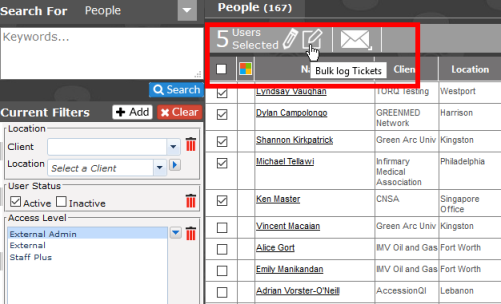
Once you click on the Bulk log Tickets icon, the standard Log a Ticket screen will appear. At the top, instead of a single end user, it will let you know how many are selected. By hovering over the link, you will see the names of those being set as the end user.
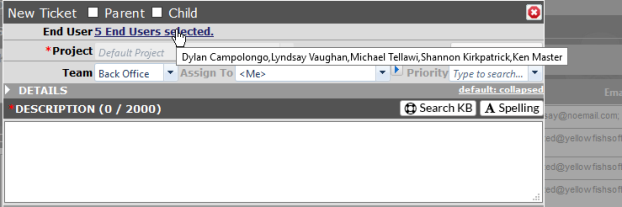
Since there may be multiple clients, the tickets will be logged to the Client's primary project.
NOTE: If no primary project is set for the End User's Client, the ticket will be logged to the most recently created active project in the Client's Project list.
Depending on the Log Options settings you have for a new ticket, you may be taken into one of the tickets. You will be able to page through the tickets using the arrows located by the ticket number.
NOTE: If a Gameplan project is the default, the ticket will be logged, but no workstream will be assigned.
When the tickets are logged, they will appear on the home page.
Bulk Email
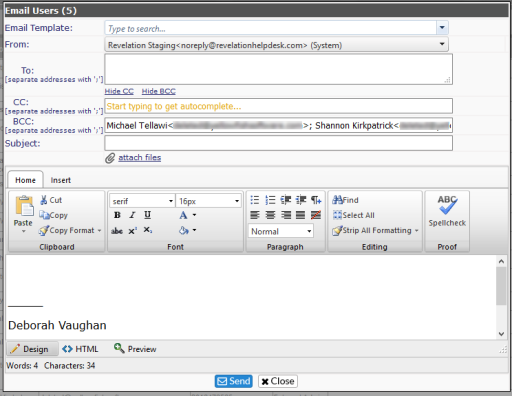
In the same way you can log a ticket to multiple end users, there is a way to send bulk emails.
By right clicking on the envelope icon, you can select to put the selected users in the To:, CC: or BCC: field.
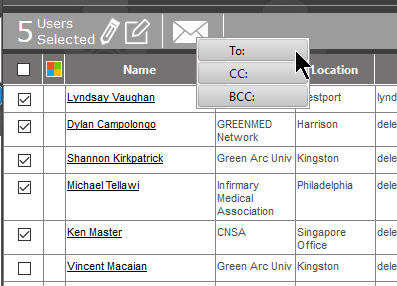
You will then see the Email dialogue box, with the selected users in the appropriate address box.