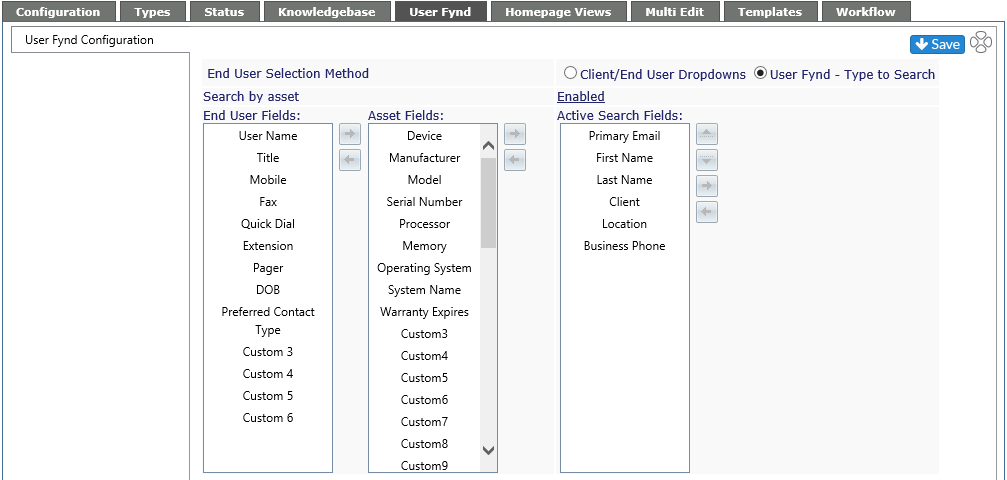
Used to help log a ticket, Revelation allows you to search for a contact using up to 10 separate fields, including first name, last name, phone number, location, title, and as always, contact’s first and/or last name. User Fynd is enabled by default in Revelation. If you do not wish to use it, a Super Admin must disable it here.
Note:Some options not available in Core.
End User Selection Method
Select the radio button to have users select from the Client, then the End User, or the User Fynd - Type to Search (ships as default).
Add Fields
There are up to 19 fields available from which to choose the search fields for User Fynd. The following will be pre-populated as the default:
-
First Name
-
Last Name
-
Client
-
Location
-
Primary Email
-
User Name
Any of these can be deselected or the order rearranged at any time.
To add a field to the Active search Fields:
-
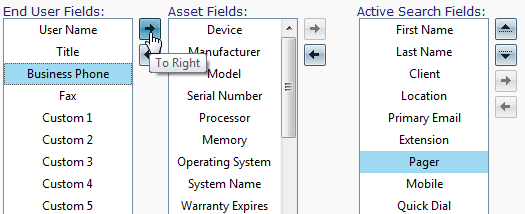
Click on the field from either End User Fields or Asset Fields (if enabled)
-
Use the To Right arrow to move the selected item to the Active Search Fields column or you can drag the item to the Active Search Field column
-
Remember to click the Save icon at the top of the page to keep your changes or navigate away from the page to cancel the changes.
Remove Fields
To remove a field from Active Search Fields
-
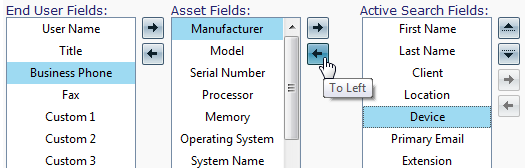
Highlight the item to be removed
-
Either click on the To Left arrow from the appropriate column (End User or Asset Fields) or drag it back to the appropriate column.
-
Remember to click the Save icon at the top of the page to keep your changes or navigate away from the page to cancel the changes.
Change Search Field Order
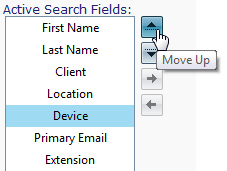
The order in the Active Search Fields will determine how Revelation searches for the information. To change the Search order:
-
Click on the item you wish to move
-
Use the Up and Down arrows or drag the item to the position on the list
-
Remember to click the Save icon at the top of the page to keep your changes or navigate away from the page to cancel the changes.