If a Status is set to On Hold, and you have the Service Level Management active, it will stop the clock to prevent a ticket from going late while it is on hold.
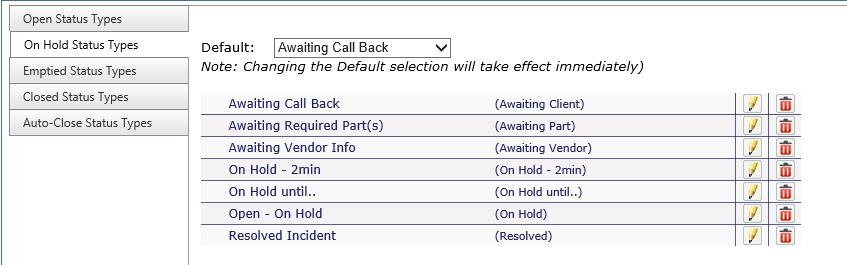
Add New On Hold Status
-
Click on the New button at the top of the page
-
Name the status type
-
Provide an Alias (short name) for the status type
If you wish to allow staff to add time to an On Hold ticket, check the box in line with Can add time to a Ticket.
-
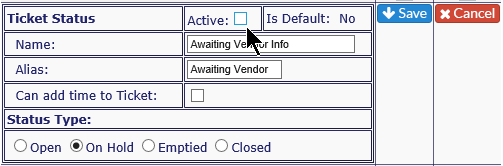
If the status type is to be active, ensure the Active box is checked
-
-
If status type is to be inactive, ensure Active box is unchecked
-
An Inactive Status will show at the bottom of the list, grayed out and in italics
-
-
Select the Status Type (On Hold)
- Auto Hold - If active, you can set a Delay, what status the ticket will revert to when it comes off an Auto-Hold, and Team Visibility.
- Delay drop down options include: Working Minutes, Working Hours, Working Days, Calendar Months or Prompt for date
- Off auto-hold status can be set to either the Previous Status, or any available Open Status Type.
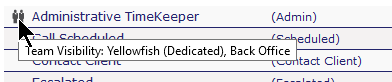
- If a status has Team Visibility options selected, you will see an icon in front of the status. When you roll over it with your mouse, the teams will be visible.
- Auto Hold - If active, you can set a Delay, what status the ticket will revert to when it comes off an Auto-Hold, and Team Visibility.
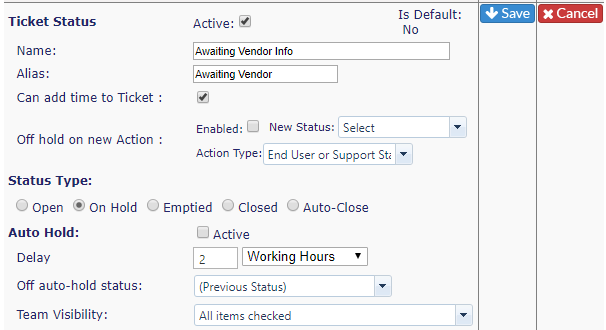
- Click on the Save icon, or if you don't want to save the status, click on the Cancel icon
Turn On Hold Status Inactive
-
Click on the pencil icon to the right of the status you wish to change
-
Uncheck the Active box
-
Click on the Save icon or, if you don't want to keep the change, click on the Cancel icon
Delete On Hold Status
-
Click on the red delete button to the right of the status you wish to delete
-
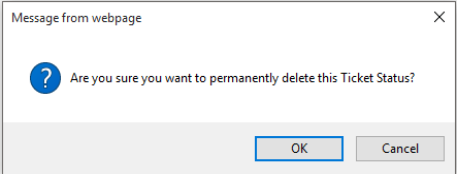
You will get a warning message - if you wish to delete, click OK, if not, click Cancel