
Edit Project from Project Details Screen
Project Templates allow for quick addition of a project to a client.
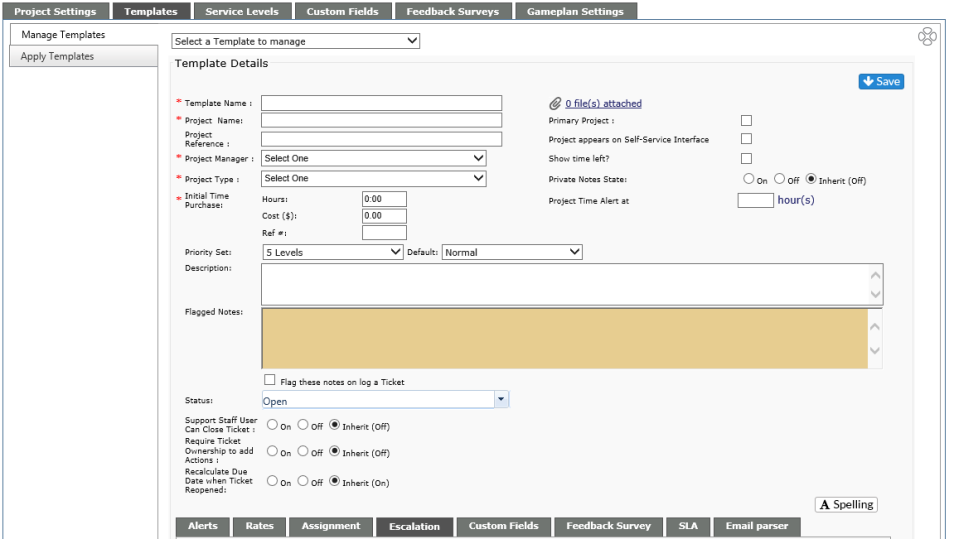
Manage Existing Template
-
Select a template from the drop down list at the top of the page
-
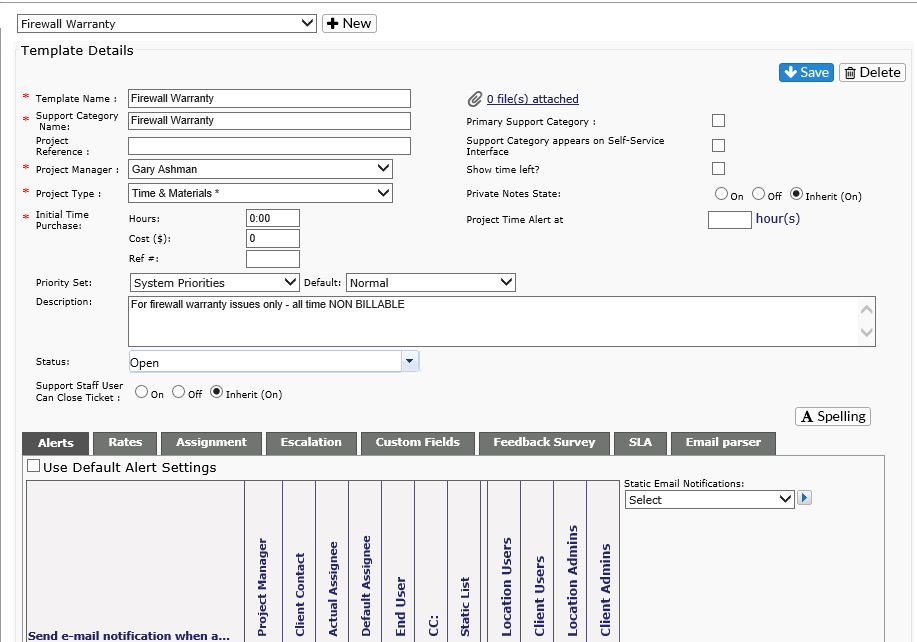
The information for the template will show and can be edited as needed.
-
-
Template details can be edited
-
Alerts, Rates, Ticket Assignment, Escalation, Custom Fields, Feedback Survey, SLA and Email Parser can be viewed/edited by clicking on the appropriate tabs.
-
-
Remember to hit the Save icon when done editing.
Edit Project from Project Details Screen
If a project is associated with a template, edits can be made to the overall template or to just the project associated with the client.

Use Template Settings
If you wish to remove the project from the Template settings, in the Project Details screen, uncheck the Use Template Settings box by the Project Template name. Any edits made to the project will not affect the template, but will change the settings for the client.
Click here to edit Template Settings
By clicking on this link, you will be brought back to the Template. Any edits/changes made will be rolled out when saved.
Delete a Template
-
Select the template from the Select a Template to manage drop down at the top of the page
-
Click on Delete icon on the top right of the page.
-
WARNING: There is no warning before you delete the template. Be certain you want to delete it.