Settings from this tab include allowing Auto Login and setting the system default password.

Auto Login
If enabled, will allow for passwords to be remembered once user name is entered. If disabled, users will have to put in their login and password each time.
-
Be sure to click on Save after changing the status of Auto Login.
Default User Password
Administrators are able to set the Default User Password for new users to the system. The system ships with the password set at revelation1.
-
Be sure to click on Save after making any changes to the default password.
Password Auto Complete
Turns on the Auto Complete function to allow the browser to remember what was previously entered.
Allow Mimic Login (Super Admin Only)
Activates the Mimic feature so a Super Admin can view any End User's Revelation helpdesk, with that user's settings, etc. Can be used to review a user's settings when they are having issues or verify a user has a feature activated.
You can use the mimic feature from two locations in Revelation:
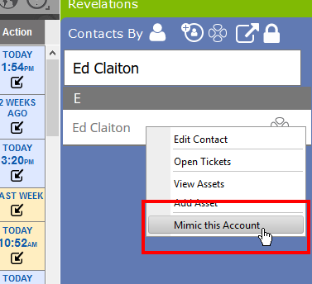
- Go to the Client Contact flyout and find the individual you wish to mimic. Right click on their name, and Mimic this Account will appear as the last item.
- Click on the Mimic button at the top of an End User's information screen in the Admin area.
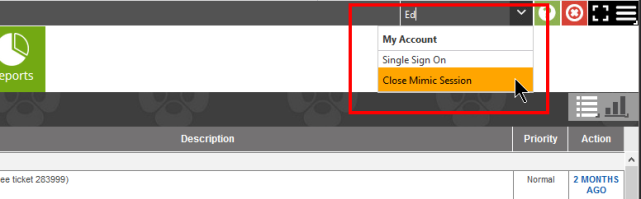
To end the mimic session, click on the user's name at the top of the screen and click Close Mimic Session.
| Contacts |
|
| End User Information Page |

|
| Close Mimic Session |
|
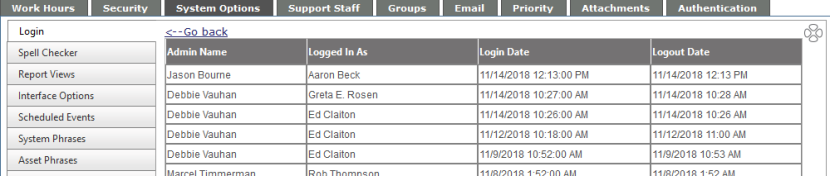
Click on the link (Click here to view logs) to see which Super Admin has logged into a users account.