
Set Up Project
- Go to the Client Manager, and select the appropriate client from the drop down.
- From the Projects tab, select the appropriate project.
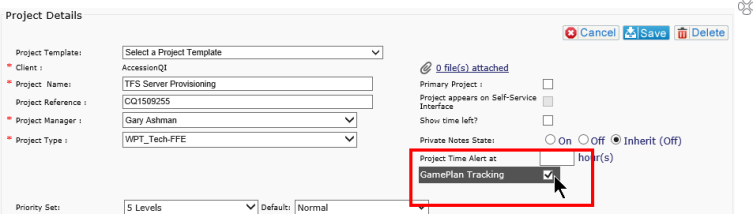
- On the Project Details tab, tick the box by Gameplan Tracking
- The Start and End Dates will highlight. Add in the appropriate dates
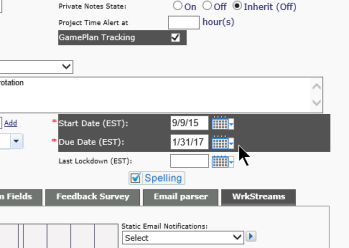
- Once the dates are set, click on the tab for Workstreams.
- From the drop down, select the appropriate Workstream for the project, and click the Add button.
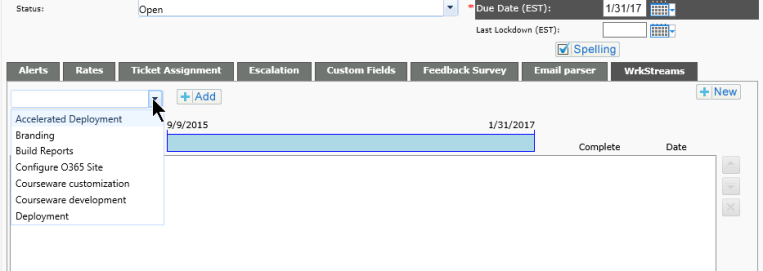
- Continue adding Workstreams as needed.
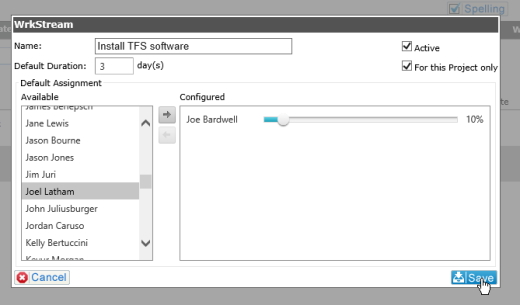
- To add a New Workstream, click on the New button to the right and create the Workstream.
- If the Workstream is only for this project, check the For this Project only box.
- If the Workstream is critical to keeping the milestones in line, check Critical Path.
- If the milestone for the Critical Path Workstream slips, it will impact all other Workstreams for the project.
- There can be more than one Workstream which is considered a Critical Path, but there must be at least one checked.
- Click Save.
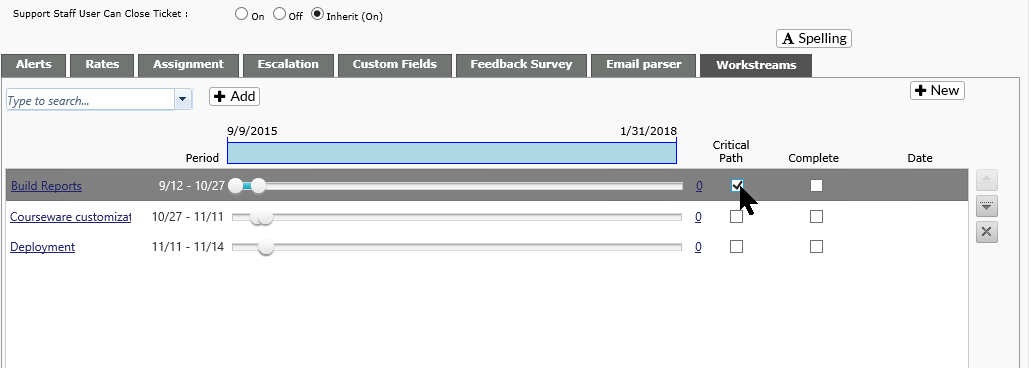
- Click on a Workstream name to add the appropriate staff.
- Click Save.
- Workstreams can be reordered if needed by highlighting the workstream and using the up/down arrows on the right.
- To delete a Workstream from a project, highlight and click the X
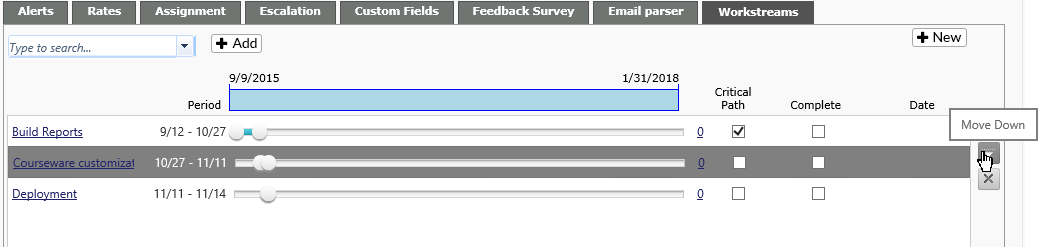
- Adjust the time by sliding the slider to the appropriate dates.
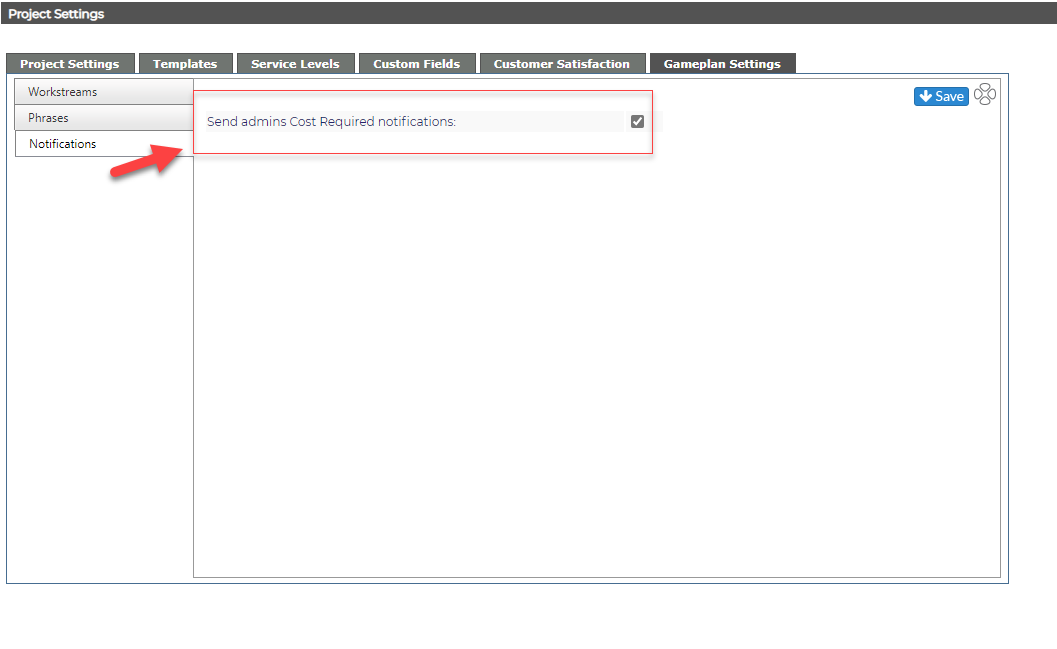
You also have the option to turn Gameplan cost required notification emails off.
Close Project
NOTE: All tickets and Workstreams must be closed before you can close a project.
- Select the client and project in the Admin Area
- Change the Project Status to Closed
- Save
Reopen Project
- Select the client in the Admin Area
- On the Projects tab, uncheck Open and check Closed. All closed projects will be visible.
- Select the appropriate project and change the status from Closed to Open.