External Links are used to provide your technicians with on screen links to troubleshooting tools. This section is used to configure the default links shown on the users' home page. These appear on the left of the screen, below Quick Search.
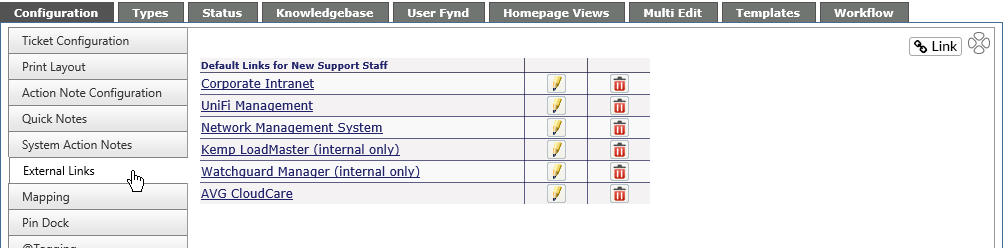
Any or all items included on this screen can be made required on internal users home page. If all five fields are not used as defaults, users can add their favorite links on their home page. These additional links will appear on ONLY their home page.
Add New Link
NOTE: Link out only supports http://, https:// and ftp://
-
Click on the Link button on the right side of the page
-
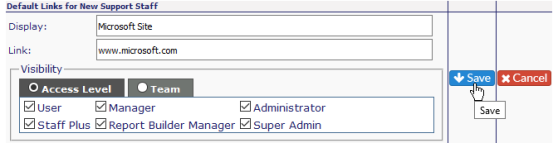
Fill in the Display name
-
Put in the URL for the link in the Link box
-
Click on the Save icon to retain the link, or click on the Cancel icon if you don't want to keep the link
Edit an Existing Link
-
Click on the pencil icon to the right of the link name
-
Edit the Display Name and/or the Link
-
Click on the Save icon to retain the link, or click on the Cancel icon if you don't want to save the change
Delete a Link
-
Click on the red X to the right of the link name
-
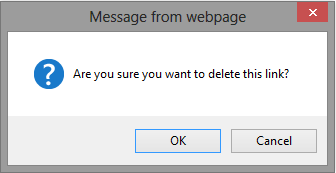
A warning box will pop up asking if you want to delete the link
-
Click on OK to delete, or Cancel if you wish to retain the link