
If you are an organization supplying help desk services to other organizations called “Clients” in Revelation helpdesk, then you would want to setup your support staff as in the previous section under External Help Desk Supporting Another Organization.
If the clients you support also use Azure AD, you can use the following setup to sync the client’s users to be end users in Revelation. You will need to register their tenant in the Revelation admin area using one of two methods:
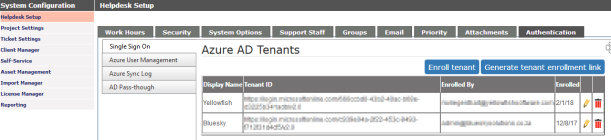
- If you are the administrator of the client’s Azure AD: Use the Enroll Tenant button (if you are an administrator of their tenant) under the Single Sign On section in the Admin Area. (Help desk Setup – Authentication – Single Sign On)
- If you are not the administrator of the client’s Azure AD: You can use the Generate tenant enrollment link button to create a link to send to the administrator. This will allow them to register their tenant in Revelation.
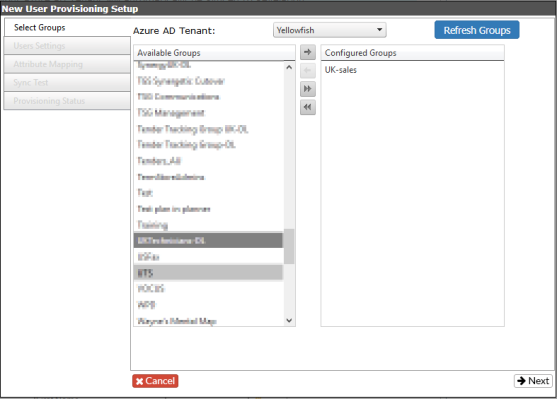
- Create a new rule under Office 365 True-Sync and select your Client’s Tenant from the Azure AD Tenant dropdown. This will populate the groups for that tenant.
- Select the desired group/s you want to sync to Revelation.
NOTE: You many want to consider setting up a new group and adding only the users you want in Revelation instead of the entire organization.
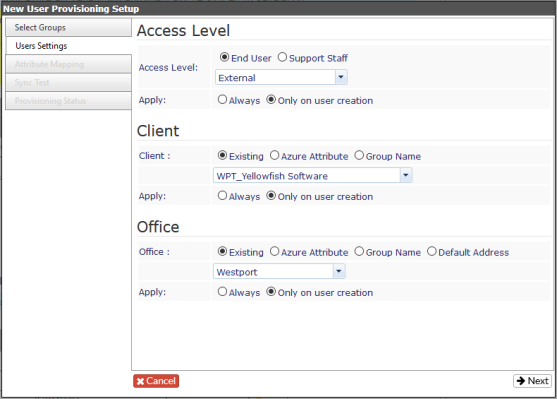
- Under the User Settings section, select External or External Admin from the access level drop down list which will define the rights these end users will have in the Revelation Self Service Interface.
- Next, select the existing ‘Client’ that represents these end users in Revelation.
NOTE: It is a good idea to create this client in the Revelation Client Manager before setting up this rule.
- Select the Office where you want these users to exist. The office can also be tied to an Azure attribute or the group name or simple the “Default Address”.
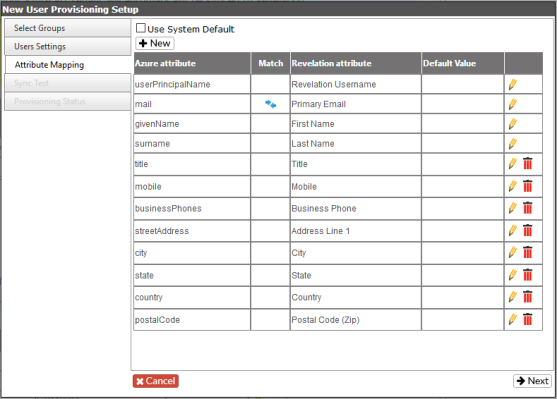
- The Attribute Mapping step should be considered carefully if you have existing users in Revelation for this Client. It is important to understand how the match attribute will affect users being synced from this tenant.
- By default, the sync process will use the Azure User Principle Name (UPN) to match a Revelation user by their Username. In the example below, the match attribute has been changed so it will match a user by their Revelation Primary Email address instead.
NOTE: If you are importing users for this client for the first time, it is recommended you “Use System Default” settings for the attribute mappings.
- Follow the instructions for Sync Test and Provisioning Status from the Internal Help Desk Supporting a Large Organization With Many Departments section to complete the process.