Emptied Status Types are for all tickets. Default status will have a D in a circle in front of it. This is used for action notes which have been moved to a new or different ticket.

Add New Emptied Status
-
Click on the New button
-
Name the status type
-
Provide an Alias (short name) for the status type
-
If the status type is to be active, ensure the Active box is checked
-
-
If status type is to be inactive, ensure Active box is unchecked
-
An Inactive Status will show at the bottom of the list, grayed out and in italics
-
-
Select the Status Type (Open, On Hold, Closed)
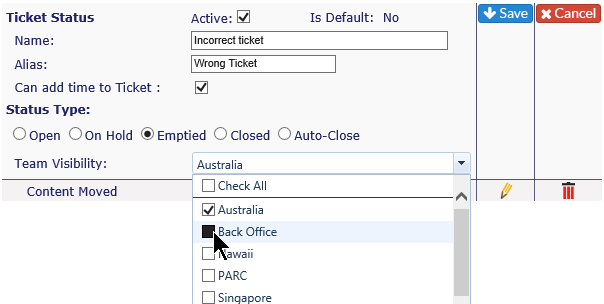
- Select an option from Team Visibility, or Check All in the drop down to have all teams see the status
-
Click on the Save icon, or if you don't want to save the status, click on the Cancel icon
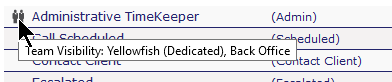
If a status has Team Visibility options selected, you will see an icon in front of the status. When you roll over it with your mouse, the teams will be visible.
Turn Emptied Status Inactive
-
Click on the pencil icon to the right of the status you wish to change
-
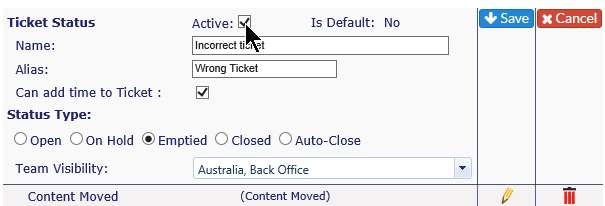
Uncheck the Active box
-
Click on the Save icon or, if you don't want to keep the change, click on the Cancel icon
Delete Emptied Status
-
Click on the red x to the right of the status you wish to delete
-
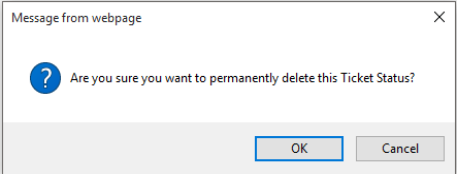
You will get a warning message - if you wish to delete, click OK, if not, click Cancel