True Sync - New User Created Notification Type
Set Customer Type - Advanced Feature
With Custom Email Alerts activated, you will be able to send custom notifications for various milestones within Revelation.
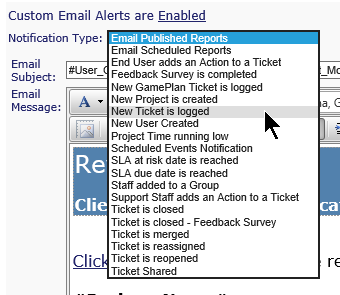
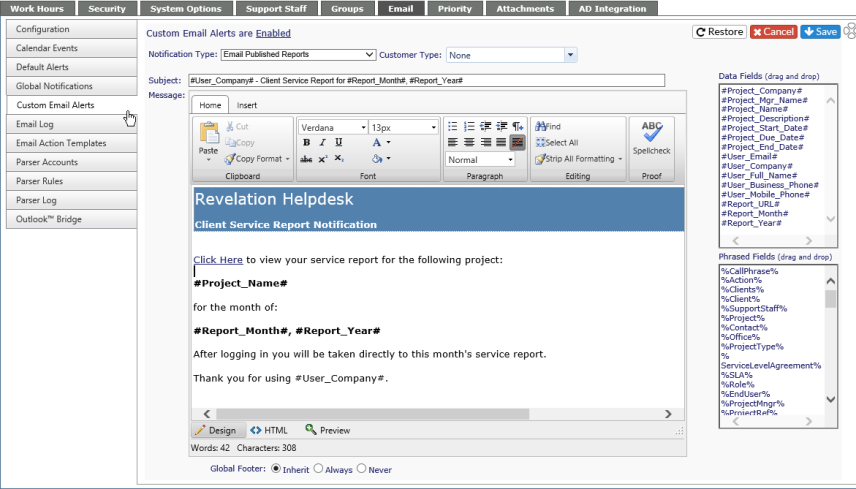
The emails can be customized through Revelation. Click on the notification and you’ll be taken to a customization screen for the particular email. You can also set the Customer Type who will receive the email.
| Set Notification Type |
|
Each notification can have a unique message. The options available for the fields are based on the data fields available for that particular item. By selecting the appropriate Data fields and Phrased fields, you create a customized message for your clients to see rather than the standard notification. You can choose to Customize as much or as little that makes sense for your organization.
After you've customized your email, click on Save. If you want to revert to the default email, click on Restore. If you don't want to save your changes, click on the Cancel icon.
True Sync - New User Created Notification Type
If using True Sync, Revelation helpdesk can automatically send a Welcome to Revelation helpdesk email to a new user, using the New User Created (True Sync) notification type.
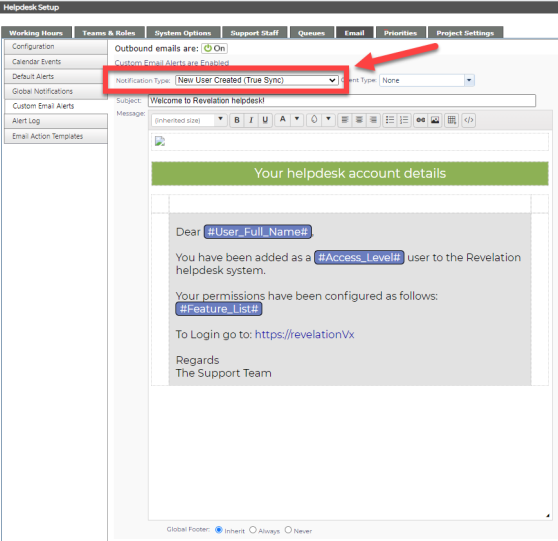
In the notification email template, the Feature List widget will automatically pull the permissions based on the user's access level & role from a dynamic list, and insert them into the Welcome email.
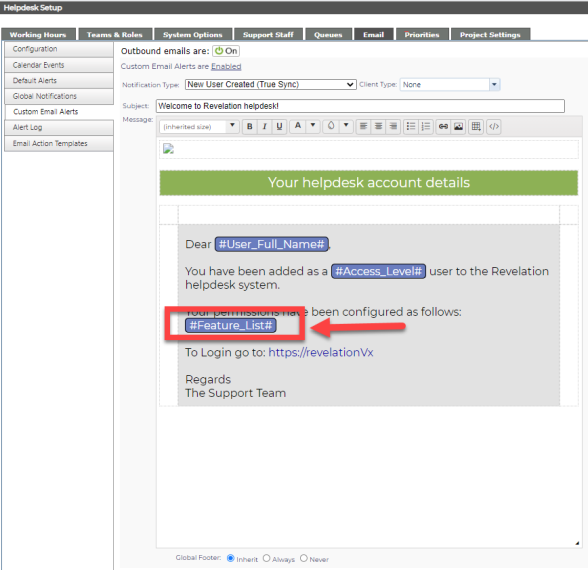
Set Customer Type - Advanced Feature
By selecting the Customer Type, you can set the phrases used for the emails sent to the client. This is an Advanced Feature of Revelation helpdesk and requires the Phrases be set prior to selecting the Customer Type. This feature, as with all Advanced Features for Revelation, should be used with caution.
| Set Customer Type |
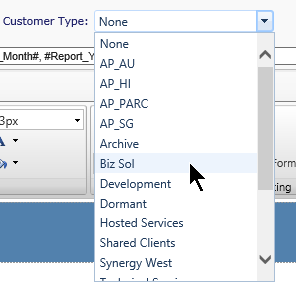
|
Once set up, the emails will go out with the appropriate phrases for the Client type.
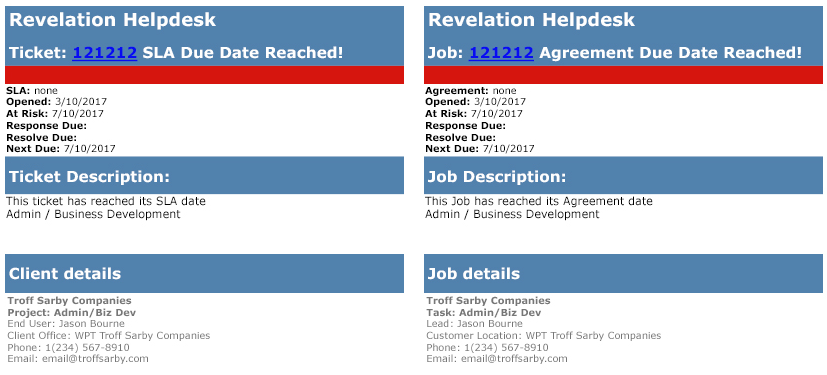
Once saved, the type will be highlighted in the drop down so you can see at a glance which ones have been edited.
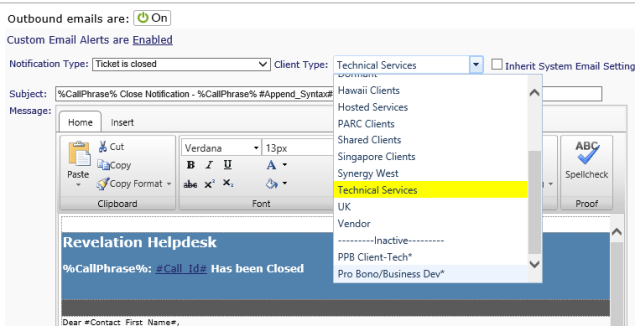
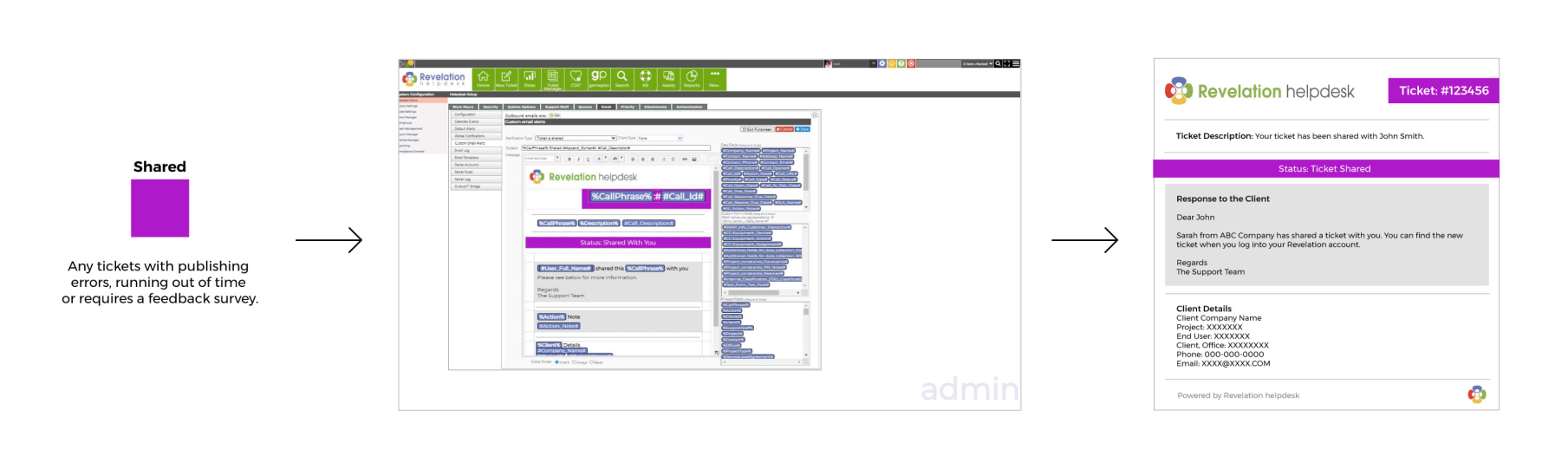
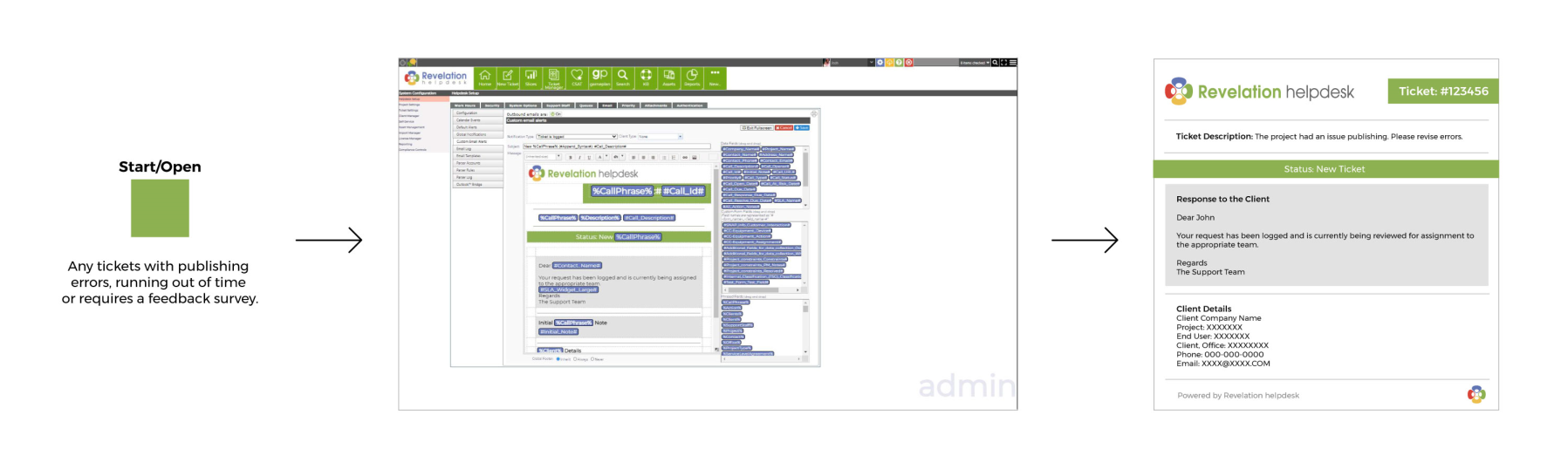
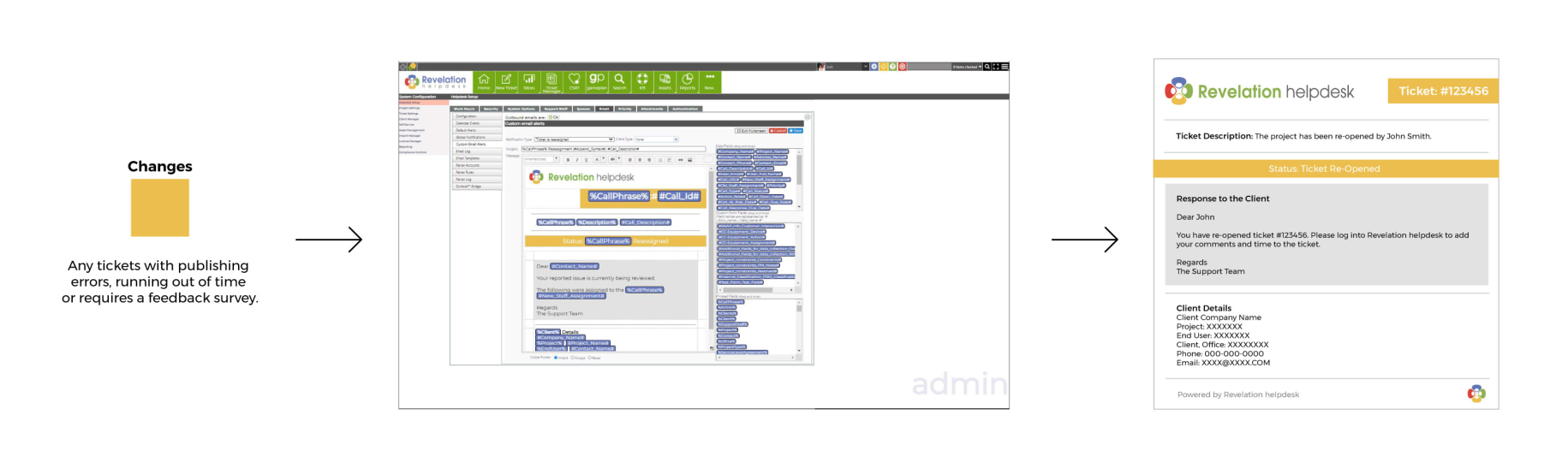
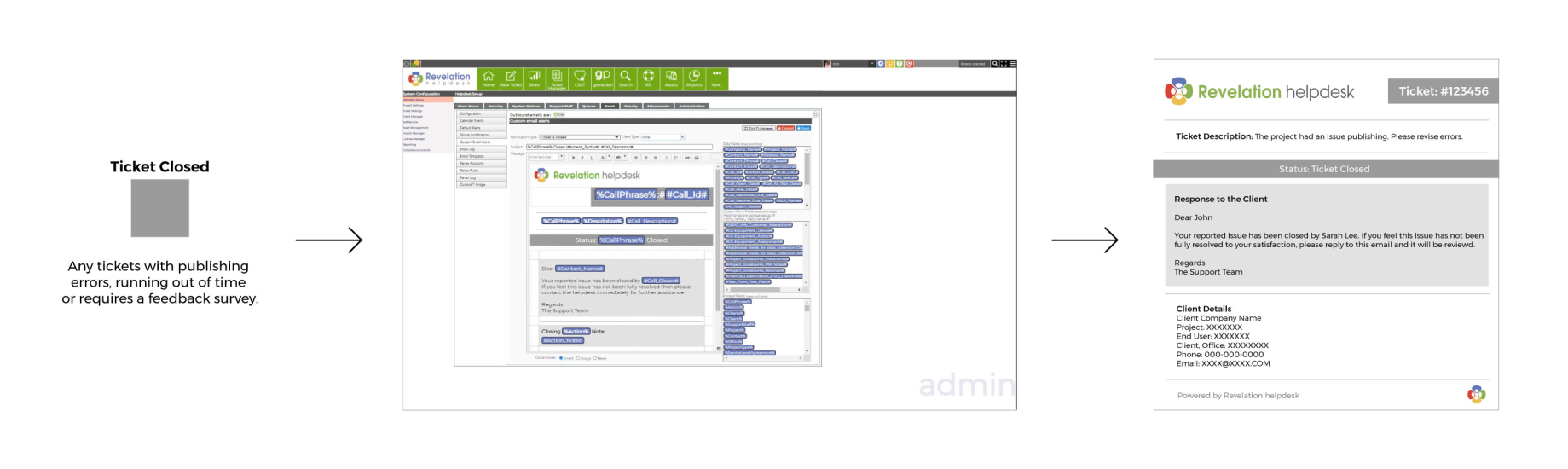
You can assign color coding to your Revelation Ticket outbound alert emails. This allows the recipient to easily determine in what the way the ticket has been actioned.
Note:
- If you are using the latest version of the Revelation helpdesk - The email templates will reflect the following changes out of box
- If you are using legacy versions of Revelation helpdesk (Prior to 20.12) ; you will be required to give permission for the updated email alerts to take effect. In the Admin area, you will be prompted to agree to the email update. If you proceed, your existing email alerts will be DELETED and replaced with the new updated email alerts.
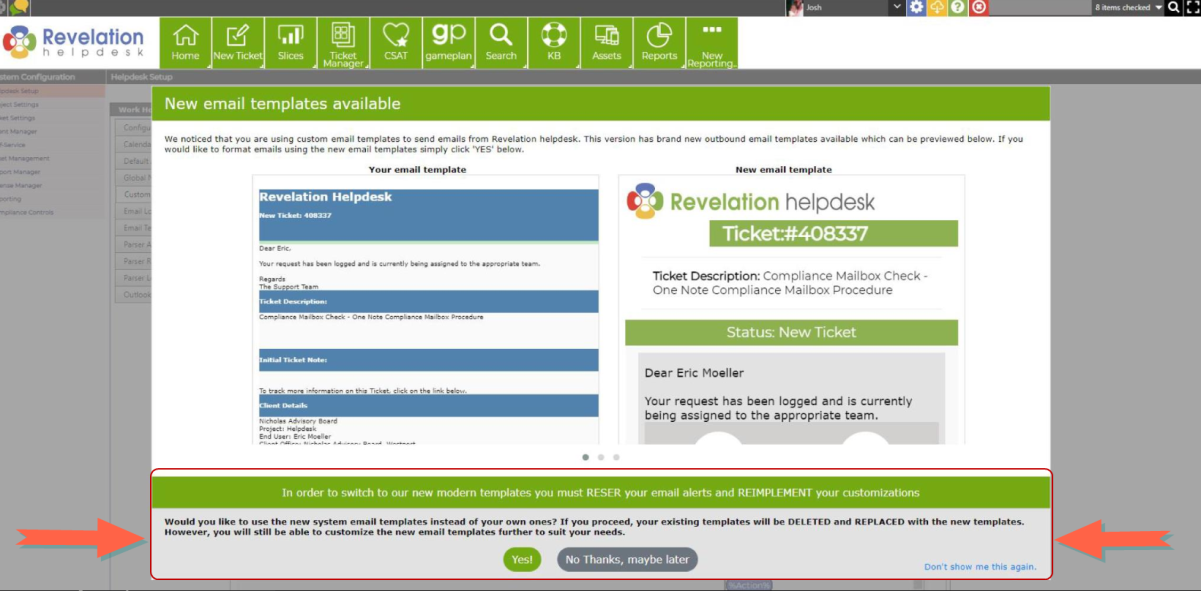
Once you have agreed to proceed with the updated email alerts; you will be returned to the admin area with the updated outbound email templates. Six individual color scheme categories are associated with the following actions:
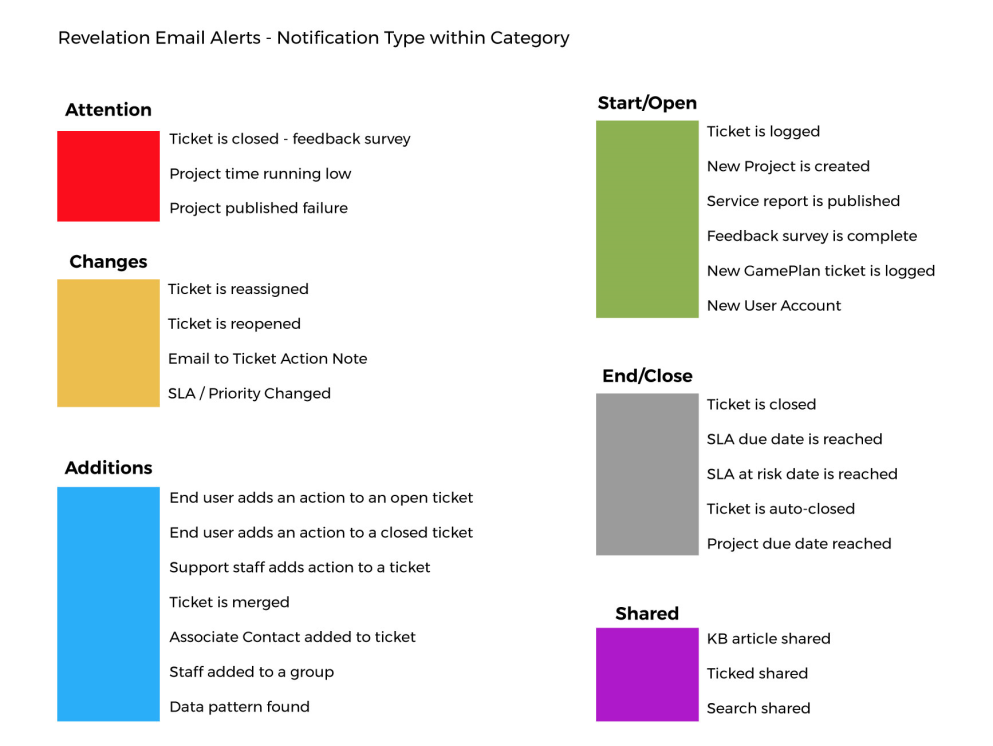
These updated color schemes will be applied to the outbound emails.
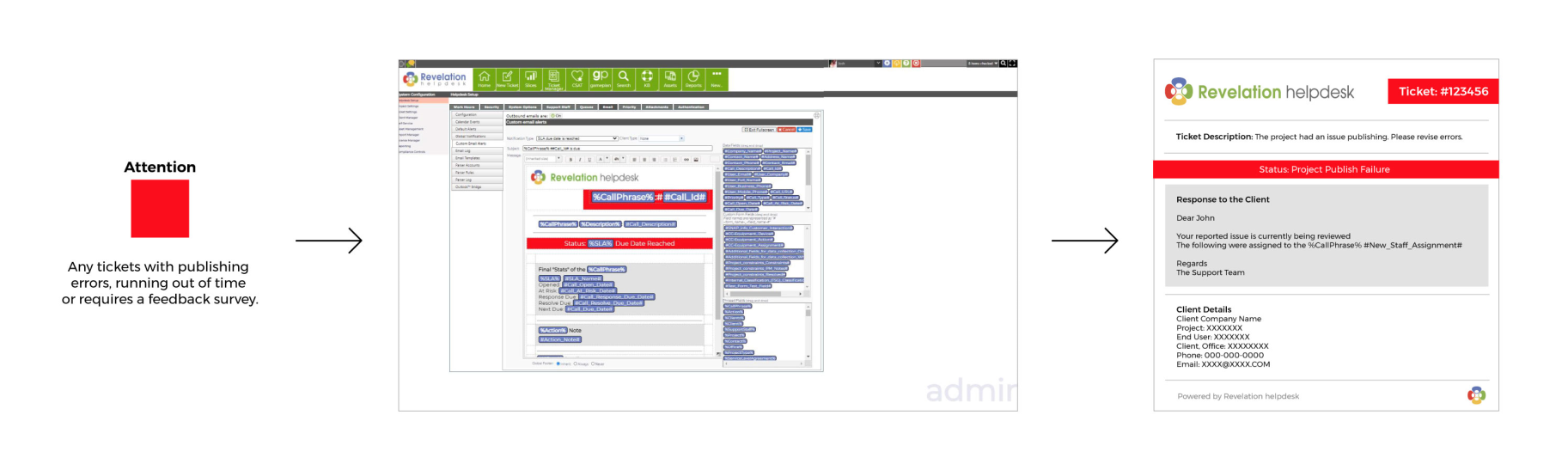
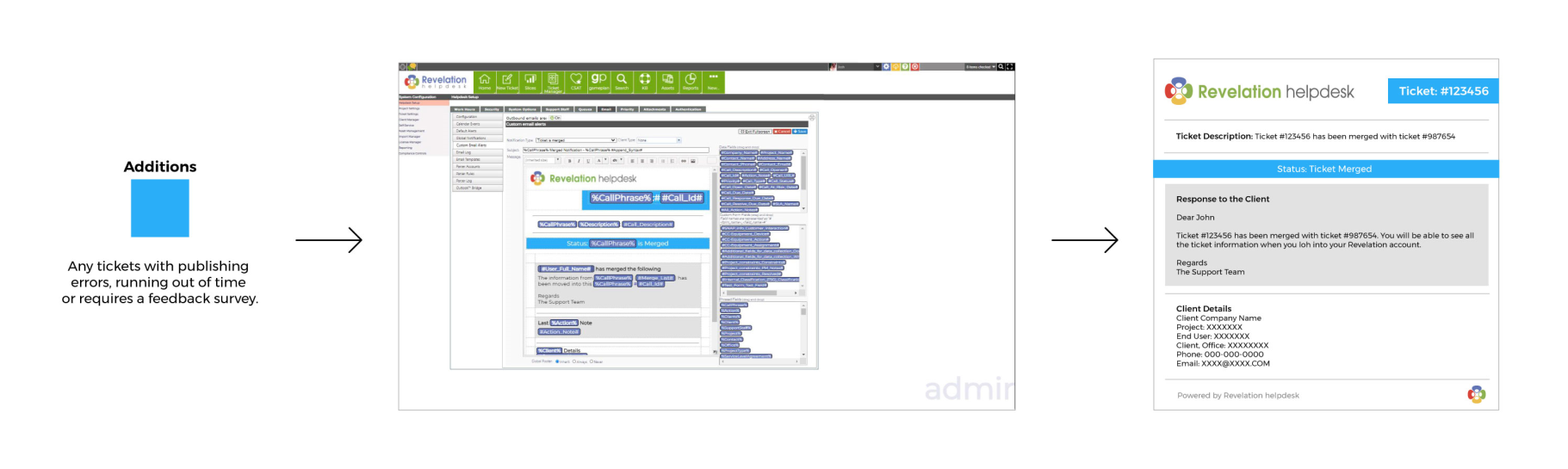
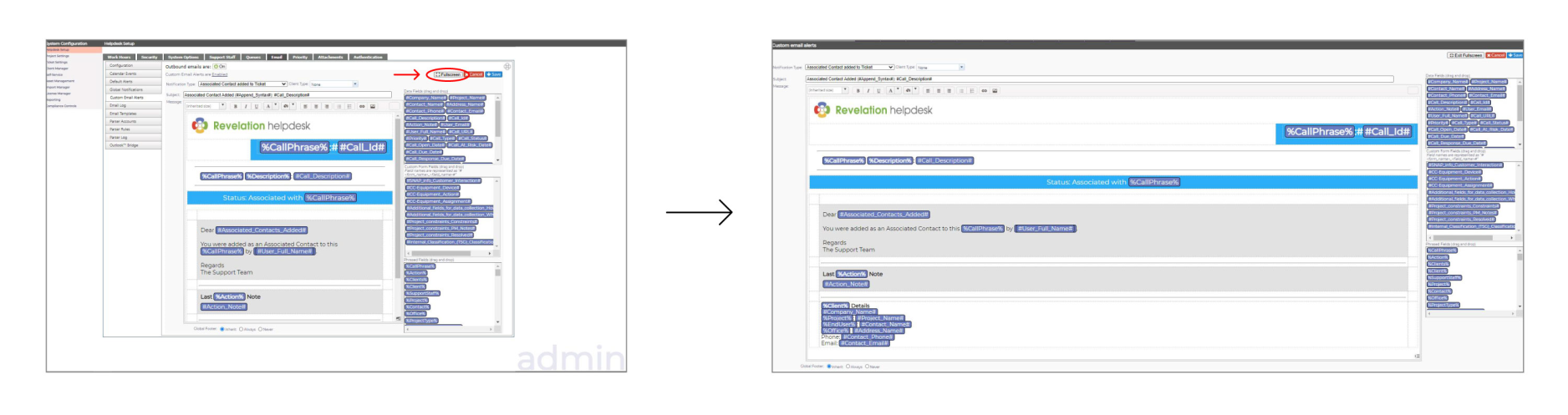
You may also switch to full screen mode while editing your Email Alerts by selecting the "Full Screen" button.