Default
This action controls what content from the message body will be placed in the new action note created. If ‘Reply only’ is chosen then if the incoming email is a reply from an email sent from Revelation – only the new content in the email will be added as an action note.

If ‘Entire body’ is chosen then the entire message body will be placed in the action note.
Set Priority

This action will let you manually set the priority of the new ticket and override the Auto Priority settings configured in Parser Accounts or the default priority set within the applicable project.
Assign To

This action will let you override any assignment steps made in previous actions. The initial option “project Assignees” will assign this ticket to the default project assignees.

Add Action note
This action will let you configure the details of an action note. You can add manual text and insert information from the email itself.
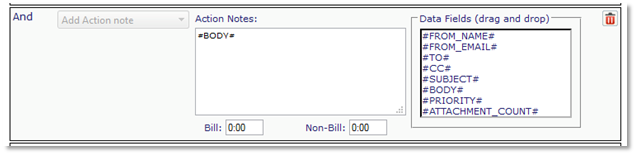
- #FROM_NAME# will add the from name of the originating email
- #FROM_EMAIL# will add the from email address of the originating email
- #TO# will add the email address(s) the originating email was sent to
- #CC# will add the email address(s) the originating email was cc:’d to
- #SUBJECT# will add the subject line of the originating email
- #BODY# will add the message body of the originating email
- #PRIORITY# will add the priority of the originating email
- #ATTACHMENT_COUNT# will add the number of attachments on the originating email
Set Status To

This action will let you set the status of the ticket.
Send Email
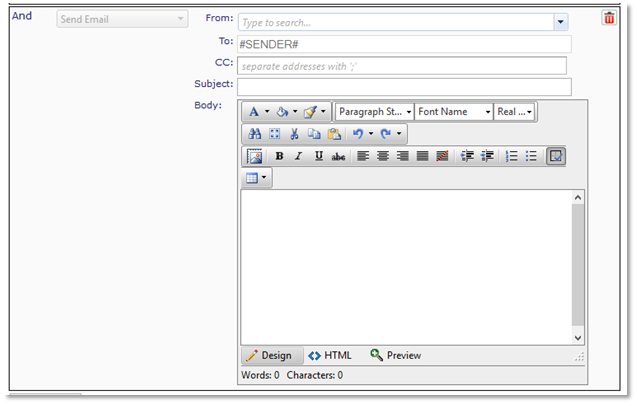
This action allows you to configure an email to be sent. If you use the syntax #SENDER# in the To: or CC: fields the email will be sent to the from address of the originating email. You can also add additional email addresses individually.