
Revelation helpdesk has multiple flags available to show additional information for a Client, Location, Project and/or End User. All of the notes, if used, will show up while logging a ticket, and will then be available from the flag icon once the ticket is logged.
If there is a flagged note on the End User Information page, the note will be visible on Log a Ticket and when you edit a ticket. Once flagged, any notes associated with the Client, Location, Project and/or End User will either pop up or show in the ticket.
Select/View Flagged Tickets
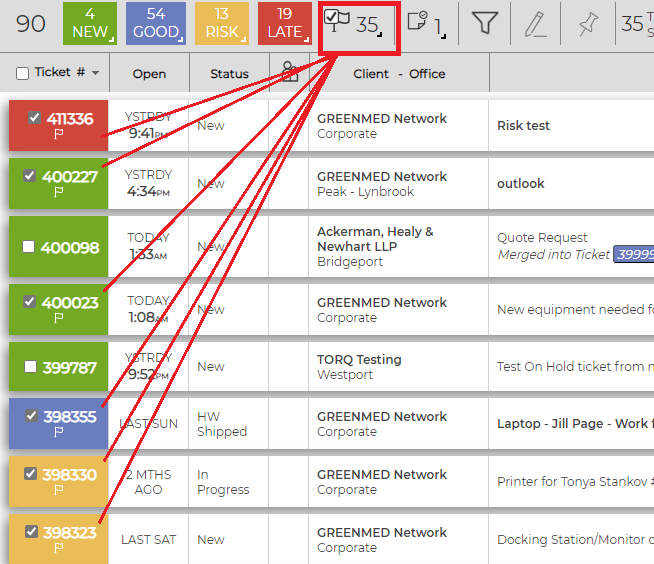
Any tickets on your home page which are flagged will be noted in the Summary Bar at the top of the page. The box will show how many tickets have flags and the column with the ticket numbers will contain a flag icon. By clicking on the box, all the appropriate tickets will be selected. Right click on the box, and you will have the option to view those tickets either in a grid view or in a new window.
In line notes
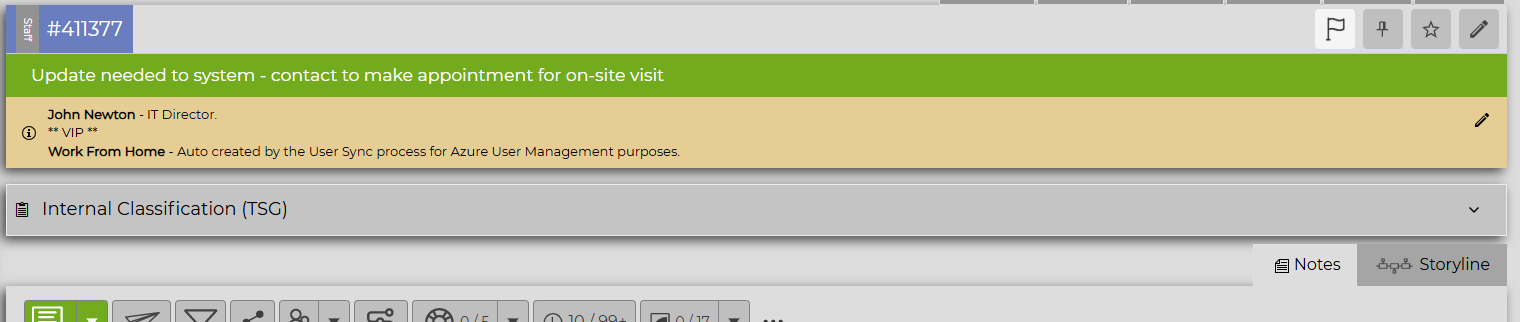
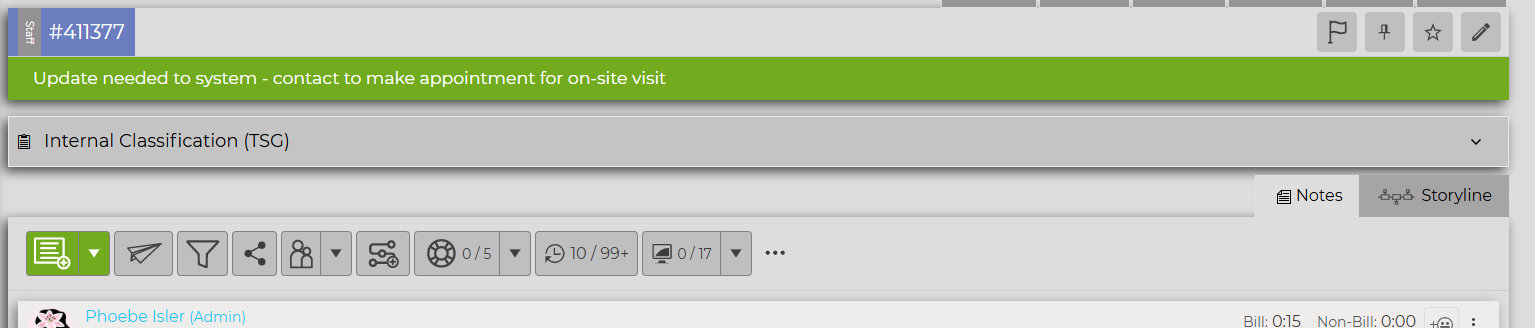
When a ticket is logged relating to a flagged end user or location, the note will appear above the Ticket Description. Users can collapse and expand the Flagged Note by clicking on the flag icon on the top right bar of the ticket.
Flagged Note Open:
Flagged Note Closed:
NOTE: If there are no flagged notes, the icon will not be visible.
Edit User Flag
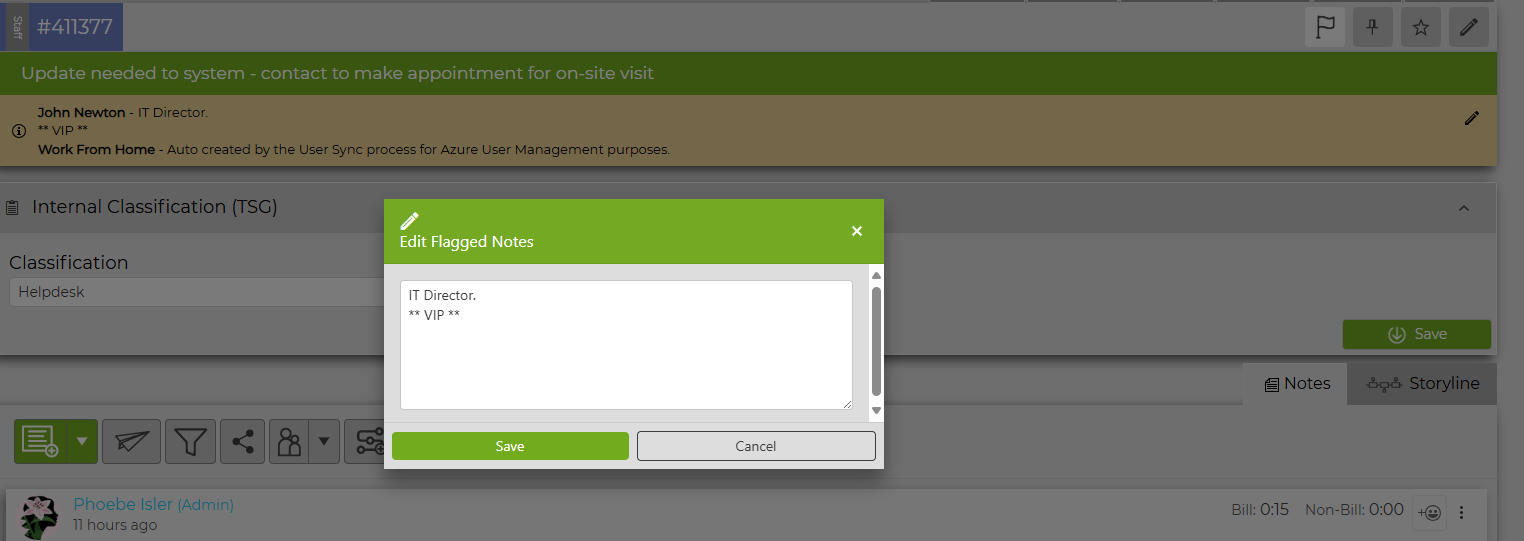
You may have the ability to edit the information in the User Flag from within a ticket. If there is an edit pencil on the far right of the yellow flag notification,

Clicking on the edit pencil will bring up a dialogue box. From here, you can make changes to the End User pop up flag.
NOTE: The only information which can be edited in this way is the End User Flag. All other flags must be edited in the appropriate Admin area.