
This feature is not available for Core users.
If Revelation has Ticket Templates and/or Workflow modules enabled, you may be able to log a ticket using the drop down visible by right-clicking on the New Ticket button.
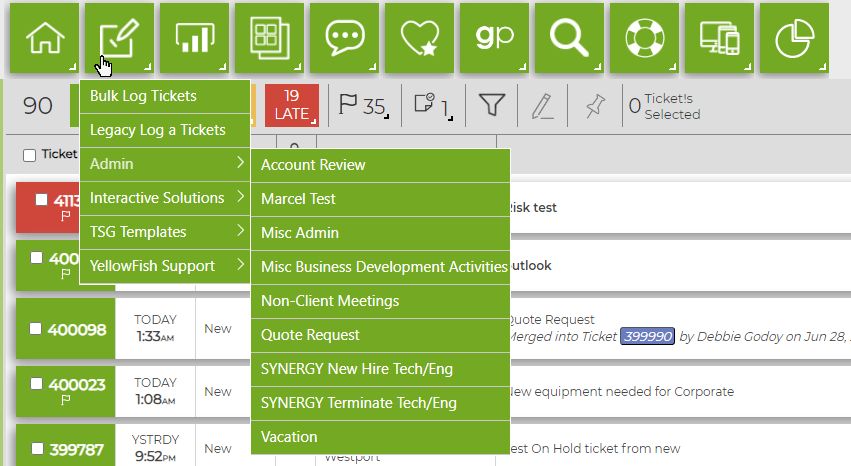
Administrators can add in templates for regularly logged tickets, which can save time and ensure the proper time is billed. If the external access is enabled, clients can also use the templates to log repeated tickets such as "Forgot password - please reset".
Workflows create tickets with multiple steps which must be completed in a specific order. Each action may be assigned to different staff. Again, this must be created by an Administrator. The Workflow is also accessed via the Templates tab on the Log a Ticket screen.
If there is a Ticket Template and a Workflow with the same designation, they will be differentiated by (Template) and (Workflow) in the drop down.
NOTE: If using a template or workflow, the automatically added action notes do not trigger an email to the end user(s).
Add Workflow to New Ticket
To add a workflow to a new ticket, select the Log a Ticket button from your Masthead toolbar. Fill out the standard information - End User, Project, Assigned To - in the Ticket Details tab.
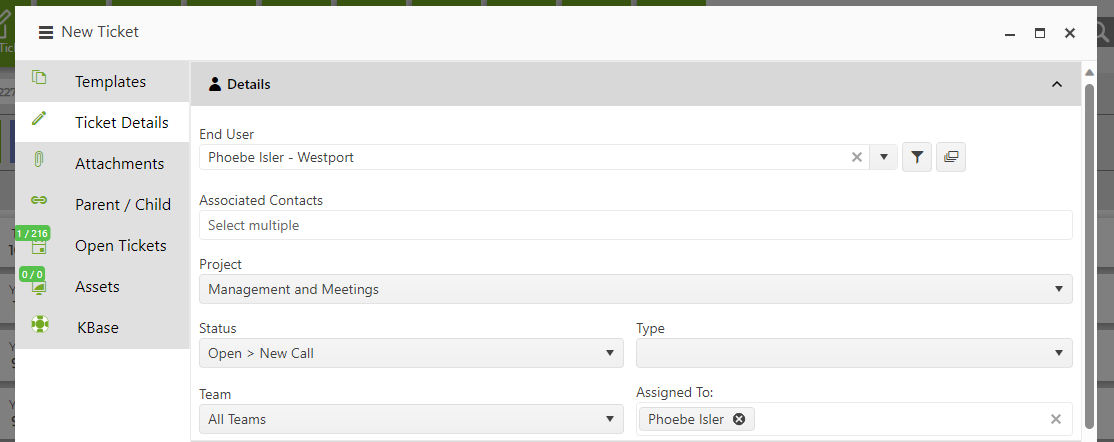
Once filled out, click the Templates tab.
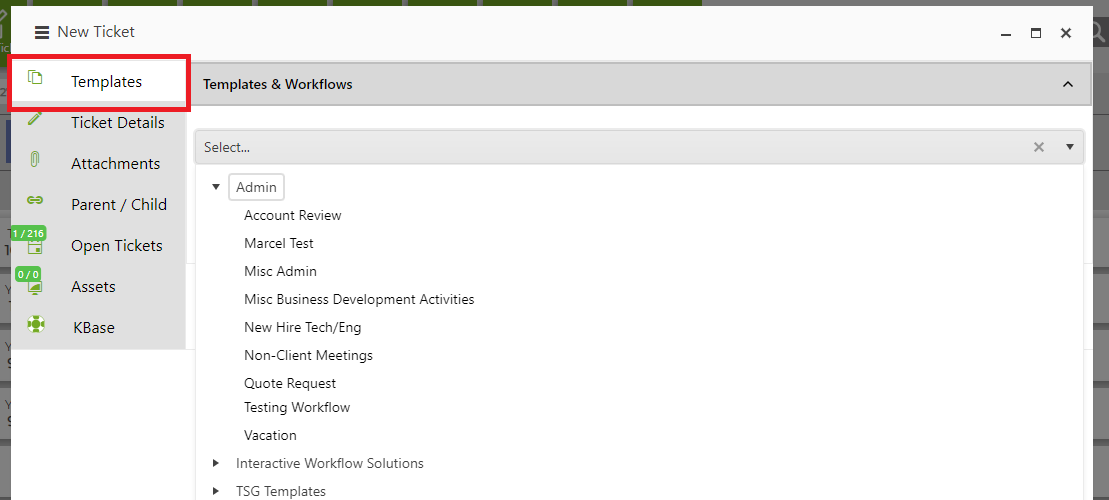
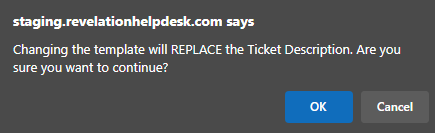
Select the appropriate workflow from the list of templates. Once you make your selection, Revelation will send an alert asking you to confirm that you want to replace the existing ticket description with the Workflow's template. Click OK.

Once the workflow is selected, Revelation will list each step of the Workflow in order - the Templates tab will show a little icon with the number of steps in the Workflow.
Click Save Ticket to log your new ticket. You can now complete the Workflow.
Add Workflow to Existing Ticket
To add a Workflow to an existing ticket, navigate to the desired ticket and locate the Apply Template/Workflow icon.
| Icon in Toolbar |  |
| Listing in Drop-Down Menu | 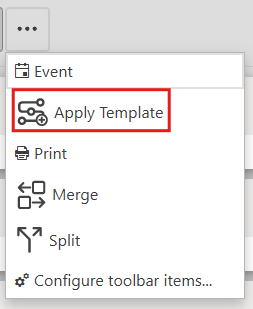 |
Click the drop-down arrow and select the desired Workflow from the list of template options.
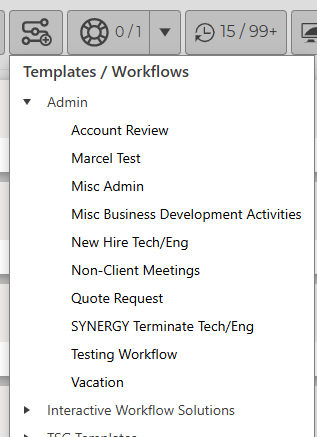

Revelation will automatically apply the Workflow template to your ticket.
NOTE: Once you apply a Workflow template to a ticket, you cannot undo it. Ensure that the ticket you have open is the ticket you want to apply the workflow to.
Completing a Workflow
Completing a Workflow is simple: once you are assigned to the ticket, you will see a list of steps and actions.

For the step you are assigned, you can select Complete, which will automatically log the billable/non-billable time and the action description to the ticket under your name.
You can also select Complete & Edit Action, which will allow you to edit all available Add Action fields in case something needs to be added or changed.
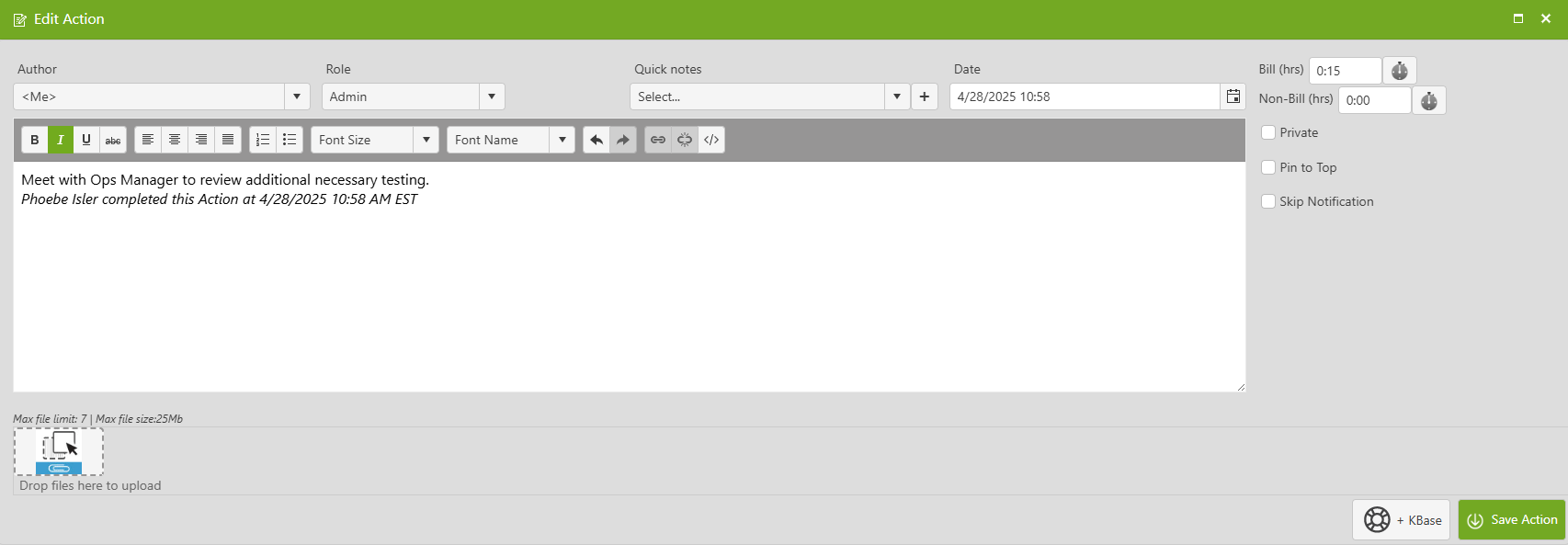
Once complete, click Save to confirm the action has been completed. All completed actions will appear at the bottom of the ticket, with the most recently completed action at the top.

Note: Once each action/step within the Workflow is completed, Revelation will automatically assign the ticket to the End User assigned to the next step. This will continue until all actions in the Workflow have been completed.