Add Chat to an Existing Ticket
Provide Separate Window for Chat
Chat is your Revelation helpdeskIM. This is set up in the Admin area and can be set for:
- Internal and External Chats
- Internal only Chats
- Off
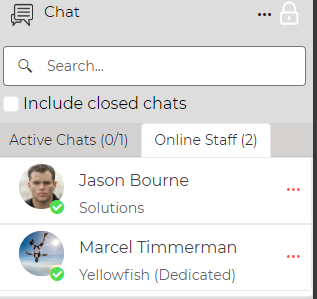
At the bottom of the drop down, you can see who is online and whether they can chat with internal users only, external users only, or both. If you have the permissions, you will also see the red X to disconnect a user. This is set in the Admin area. Internal Support Staff can interact with up to 5 chat sessions from your Revelation home page.
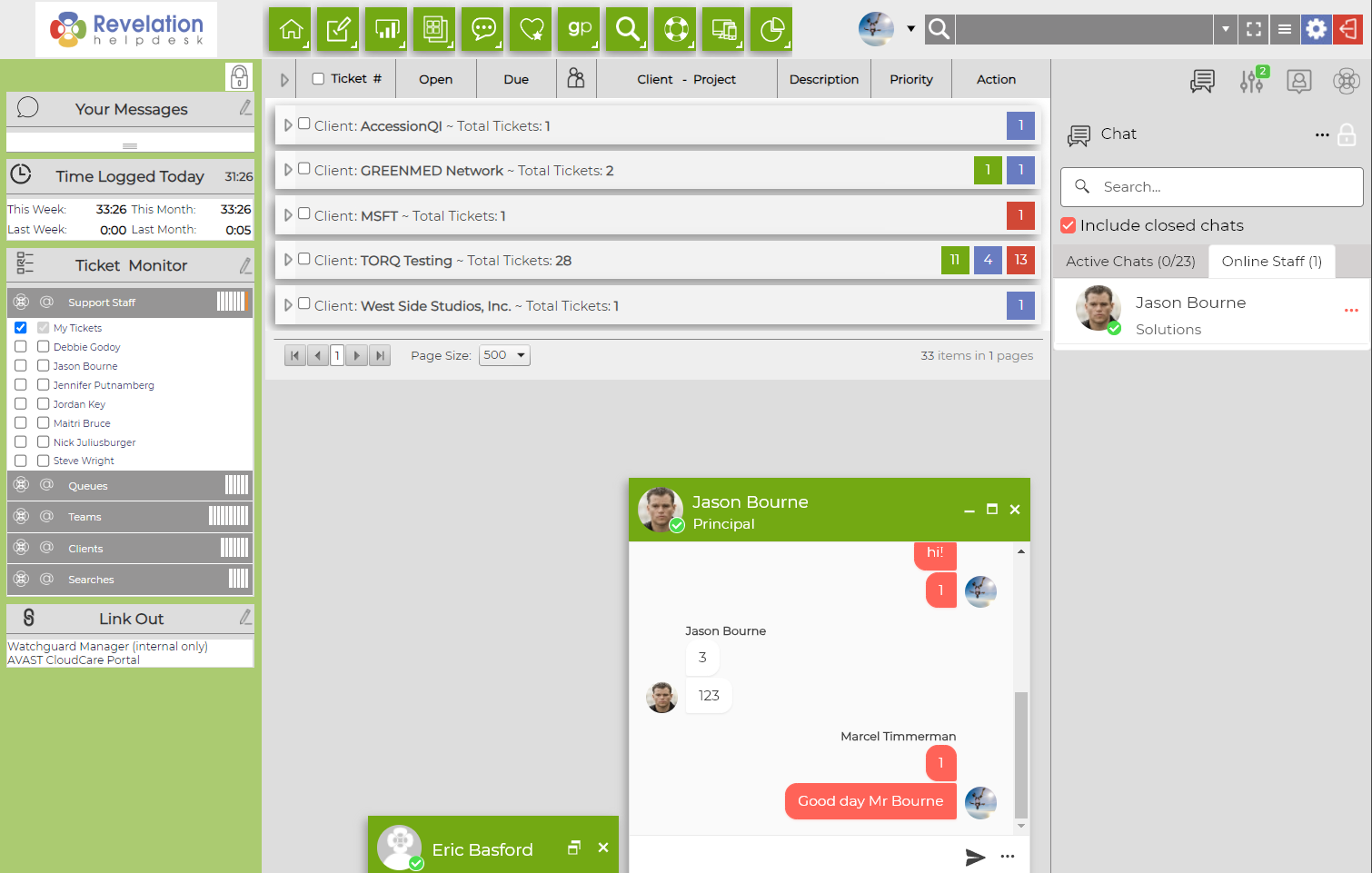
Based on your settings, you will be able to see who is online. Click on the Online Staff tab and select the name of an online staff member. A Chat window will open. Type your message in the bottom screen and click send. This will send the message to the contact. If they are available, they will respond to your request.
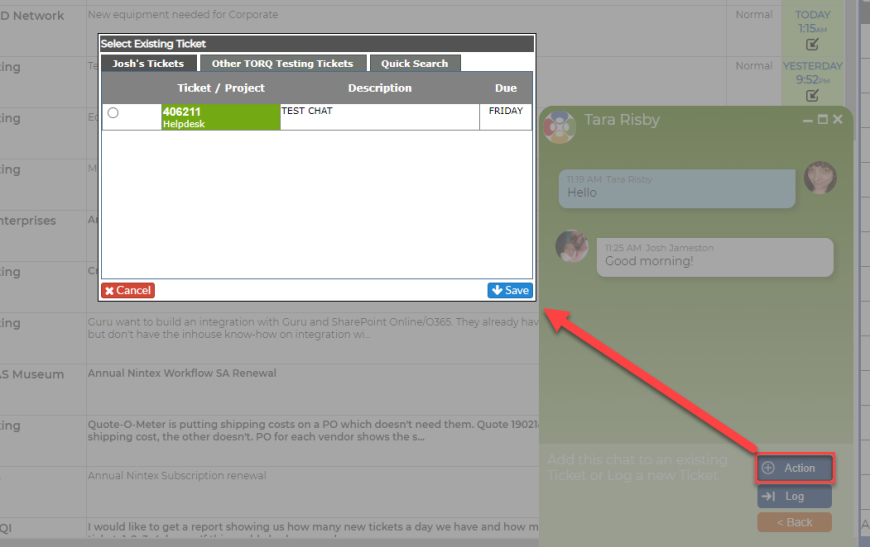
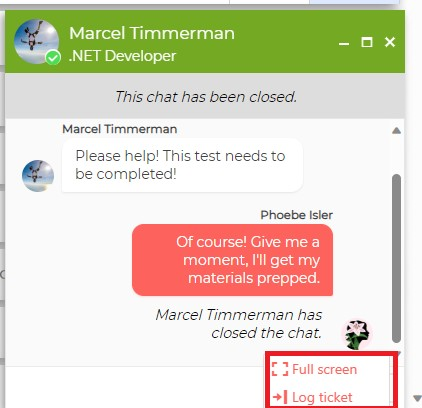
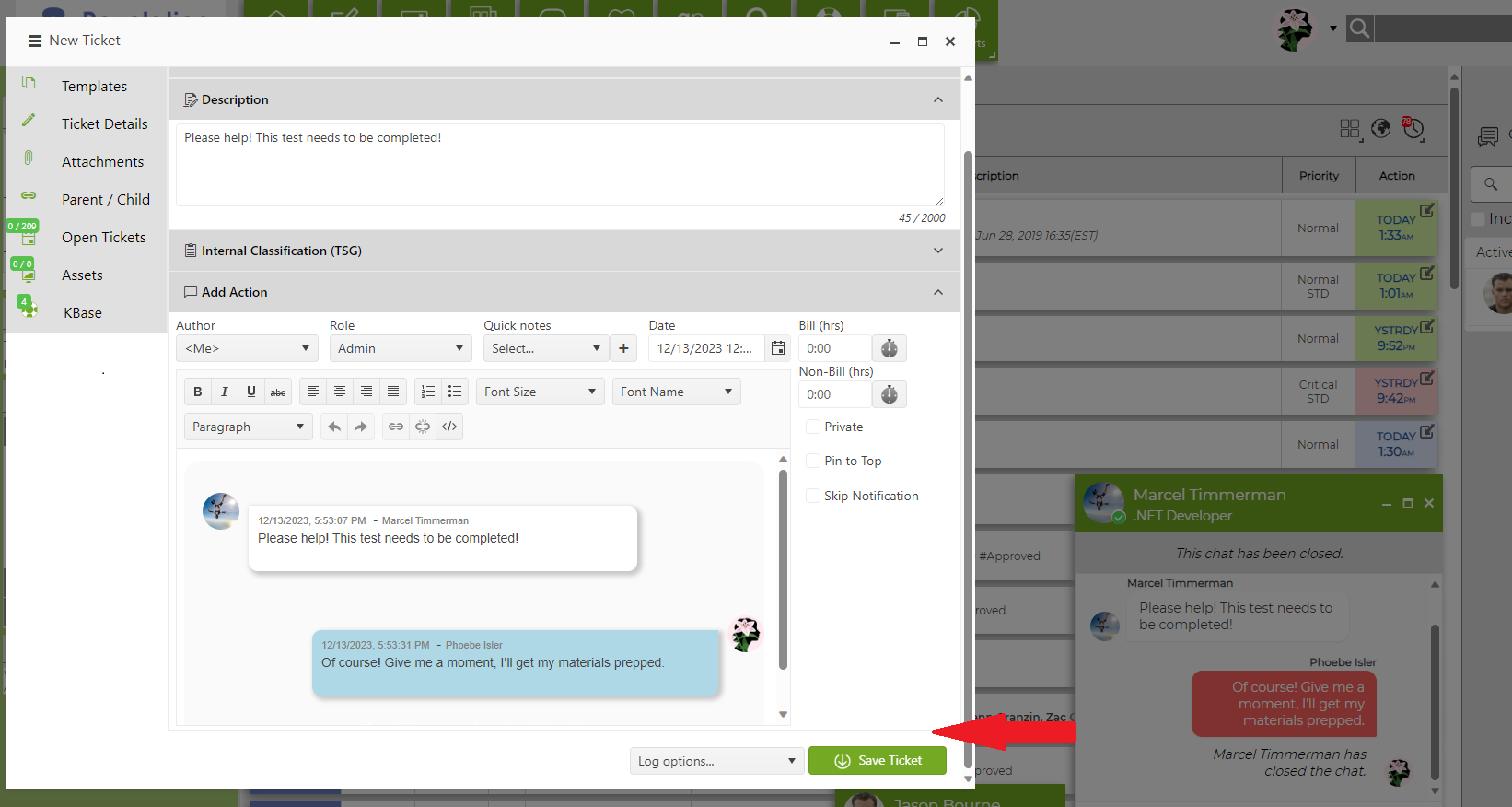
The transcript of the chat can be converted into a new ticket, or added into an existing ticket by clicking on the Finish button at the bottom of the Chat screen.
Provide Separate Window for Chat
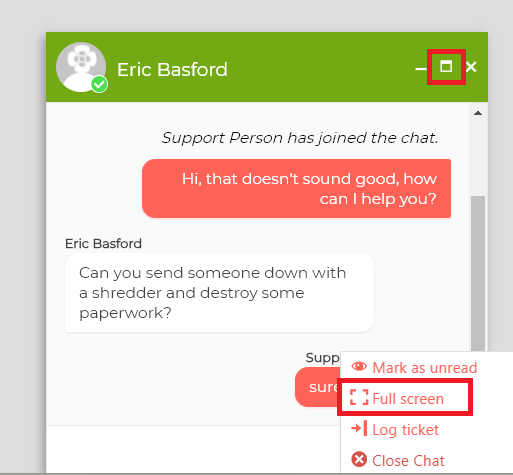
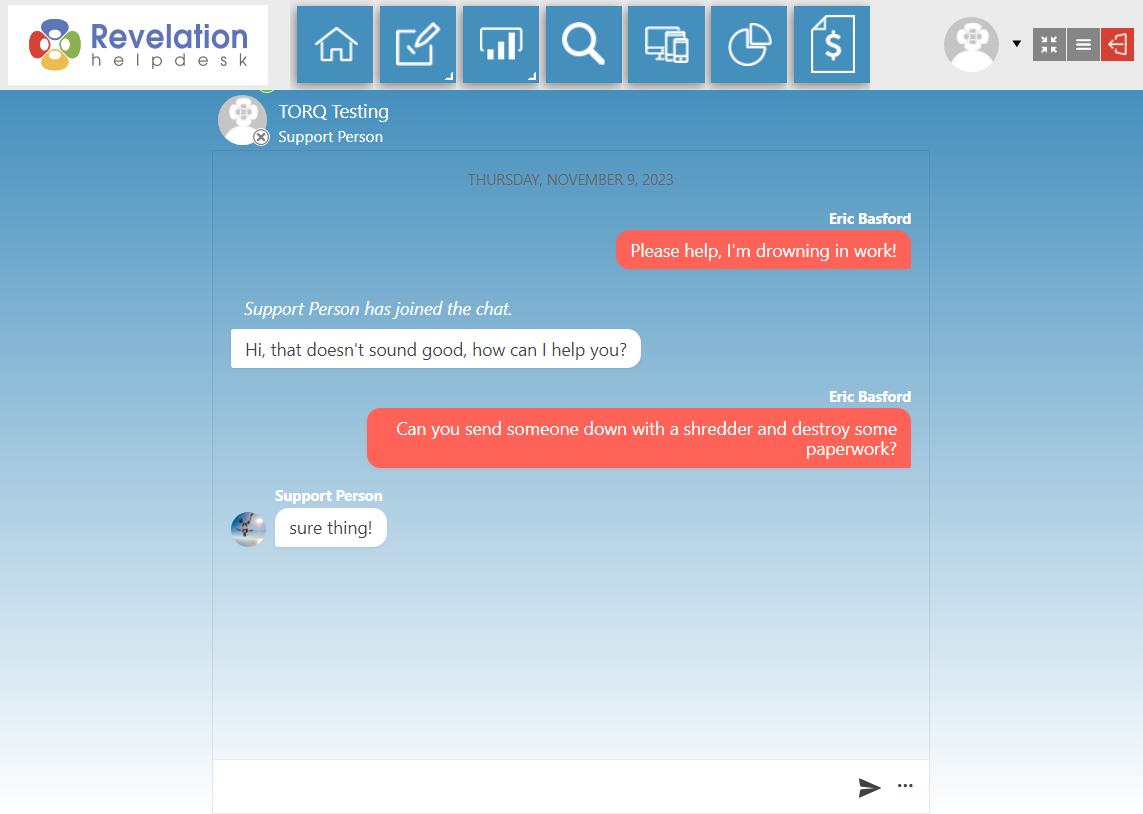
You may expand the chat into its own browser by clicking the maximize button on the Chat's window: