
Ticket status can be changed on the ticket details page by clicking in the status pull down and selecting from the options available. The options may cause the "clock" to stop running if the Service Level Agreement module is active.
To change the status of the ticket, click on the drop down in the Timeline area of the screen. You will see the basic statuses (on this example: Open, On Hold, Auto Close and Closed). Choose the appropriate main status, then from the flyout, choose the appropriate status for the ticket.
Note: If your system only has one option for a status (i.e., On Hold has no additional options), there will be no flyout. Simply select the singular status.
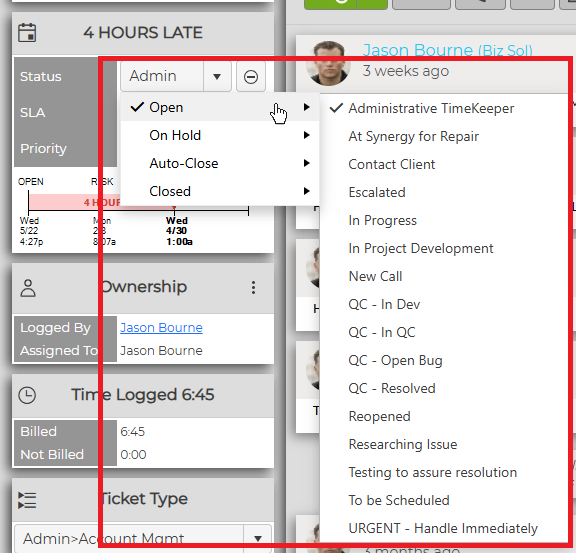
Note: If a ticket is set to an On Hold status, the ticket will be reset to the last open status if an End User adds a note to the ticket.
Note: When a ticket is placed on hold, if the Due Date is visible in the Home Page Grid, it will be grayed out.
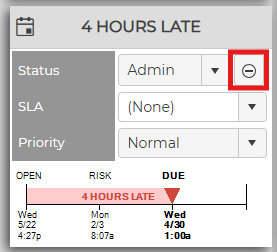
If the ticket is ready to be closed, simply click on the Close link to the right of the drop down.
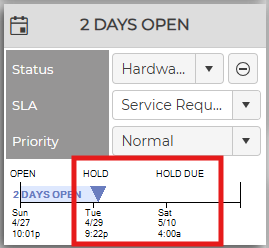
If the ticket has been placed on hold, the Timeline will look like this:
These options are set up by a Super Administrator in Ticket Settings-Ticket Status.