When active in the Admin area, users are able to add attachments to Action Notes in Revelation helpdesk.
Add an Attachment:
- Click on the Attach button to browse your computer for files to attach.
NOTE: Users can also drag and drop files into an action note.
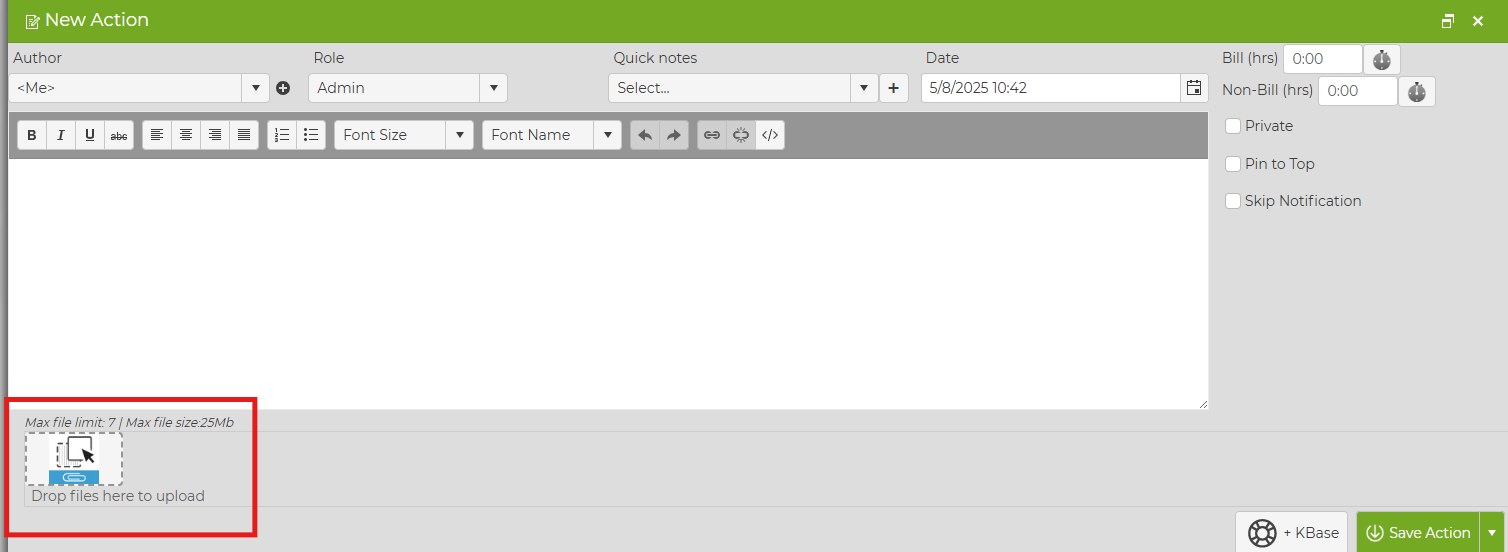
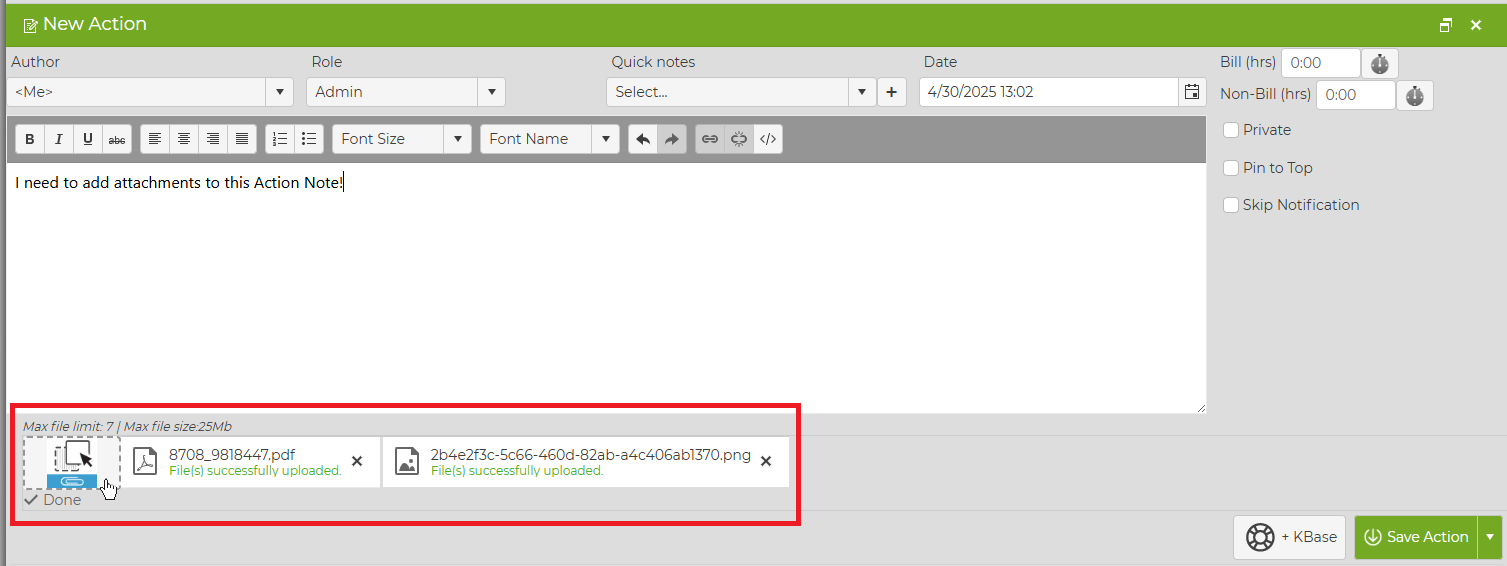
- Add as many attachments as desired. Once uploaded, they will appear in the bottom left corner of the Action Note - Revelation will confirm when they are successfully uploaded.
NOTE: The number, size, and type of file may be limited by your Administrator.
- In the left column will be an Attachments area, where you will be able to scroll through what is attached in the ticket and open them by clicking on the image.
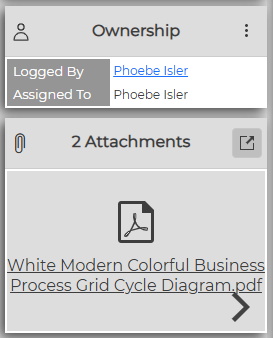 | 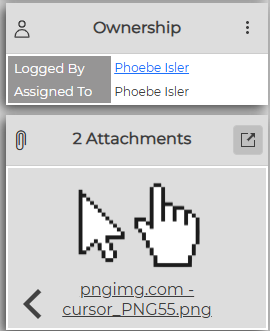 |
- The number of attachments will show on the action note.


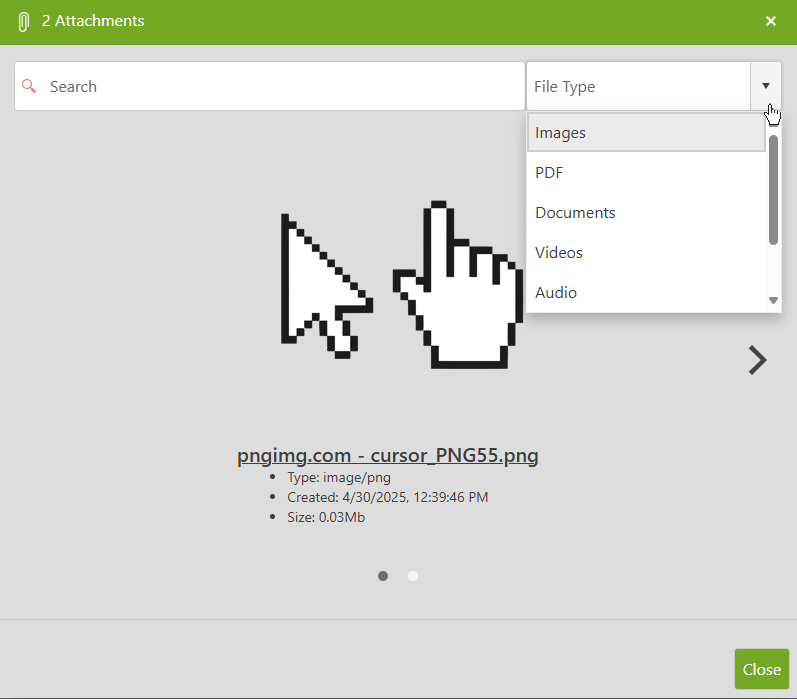
- Clicking the Attachment button will pop up a preview window of the attachments. For Action Notes with many attachments, you can use the search feature or filter with the drop-down menu.

Delete an Attachment
Attachments can be deleted from the attachment pop-up window. Hover over the file preview until a trashcan icon appears .

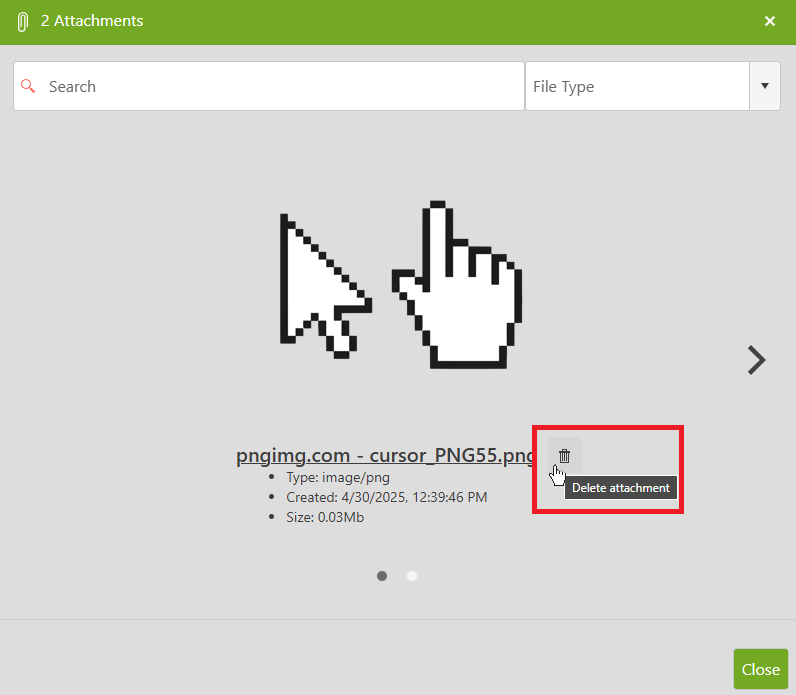
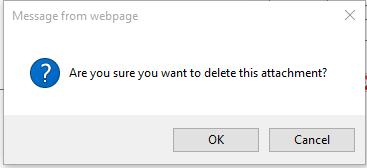
You will receive a warning about deleting the attachment. Click OK to delete, or Cancel to keep the attachment in the ticket.