
From this area, you can set several options for Action Notes as well as the default billable time for each Team. Remember to click on the Save icon to retain any changes made. If you do not wish to save your changes, navigate away from the page without clicking on the Save icon.
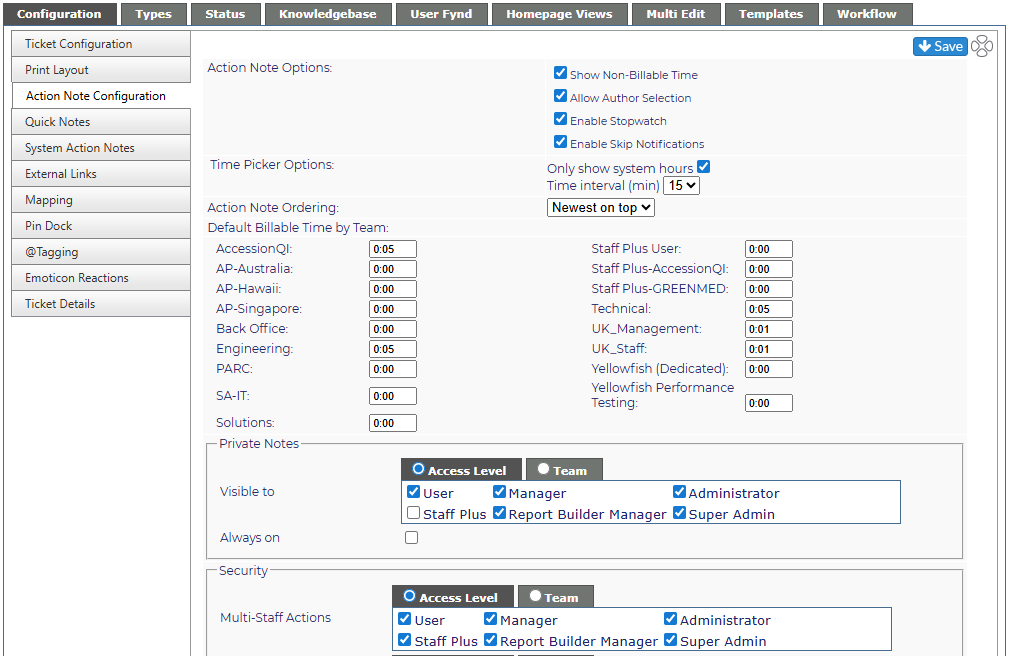
Action Note Options
If checked the options will be available within an action note; if not checked, the option will not be available.
|
Allows for logging of non-billable or nonchargeable time to a ticket. Time is not deducted from any amounts added in the project via the Client Manager - Time Credits area or the initial time added when the project was created. NOTE:If non-billable time is not shown in a ticket, the time shown will be under the heading "Time" rather than "Billable". |
|
|
Allows staff to add notes to a ticket for another staff member by selection from a drop down in the Ticket Action Notes. |
|
|
A timer is available within an action note. Clicking on the timer will start the time which will not stop until clicked again. Doing so will automatically enter Billable or Non-Bill time based on the elapsed time period. |
|
| Enable Skip Notifications | Allow, per action note, selection to have the system NOT send out an email notification to specified users in the Alerts section of the project. |
| Action Note Format | Plain Text or HTML - select which you prefer for your Action Notes |
| Time Picker Options |
|
Action Note Ordering
Select from having the newest Action Note at the top of the ticket or the oldest note at the top.

Default Billable Time by Team
When a ticket is logged or an action added, a specified amount of time will be added to the ticket. The amount can be edited, zeroed out or added to non-billable time manually in the ticket itself. Each Team within Revelation can have a different minimum billable time. The minimum amount of time for any team is zero.
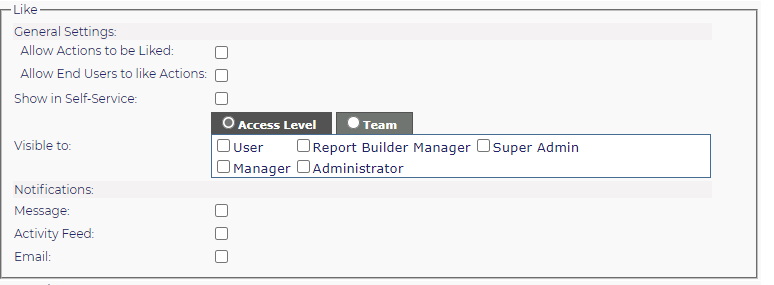
Like
Like is a feature that allows actions to be "liked" within a ticket. A green thumb up indicates the action has been liked.
You can chose which users can be allowed to like within a ticket, control the visibility, and select what types of notifications the Like would be alerted.
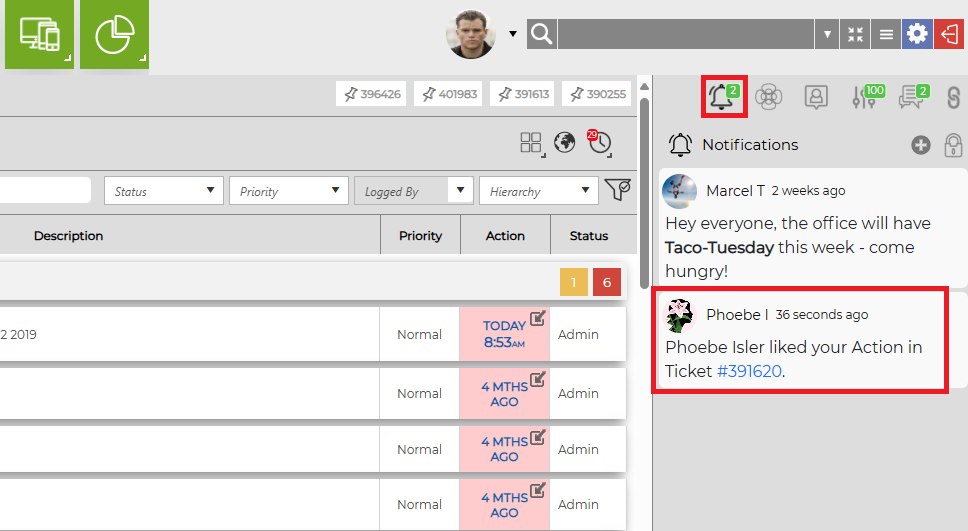
An example of a "Liked" action seen below:

& thus displayed in the Notification feed, if selected):
Private Notes
You can control the visibility private notes within a ticket, by access level or team.
You may also select to have this feature is always on.

Security
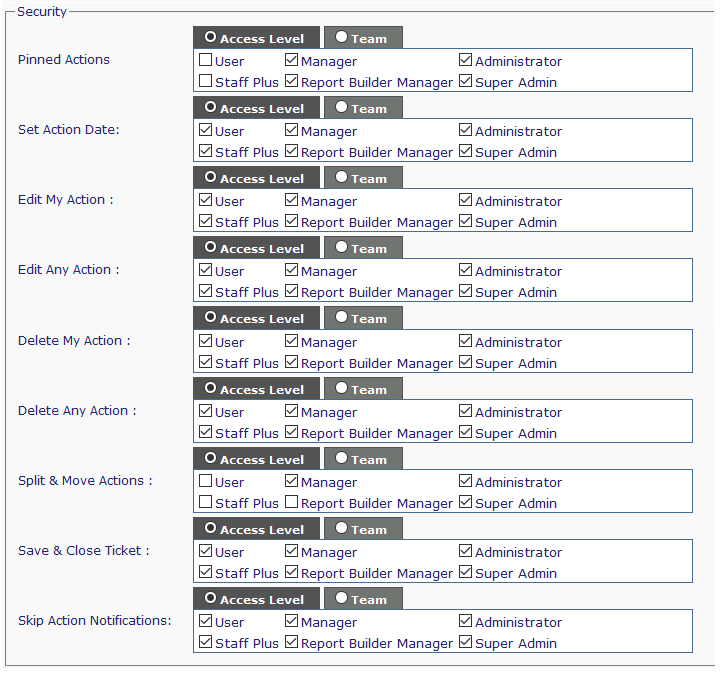
Security allows the Revelation helpdesk administrator the ability to set options for how an Action Note is edited, deleted or split. This can be set by Access Level or Team.
| Pinned Actions | On: Allow users to pin action notes to the top of the ticket. Off: Action notes are ordered based on the Action Note Ordering drop down. |
| Set Action Date | On: Users can set the action date to any date before or after the current date. Off: The action date is set to the date the action is added. |
| Edit My Action | On: The pencil icon will appear at the end of actions logged by the user. Off: Users will not be able to edit any actions assigned to them. |
| Edit Any Action | On: Any action can be edited by any user. Off: No action notes can be edited. |
| Delete My Action | On: Allows users to delete their actions. Off: Users cannot delete an action to which they are assigned. |
| Delete Any Action | On: Allows users to delete anyone's actions. Off: Users cannot delete any action in a ticket. |
| Split & Move Actions | On: Allows users to split action notes into a new ticket, or move action notes to an existing ticket. Off: Action Notes cannot be split or moved. |
| Save & Close Ticket | On: Allows users to right click on the Save button in an Action Note and save the note, and close the ticket. Off: Save action will not have the option to close the ticket. |
| Skip Action Notification | On: Allows users to have the system NOT send out a notification as set in the Alerts area of a project. Off: Notifications will be sent as set in the Alerts area of the project. |
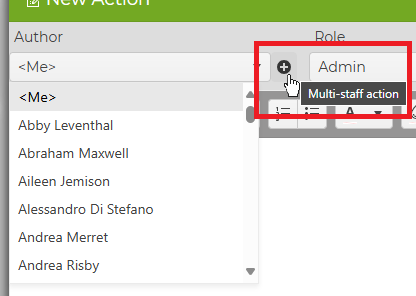
Action Note for Multiple Staff Members:
Administrators can create action notes for multiple users. Click the + button next to the Author drop down menu to prompt the Select Multiple Authors pop-up.
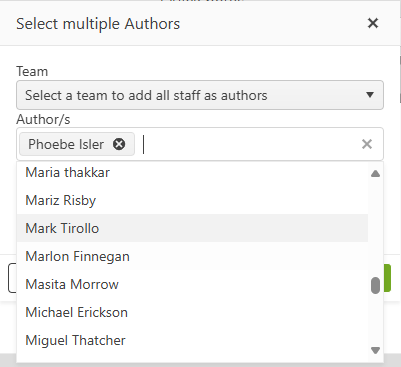
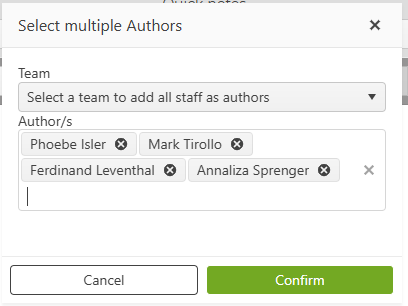
Once all staff members have been selected, click Confirm. When the action note is logged, it will be logged for the staff members you have selected. You can remove any added staff members by clicking the X beside each name, or by clicking Cancel.