
If you have two or more locations, you can roll them up into regions and assign regional managers as needed.
- Click on the New button

- Put in the Region Name
- A list of the Available Locations will appear on the left side; select the appropriate locations.
- The second section is to add the Managers for the Regions. The list will include users from the selected client.
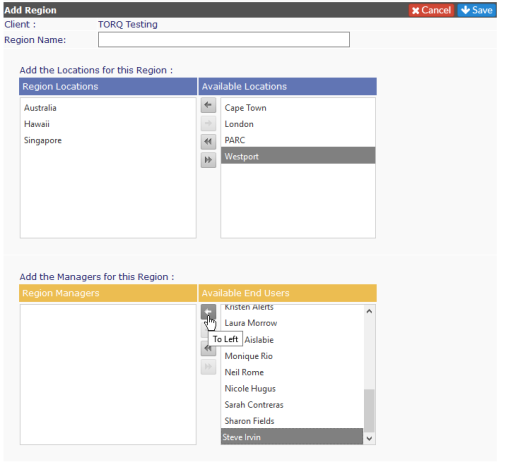
- After selecting the Regional Manager(s), click on Save
Anyone selected as a Regional Manager will become an External Administrator for the Client. However, they will only see the tickets for their Region, not for all the End Users for the client.

Once you have completed the selections, the Regions tab will show the Region Name and the Regional Managers. If there are multiple Regions, each will be listed on the tab.

Edit Region
To edit any of the Regions, click on the Region Name. This will take you back to the Page showing the locations and Available End Users. Make your changes, click on Save to retain. If you want to abandon your changes, click Cancel.
Delete Region
Click on the Region wish to delete. In the Edit Region screen, click on Delete. You will get a warning to confirm you want to delete the Region. Click OK to delete or Cancel to retain the region settings.