
|
|
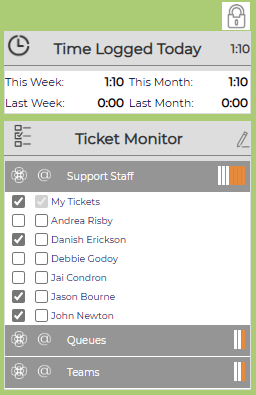
On the left side of the home page, the Ticket Monitor allows you to overlay group or individual user tickets on your home page. On the top left, the lock icon will lock or unlock the entire left column area. If it is unlocked, the column will collapse. Hover your mouse over the bar, and the nave will expand. Remove your mouse, it will collapse again.
Initial configuration is done on the User Information page. Once set, click on the pencil icon to select additional groups or users to monitor. To view their tickets, check off their name and click on refresh icon. To return to just your tickets, uncheck the other names, recheck My Tickets and click on the refresh icon. Note: The Monitor functionality has two selections - one for viewing tickets on the Home Page and a second for getting on the distribution list of the selected User (envelope icon). If you want to receive notifications from the distribution list, check the box associated with the person/group/client in line with the envelope icon. If you are not associated with any groups, or choose not to monitor any group or individual tickets, this feature will not appear on your home page.
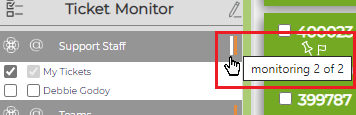
The Ticket Monitor is split into several groups – Support Staff, Teams, Clients, Client Types, Project Types, & Searches.(This may vary depending on how your Administrator has set up Revelation.) Each group has a header bar, showing how many users/groups you have selected to monitor, and how many you are currently monitoring on your home page.
If you monitor several people/groups/project types, a tool tip will appear to show how many more are included when you roll over the bars on the right of the header.
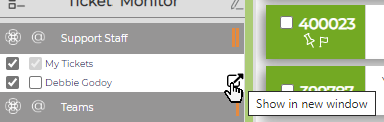
If you want to watch queues or staff in a separate window, roll over the right side of the list to see the pop-out icon.
Click on it and it will show those tickets in a new window.
If you change your view (from Support Staff to Project Types, etc.), Revelation helpdesk remembers the last view you had open.
|


T