Edit a Ticket Type or Sub Type
Delete a Ticket Type or Sub Type
Inactivate a Ticket Type or Sub Type
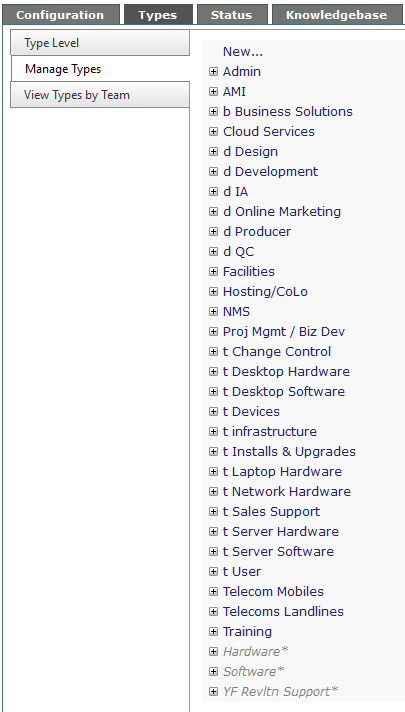
From this tab, you can set new Ticket Types, add subtypes, turn a type or subtype inactive, and assign the teams which can see the types and subtypes.
Add a New Ticket Type
Click New at the top of the list,
Enter the name of the ticket type
- Select the Depth of the Sub Types required for the new Ticket Type
- Inherit is what exists as the standard in the Type Level
- Custom - select up to four (4) levels for the particular Type*
Check off the Teams associated with this Ticket Type.
Only staff on these teams will see the type from the drop down when logging a ticket.
Click the Save icon
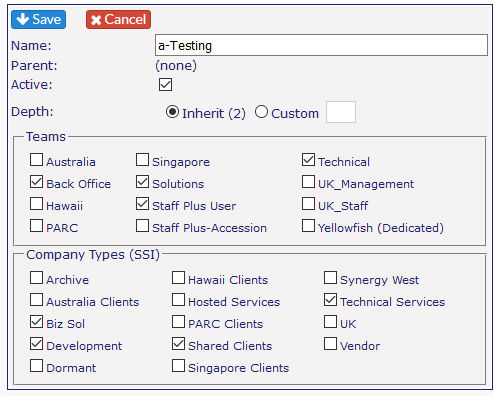
*By selecting Custom, you will have the ability to add fewer or more Sub Types to this particular Ticket Type. It will not affect any other Ticket Type.
Add a Sub Type
Find the Parent type in the Ticket Type List and click on the + in front of the title
Click New to add a Sub Type
Click Save

Edit a Ticket Type or Sub Type
If editing a Ticket Type - click on the item in the list. The dialogue box will appear
If you want to edit a sub type:
Click on the plus sign in front of the associated Ticket Type
Click on the Sub type - the dialogue box for editing will appear. Click on the pencil icon to edit.
In either case, be sure to click on Save when you’re done.
Delete a Ticket Type or Sub Type
Click on the Delete button in the dialogue box. You will get a warning message to ensure you want to delete this Ticket Type or Sub Type.
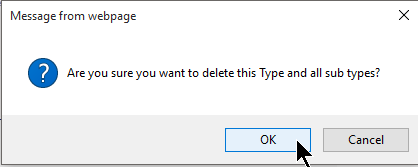
It is recommended that Ticket Types or Sub Types are not deleted unless it is absolutely necessary as this will interfere with the integrity of the database.
Inactivate a Ticket Type or Sub Type
You can turn a Ticket Type inactive by unchecking the Active tick box. The item will still appear in the Ticket Type listing on this page, but there will be an asterisk after the title.
Select the Ticket Type (or Sub Type) from the list.
Click on the pencil icon and uncheck the Active box just under the title.
To reactivate, click on the pencil icon again and check the Active box and click on the Save icon.
Inactive ticket types will not appear in the ticket type pull down menus when logging a ticket.