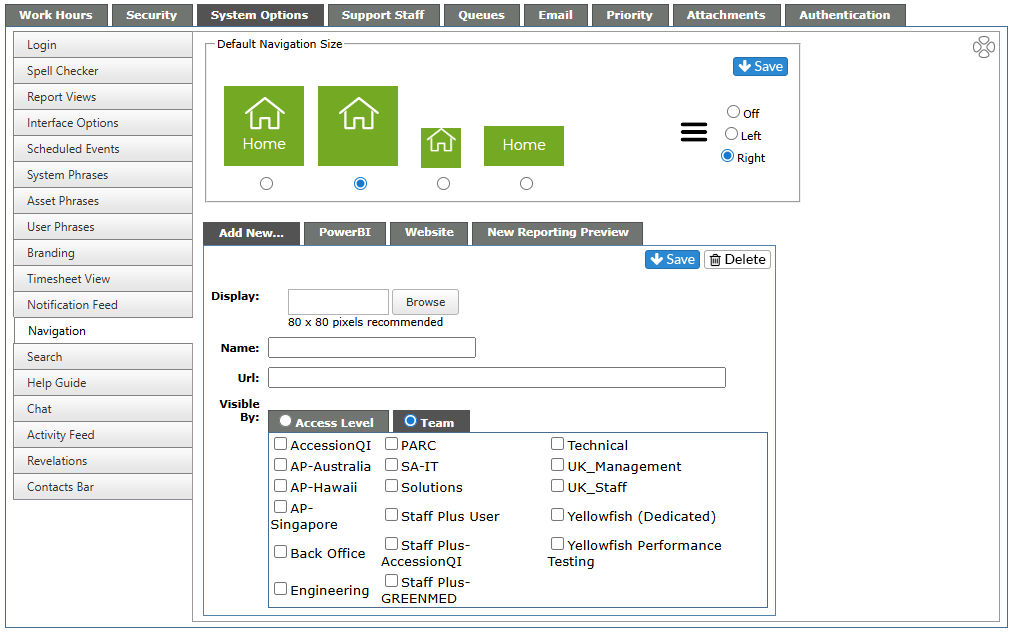
Default Navigation Size
Setting the Default Navigation Size in the Admin area changes the size system-wide. Select the size (small or large), or large with text, or just with text, by clicking the radio button. To retain the setting, hit Save in the upper right corner.
Burger Menu
Select where on the navigation the Burger Menu and the Focus button will appear. Choose Left, Right or Off. As long as it is on, users will be able to select if they prefer it on the left or right side, overriding the system selection. If the Burger Menu is turned off in this area, users will not be able to turn it on.
Custom Navigation
Custom Navigation allows you to add a button or buttons to the Home Page for specific sites you want your staff to use. The option to create, edit or delete a button is available to Admins and Super Admins only.
While you can add multiple Custom Nav buttons, best practice suggests the limit be three.
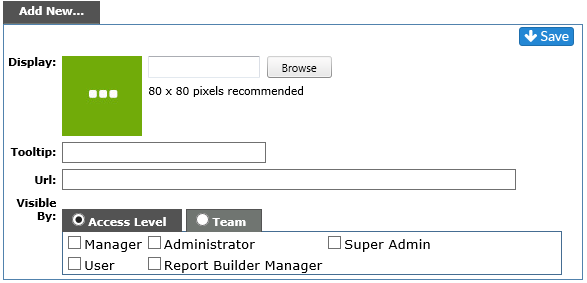
Add a button
|
Item |
Info |
| Display: | Select an image for the button - 80 X 80 pixels is recommended. This can be left blank; three white dots will be visible in the button on the home page. |
| Tooltip: | Shows the Display name |
| URL: | The URL of the site you wish to display inside the Revelation page |
| Visible By: | You can choose to have the button visible by Access Level of your staff or by Team. Only those selected will be able to see the button. |
After inputting the information, hit Save. Once the screen is refreshed, you will see the new tab.
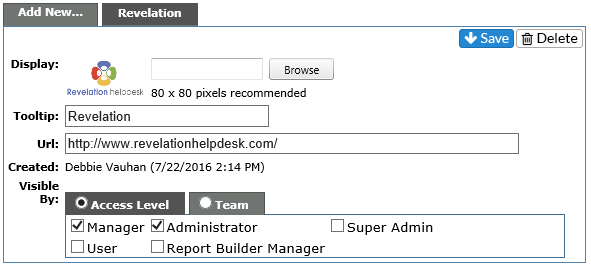
The tab in the Admin area will show you all the information, as well as who created the tab and when.
Edit button
To edit the button, simply click on the tab in the Admin area, make your changes and click the Save button
If you have several Custom Nav buttons, the order can be rearranged by using the arrows at the top of the tab.
Delete a button
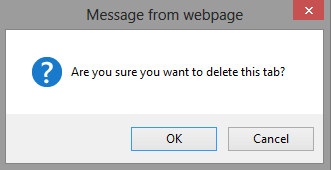
To delete a button, simply click on the Delete button at the bottom of the area. You will see a dialogue box asking if you are sure you want to delete. Click OK to delete, or Cancel to keep.