
From the Contacts fly out, you can do the following:
Log a Ticket
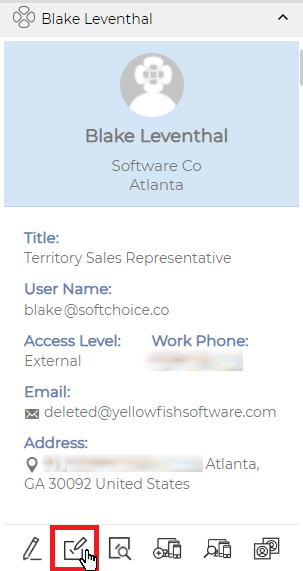
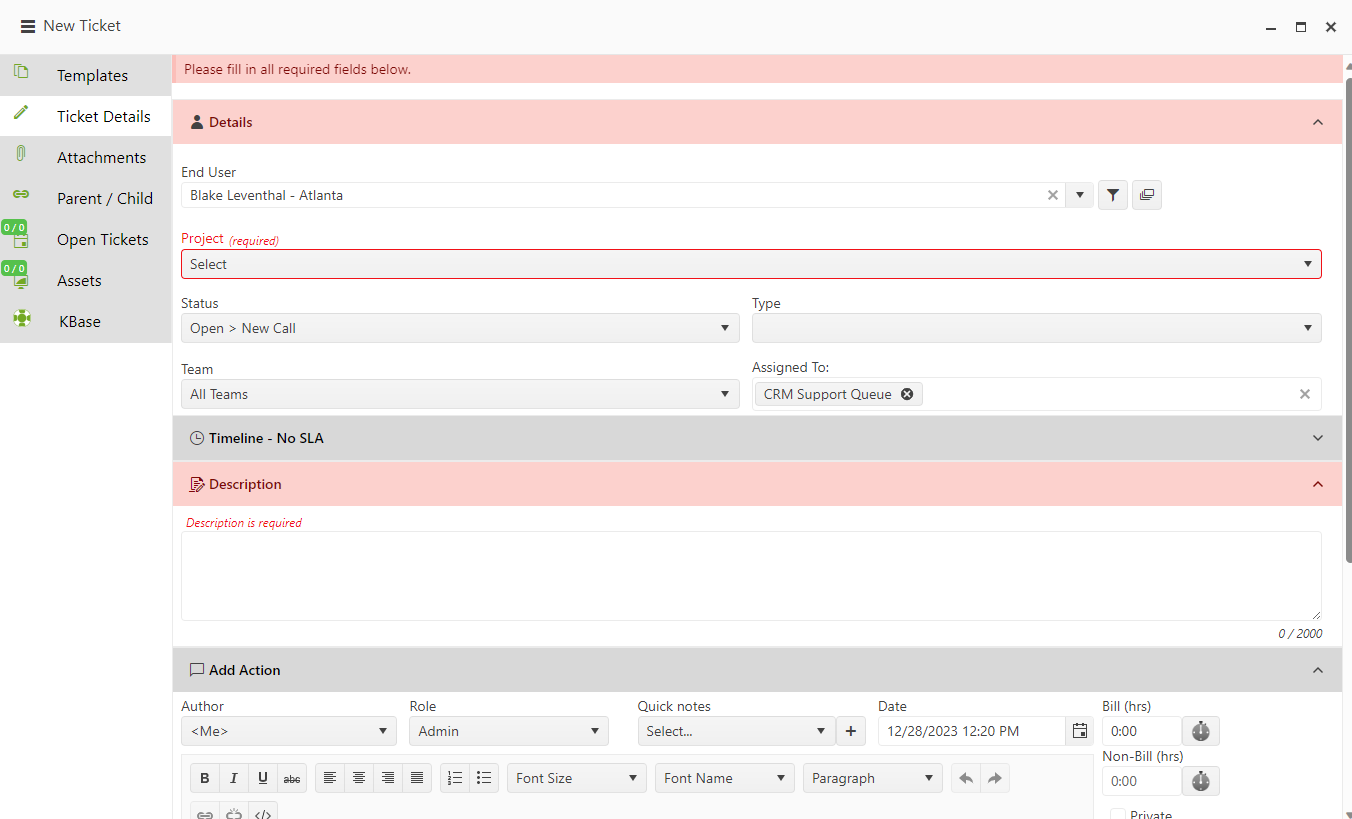
To log a ticket from the contact, click on the arrow to the right of the Revelations icon. This will open the contact information. You will see the Log a Ticket icon. Click on the icon and it will open the log a ticket dialogue box. Fill in the information as you would for any new ticket.
 |
 |
Add Contact
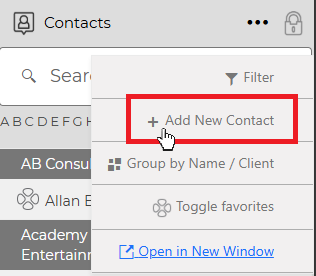
Add a new contact to Revelation helpdesk by clicking on the Add New Contact icon at the top of the bar. When you do, you will be taken to the Add New End User page.
NOTE: If you do not have permission to add a new user, this icon will not be visible in your Contacts fly out.
Add to Revelations
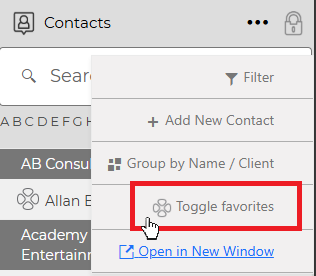
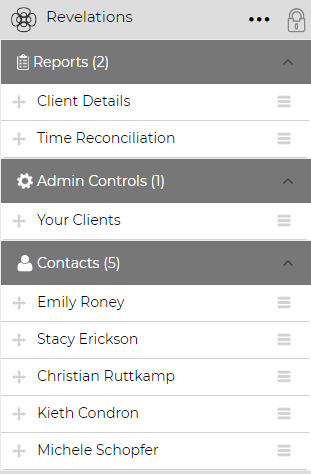
You can add clients you search frequently to Revelations. Simply click on the Revelations icon so it turns full color. To see all your 'favorite' contacts, use the Contacts menu and select Toggle favorites. You will also see the selected contacts in the Revelations fly out under Contacts.
 |
 |
|
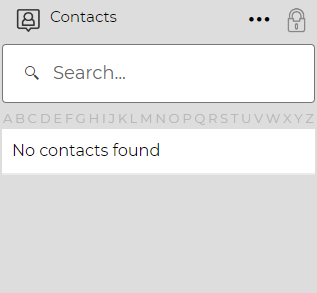
If you have no Contacts saved as a favorite, Revelations will show that no contacts were found. To add favorite contacts, click the Revelations icon. When it appears in color, it has been saved as a favorite - re-filtering for favorites will show the addition.
If Revelations is not active, clicking on the icon will still set the contact as a favorite. |
 |
Click on an expanded name to get the following options:
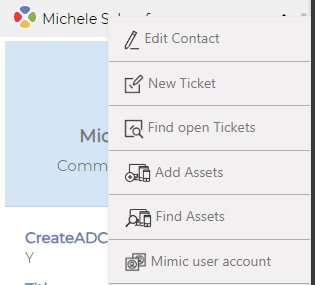
Edit Contact
By right-clicking on a name, you may be able to edit the contact information. When you click on Edit Contact, you will be taken to the User Information page for the contact. If you have permissions to edit this area, you will be able to make and save changes. Otherwise, you'll be able to view the information for the user.
Open Tickets
Selecting Open Tickets will perform a search of the contact for any open tickets in Revelation helpdesk associated with the user.
View Assets
View Assets will run a report for any assets associated with the End User.
This feature is not available for Core users.
Add Assets
Selecting Add Asset will open a new window allowing you to add an asset associated with the contact.
This feature is not available for Core users.
NOTE: If permissions are not active for a user to see or add Assets, this option will not be available.