
Bulk Ticket Logging - Log a new Ticket
Bulk Ticket Logging - End User or Search
Bulk Ticket Logging - Log a new ticket
Revelation helpdesk allows you to log one ticket against multiple End Users.
Click on the Log a Ticket icon at the top of the screen. Click on the Toggle Bulk Logging icon to allow multiple End Users to be entered. 
Select the End Users to add to the ticket - type End User's name one at a time and select them from the drop-down menu. Revelation will count how many users have been added with a green number attached to the toggle button.
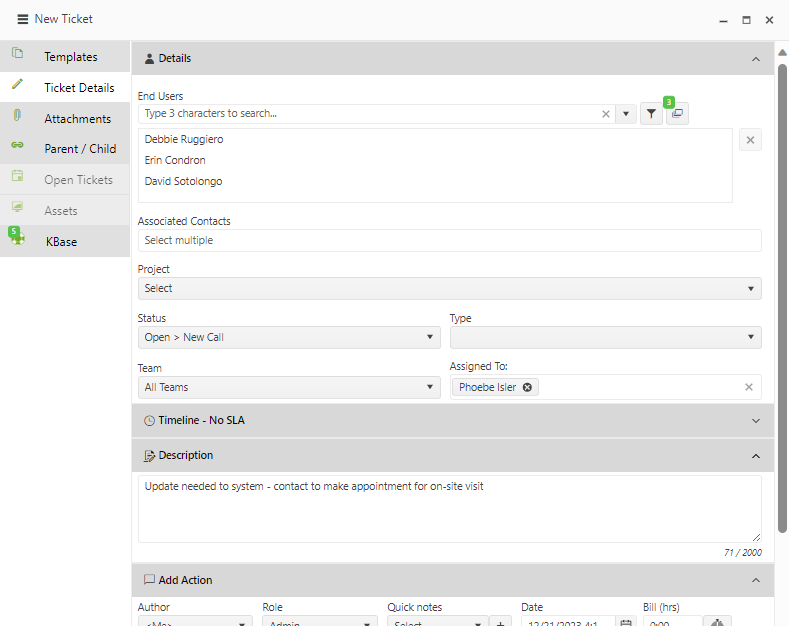
Complete the information as you would for any ticket. When you click on the Log button, a separate ticket will be logged for each of the End Users. The tickets will be logged to the default project for each End User. If it needs to be changed, you will be able to go into each ticket and edit as with any other ticket.

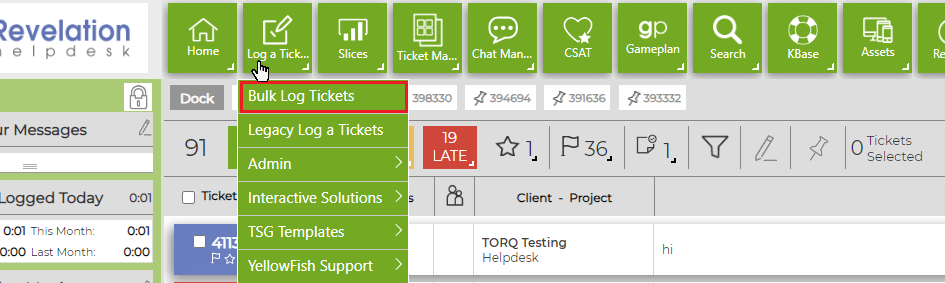
End users can also right-click on Log a Ticket and select Bulk Log Tickets to complete bulk logging as well.
Bulk Ticket Logging - End User or Search
Bulk Ticket Logging can also be done from the following areas in Revelation:
- End User list in Client Manager
- Search
Select the users from either the End User List for one client, or from Search for multiple clients and click on the Log a new Ticket icon in the Multi Edit function at the top.
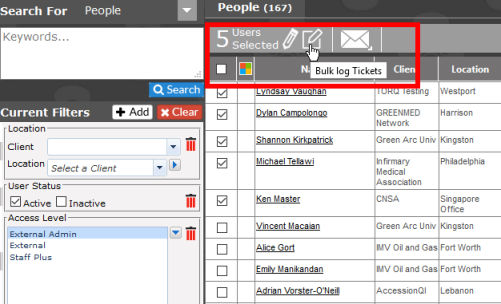
Once you click on the Bulk log Tickets icon, the standard Log a Ticket screen will appear. At the top, instead of a single end user, it will list each of the end users that were selected.
Note: Since there may be multiple clients, the tickets will be logged to the Client's primary project.
When the tickets are logged, they will appear on the home page.
Bulk Ticket Logging - Assets
To log multiple tickets:
- Select the assets from the Asset Management screen or a Search result.
- From the results screen, select the appropriate items
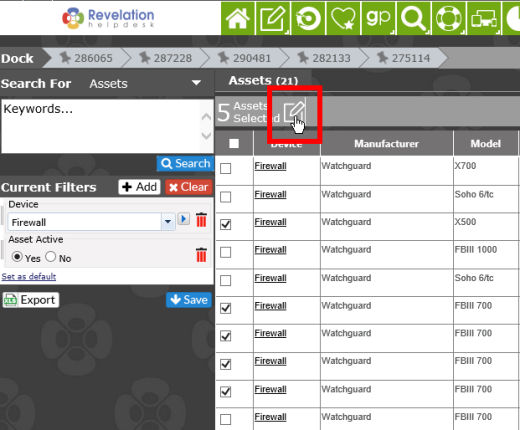
- Click on the Log a Ticket icon. You will see the Log A Ticket screen with the number of Assets shown in the End User area.
- Fill out the information as you would for any ticket. However, the ticket will be logged to each client's Default Project. As such, you may need to adjust the tickets once they are logged.
- Separate tickets will be logged for each item.
Notes:
- If no primary project is set for the End User's Client, the ticket will be logged to the most recently created active project in the Client's Project list.
Depending on the Log Options settings you have for a new ticket, you may be taken into one of the tickets. You will be able to page through the tickets using the arrows located by the ticket number.
- If a Gameplan project is the default, the ticket will be logged, but no workstream will be assigned.