
AI Assist
With AI Assist, Rai is your built-in productivity partner inside Revelation helpdesk, designed to help you work faster, communicate more clearly, and make better decisions without leaving your ticket. Whether you need a quick overview, smart suggestions, or tailored insights, AI Assist uses your existing ticket data to deliver relevant, actionable output — all within your secure Microsoft 365 environment.
Learn more using the links below:
- Where is AI Assist?
- What AI Assist Can Do
- What AI Assist Can't Do
- Built-In AI Assist Modes
- Best Practices for Using AI Assist
- Your Data, Your Control
- Sample Outputs - What to Expect from AI Assist
Where is AI Assist?
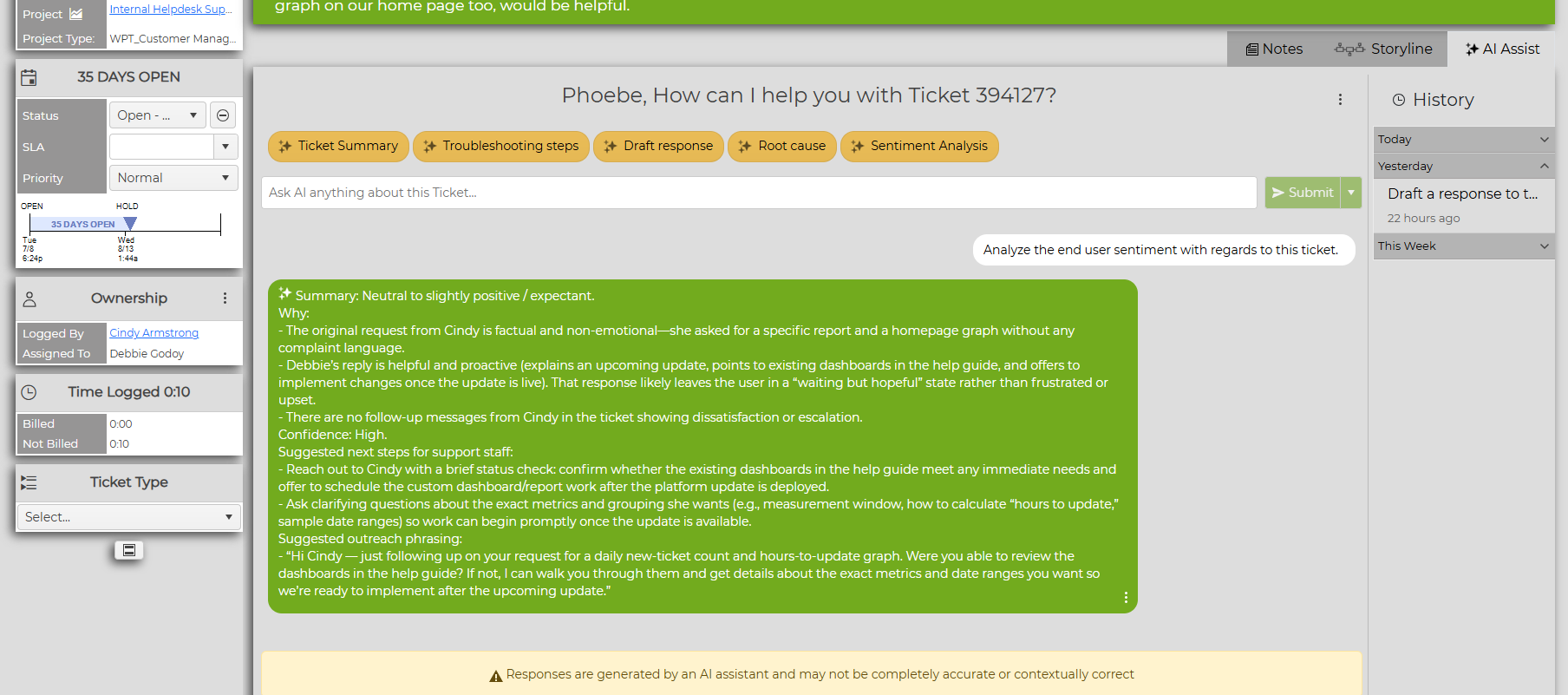
In the top right corner of your ticket, you'll see an orange tab that says AI Assist - click there to toggle to AI Assist mode, where you can chat with Rai.

What AI Assist Can Do
Although Rai has built-in options for you to choose within the ticket, you have much more flexibility. If none of the pre-built prompts are what you're looking for, you can type in any query in the Ask AI anything text box underneath the prompt buttons.

Rai can do a number of things, such as:
- Summarize tickets in clear, human-readable language for quick understanding.
- Extract key details such as contact info, company, project, status, priority, total time, and last update.
- Build timelines of actions taken, who did what, and when — including billable time totals.
- Draft communications including internal notes, client updates, follow-ups, proposals, and scope statements.
- Suggest next steps like closing criteria, escalation points, or missing information to collect (e.g., approvals or attachments).
- Provide troubleshooting tips tailored to the ticket’s symptoms and history.
- Propose root-cause hypotheses based on available facts and common patterns.
- Perform sentiment analysis on user messages to help you gauge tone and respond appropriately.
- Generate reusable templates for emails, updates, or proposal cover letters.
- Validate and format contact details for professional outbound communications.
- Give managers and clients quick “snapshot” summaries without digging through the ticket history.
- Maintain a chat history for each ticket, so you can revisit past AI Assist conversations any time.
- Resume exactly where you left off if you return to a ticket later — your previous prompts and Rai’s responses are always available.
- Generate draft Knowledge Base articles from ticket descriptions and action notes, helping teams capture solutions and build a searchable support library with minimal effort
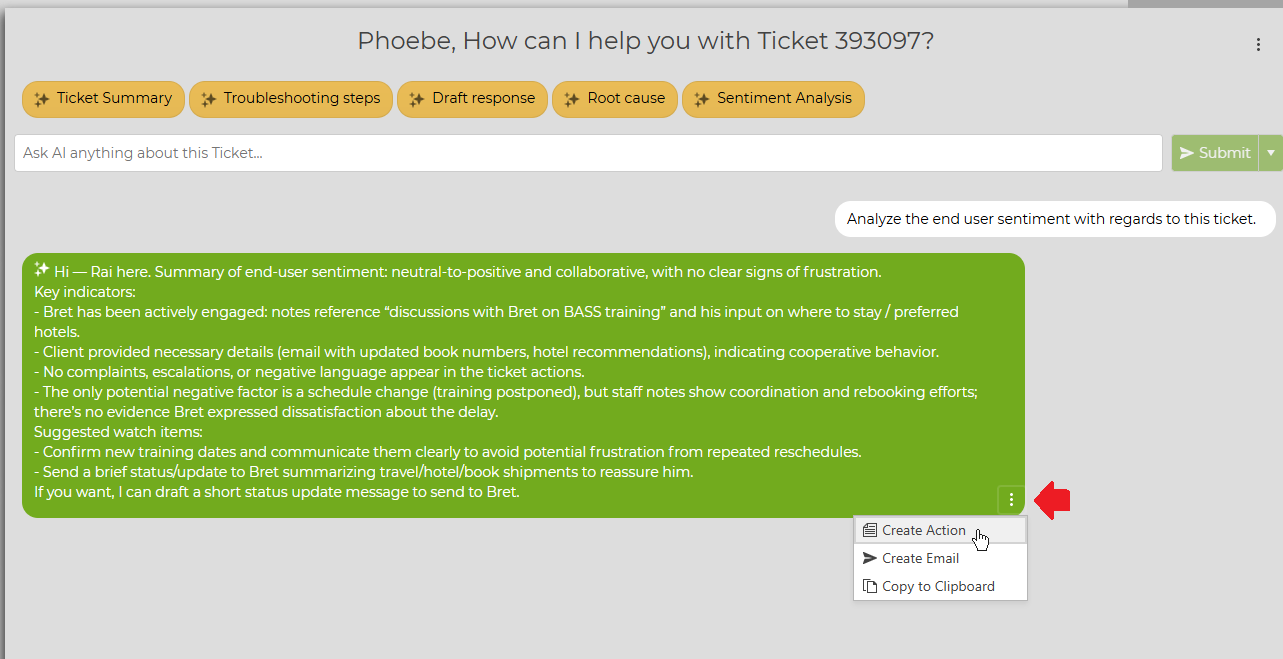
Once you're satisfied with the response Rai provides, you can add it directly into your ticket: simply click the 3-dot icon  and select Create Action.
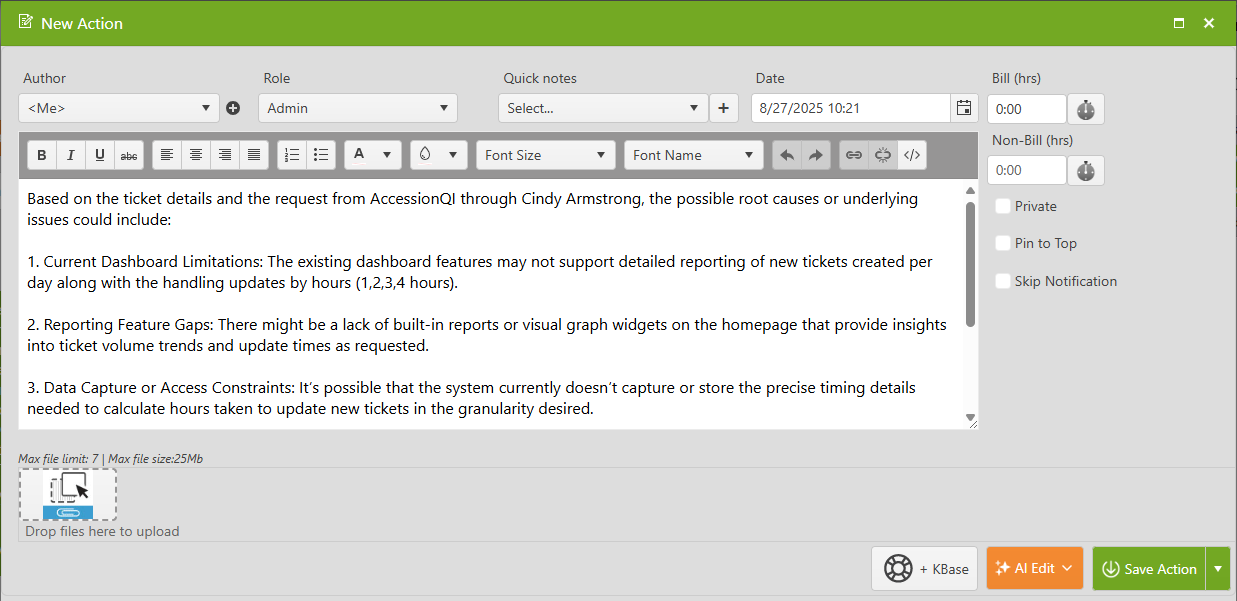
You will then have the ability to edit the response and add any time or additional notes.
You can also create an email out of Rai's response, or copy the reply directly to your clipboard to send elsewhere.
NOTE: Rai will not post directly to the ticket automatically.
Revelation AI also keeps track of your conversation history, so you can pick up where you left off at any time. Your History will appear on the right side of the AI Assist tab, so if you've worked with Rai in the ticket previously, it will be archived and easily accessible for you.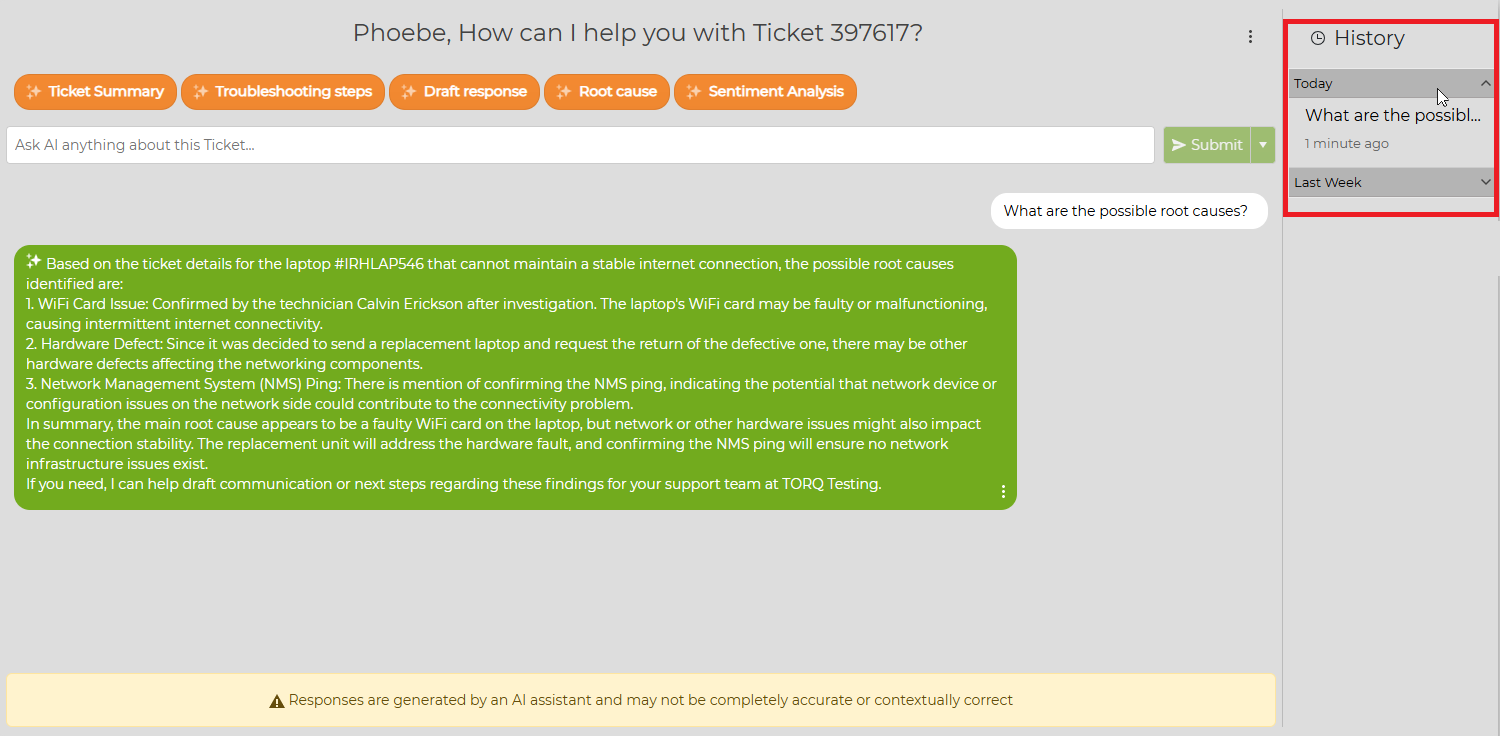
What AI Assist Cannot Do
Rai can be super helpful, but there are some things that AI Assist can't do.
- Update tickets, change statuses, or add time/attachments.
- Access systems or data outside of what you provide.
- Query live external systems (e.g., shipping, vendor portals) without pasted information.
- Guarantee 100% accuracy — all outputs should be reviewed before sending or acting on them.
- Replace human approvals, procurement decisions, or compliance review.
- Read ticket attachments or embedded images inside action notes.
Built-In AI Assist Prompts
AI Assist comes pre-built with standard prompts for users. Here are the five primary ways you can use Rai, along with what’s needed for best results:

- Ticket Summary
- What it does: Creates a short, clear overview of the request, actions so far, and next steps.
- Best for: Hand-offs, escalations, or quick briefings.
- Troubleshooting Tips
- What it does: Lists prioritized, step-by-step checks and diagnostics for the reported issue.
- Best for: Agents investigating technical or process-related problems.
- Draft Response
- What it does: Generates a polite, professional end-user update or closure message.
- Best for: Saving time on repetitive communications.
- Root Cause Hypothesis
- What it does: Suggests likely causes for a problem based on ticket history and known patterns.
- Best for: Technical review or escalation preparation.
- Sentiment Analysis
- What it does: Evaluates end-user mood (positive / neutral / negative) and offers communication guidance.
- Best for: Managing tone in customer service interactions.
In addition to the five built-in prompts, you can create custom system modes based on your own prompts and workflows. These appear alongside the standard modes, giving you a personalized AI experience that grows with your helpdesk.
Best Practices for Great Results
- Give as much detail as possible in your prompt, as if you were asking a human to perform the task.
- Specify your goal (e.g., “Draft a closure email” or “Give me troubleshooting steps”).
- Include device models, error messages, tracking numbers, and attempted fixes when relevant.
- Flag any sensitive fields you don’t want included in responses.
- Treat all outputs as recommendations — validate before finalizing.
Quick Example Prompts You Can Try
- “Summarize ticket 700595 for an account manager.”
- “Draft a client email to Jason Borque and request sign-off.”
- “Create an internal checklist to close this ticket and move the project to retainer.”
- “Show a timeline of actions and total billable time for this ticket.”
Your Data, Your Control
At Yellowfish Software, we take customer data security and privacy seriously. That’s why Rai — and all future AI features — run on your own Azure AI instance, fully contained within your Microsoft 365 tenant. Your ticket data, as it relates to AI queries, never leaves your secure Microsoft 365 environment. All AI processing happens inside your own Azure AI tenant, inheriting your existing compliance, governance, and security policies.
While we have options for integrating with other AI large language models (LLMs) in our product roadmap, as of Fall 2025, Azure AI is the sole option. This ensures that every customer benefits from consistent, Microsoft-aligned security and governance from day one.
Sample Outputs – What to Expect from AI Assist
Below are examples of how Rai might respond to different requests. NOTE: these are examples only — your results will vary based on the ticket content you provide.
1. Ticket Summary
Prompt: “Summarize ticket 700595 for an account manager.”
Input (excerpt):
User reports slow email performance since Monday morning. IT ran initial diagnostics, found no server-side issues. User workstation shows 85% storage capacity and outdated Outlook version.
AI Assist Output:
End user reported intermittent email delays starting Monday. Initial checks confirm no server issues; likely local performance impact due to high disk usage and outdated Outlook client. Awaiting user confirmation after recommending upgrade and cleanup. Next step: Follow up in 48 hours.
2. Troubleshooting Tips
Prompt: “List troubleshooting steps for reported printer connection failure.”
Input (excerpt):
Ticket describes inability to print over network; user on Windows 11, error code 0x0000011b.
AI Assist Output:
- Confirm printer is powered on and connected to network.
- Check if other users on same subnet can print.
- Verify Windows Update KB5005565 is installed; if so, apply Microsoft patch for network printing.
- Remove and re-add printer using full UNC path.
- If issue persists, escalate to Network Services team.
3. Draft Response
Prompt: “Draft a closure email to client confirming resolution of VPN login issue.”
AI Assist Output:
Subject: VPN Access Restored – Ticket #702134
Hi Alex,
Your VPN login issue has been resolved. Our network team applied a configuration update, and we’ve confirmed successful access from your account.
Please try connecting at your convenience, and let us know if you encounter any further issues.
Best regards,
Jordan – Revelation Helpdesk
4. Root Cause Hypothesis
Prompt: “Suggest likely causes for slow shared drive access.”
AI Assist Output:
Possible causes:
- Network latency between branch office and central file server (high RTT detected in logs).
- Excessive simultaneous connections saturating bandwidth.
- Server-side antivirus scan delays during peak access hours.
Next steps: Run traceroute from affected site, review server CPU usage, and temporarily disable real-time scanning for test.
5. Sentiment Analysis
Prompt: “Analyze sentiment for end user’s message.”
Input (excerpt):
“This is the third time this week I’ve had to call about the same issue. I can’t keep losing work hours waiting for IT to fix this.”
AI Assist Output:
Sentiment: Negative
Reasoning: Strong frustration indicated by repetition (“third time this week”) and impact to productivity (“losing work hours”).
Recommended approach: Respond promptly with empathy, provide clear resolution timeline, and consider escalation.