Accessing the Revelation AI Admin Panel
Super Admins Only
Once the Azure subscription, resource group, and user account are set up, super admins can proceed to configure AI resources via the Revelation Admin UI. Log into Revelation helpdesk and navigate to the admin section and select “Revelation AI” from the left menu.
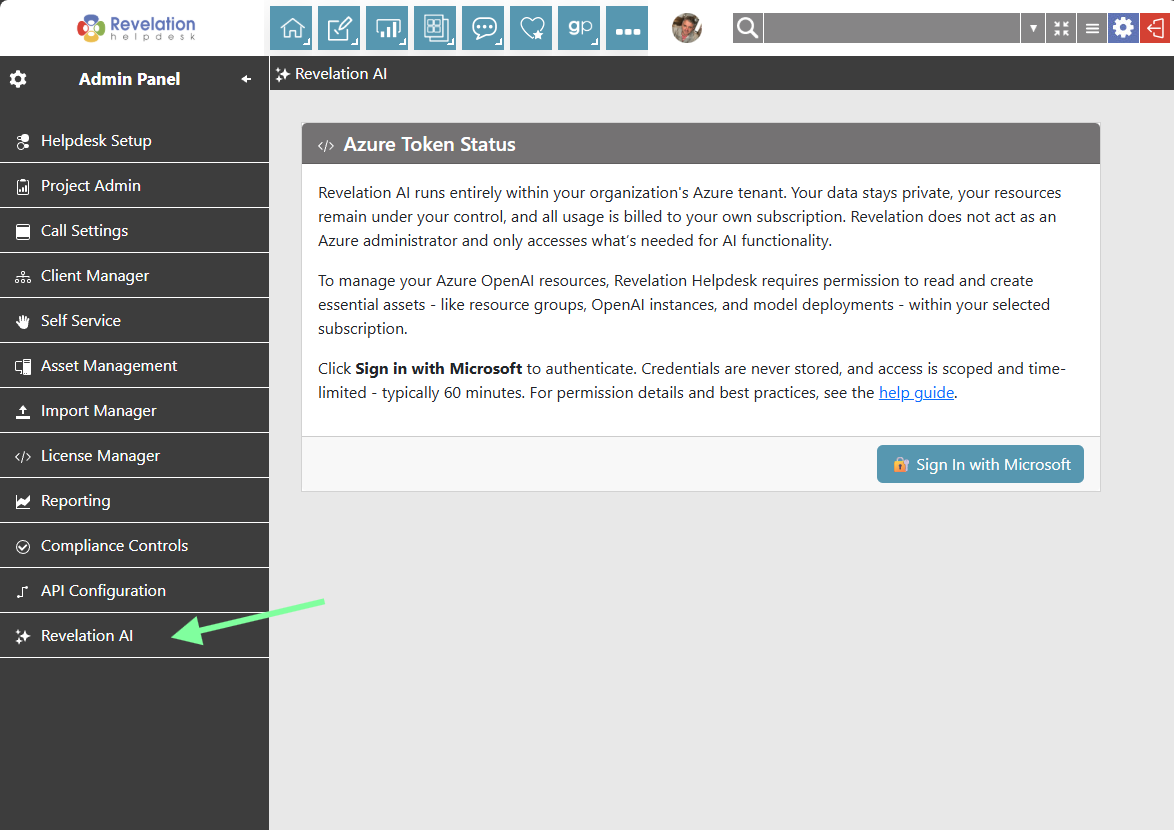
Sign In with Microsoft
- For Revelation helpdesk to create Azure AI resources on your behalf you need to get an access token.
- Click Sign in with Microsoft
- When prompted, enter the credentials of the Azure user created in Step 3 (prerequisites)
This user must have the Cognitive Services Contributor role assigned to the correct subscription.
Token Expiration Notice
After successful authentication, the access token is valid for a limited time — typically 60 minutes. To avoid session timeout, complete the setup process promptly. If the token expires, you’ll need to re-authenticate via Microsoft Sign-In.
Managing Revelation AI Access
Super Admins have the ability to control who can access and use Revelation's AI features, which is done in the Revelation AI tab of the Admin Panel.
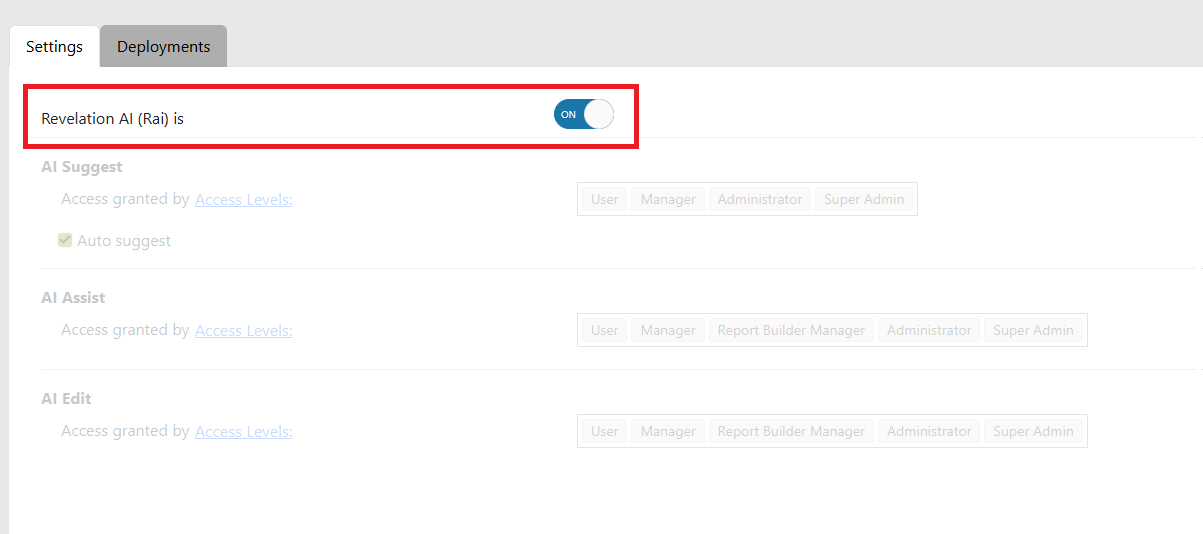
Admins can toggle Rai on and off using the main switch at the top of the Revelation AI Admin page.
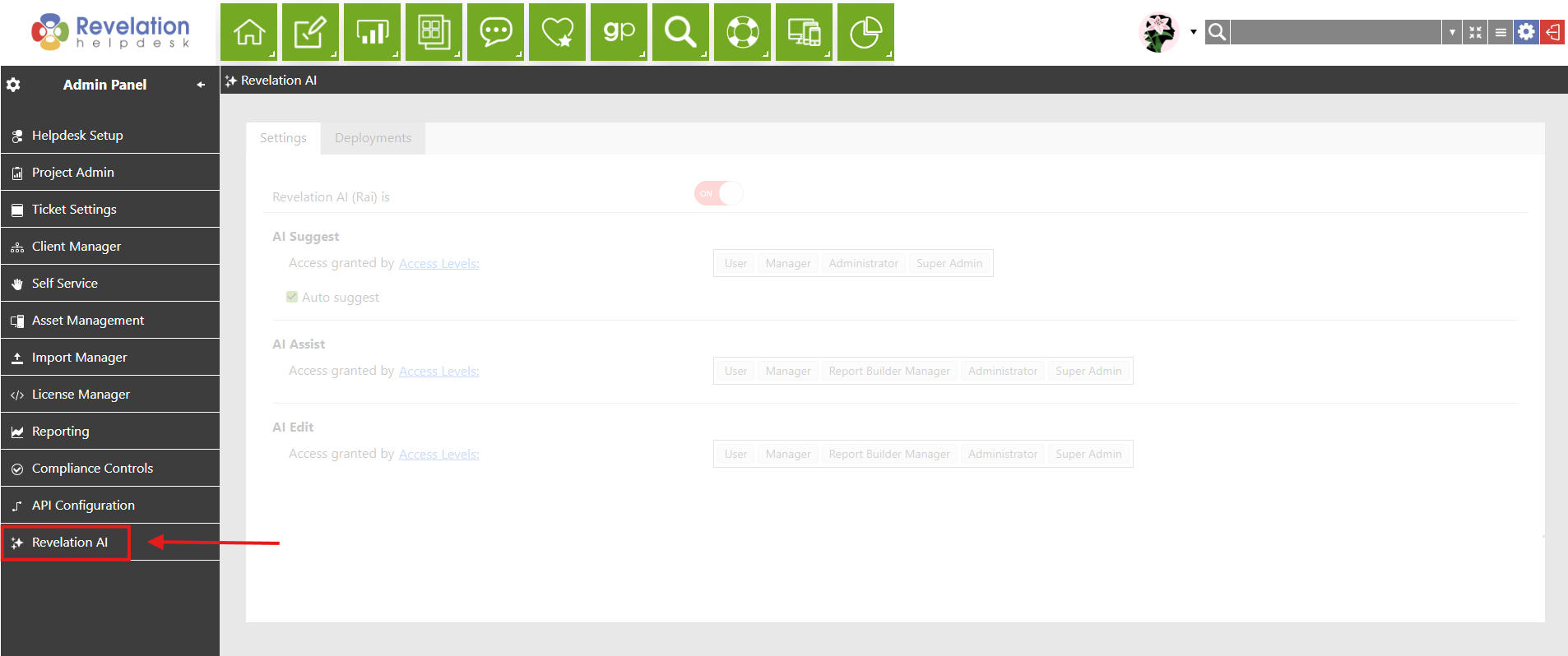
Admins can also control how access is granted to Revelation users - by Access Level or by Team. For quick changes, select the button options next to each AI tool.
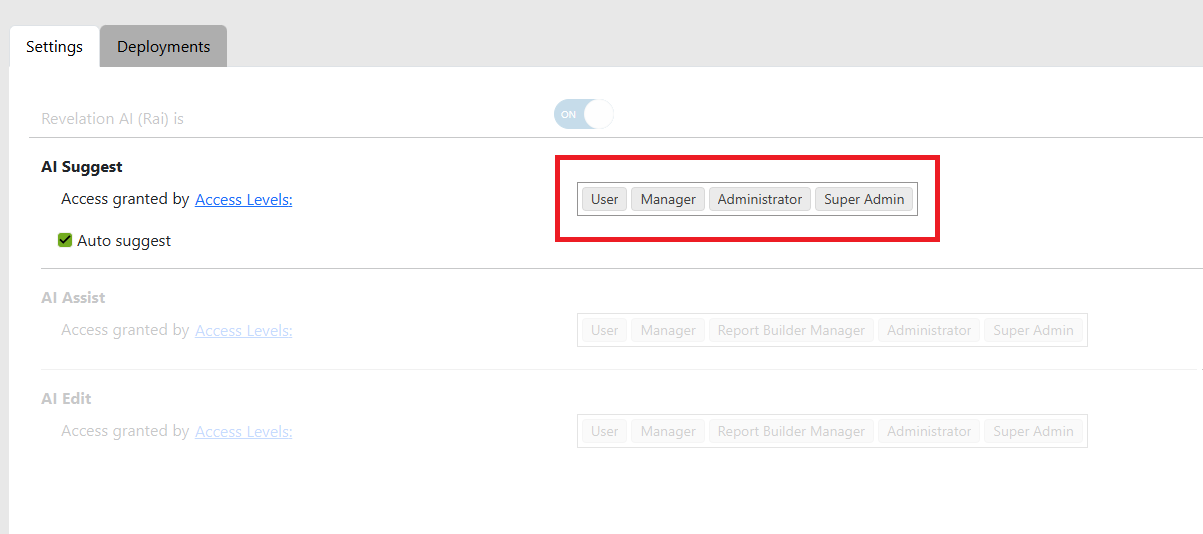
NOTE: for AI Suggest, Admins can also turn Auto suggest on and off.
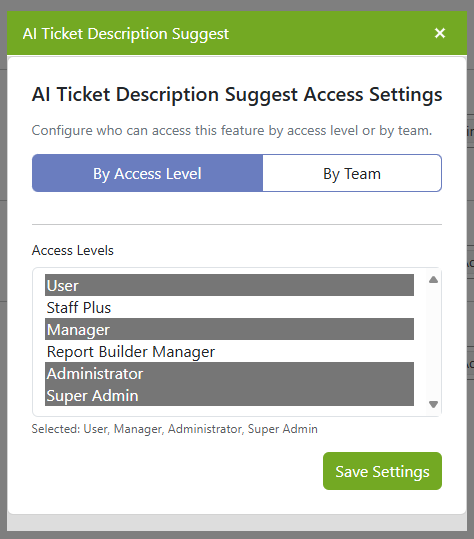
To change the configuration of how access is granted, click the blue underlined link beneath each AI tool - either Access Levels or Team.
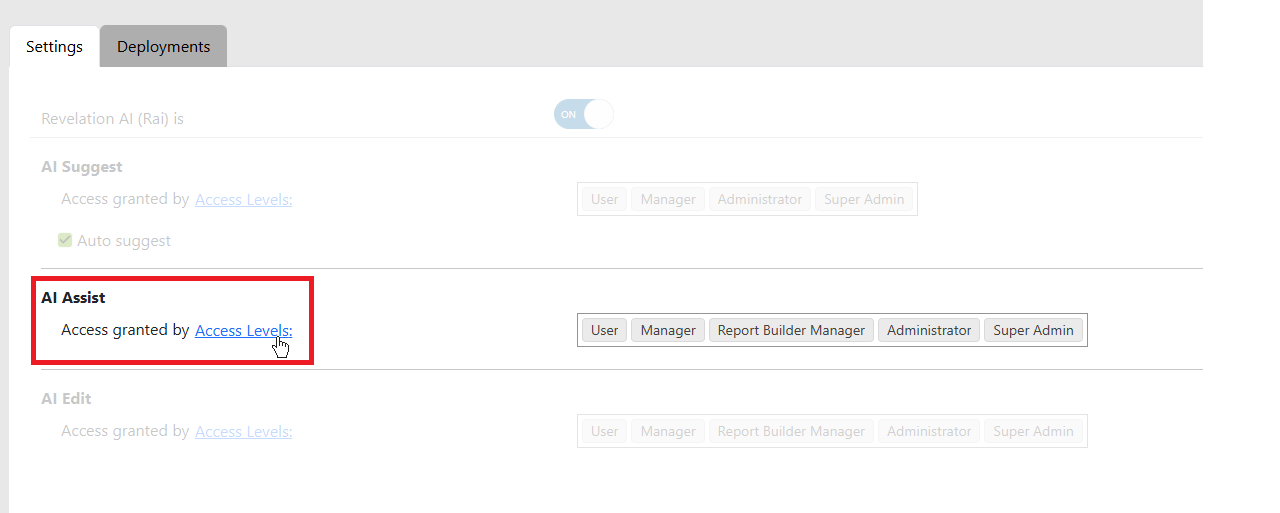
Make the appropriate selections and click Save Settings.