
If enabled by the System administrator, the Home Page Filter allows you to search for a term within the columns available on your home page. When enabled, the filter will show in the Summary Bar area at the top of your screen.

When you click on the button, you will get the following box :
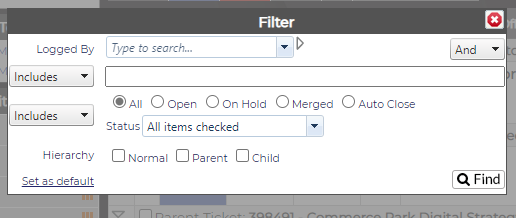
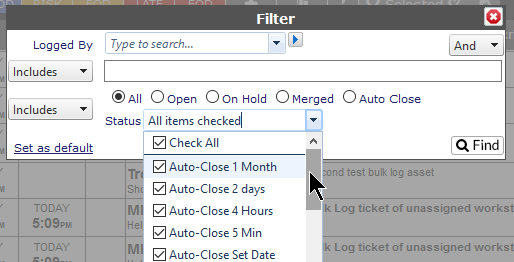
- Logged By: will display all the tickets on your home page logged by that person.
- Includes/Excludes will allow you to add or omit a search term. The term can be a client name, a word that may be in the Ticket Description or a number.
- If Multi Edit is enabled, you will only be able to select against the filtered tickets.
- Show Auto-Close tickets, when checked will show tickets which are currently scheduled to Auto-Close.
- Select the Ticket Status from the radio buttons
- Use the Includes/Excludes drop down for an additional filter
- Use the Status drop down to select if you only want specific statuses to be filtered
- Set as Default: If this is a search you use regularly, click on Set as Default on the bottom left to keep all the options you have selected.
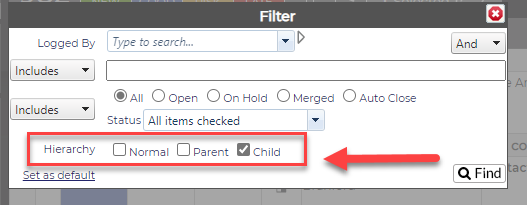
- Hierarchy: You may select either normal, Parent, Child (or all three), and it will display those sets of tickets
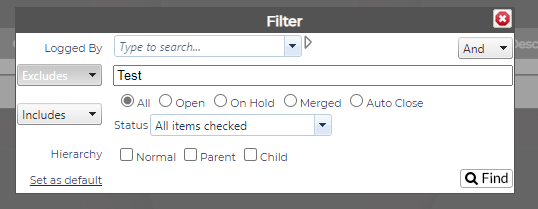
If you've chosen to exclude text, the results will show all the tickets without the term selected. In the example below, tickets with the word 'test' are removed from the results list:
|
|
|
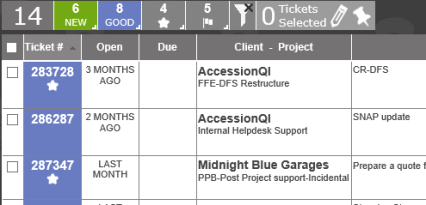
The results will show in the Summary Bar - giving you the total number of tickets (8, in this case), and how many are in what stage of the SLA - Good, At Risk or Late. If you select a number of tickets to edit, the number will show in the Tickets Selected box. To pin any of the tickets, select the check box by the ticket and click on the Pin icon at the end of the Multi Edit bar.
The search can be refined by entering multiple terms in the search box. For example, if you enter "email problem high", the search will return only those tickets containing ALL three words. In effect, you are doing a search using "email AND problem AND high".
To clear the filter, click on the red Clear button.