
When activated, the Activity Feed allows staff to see various real time alerts in a column on the home page, Log a Ticket and Search screens:
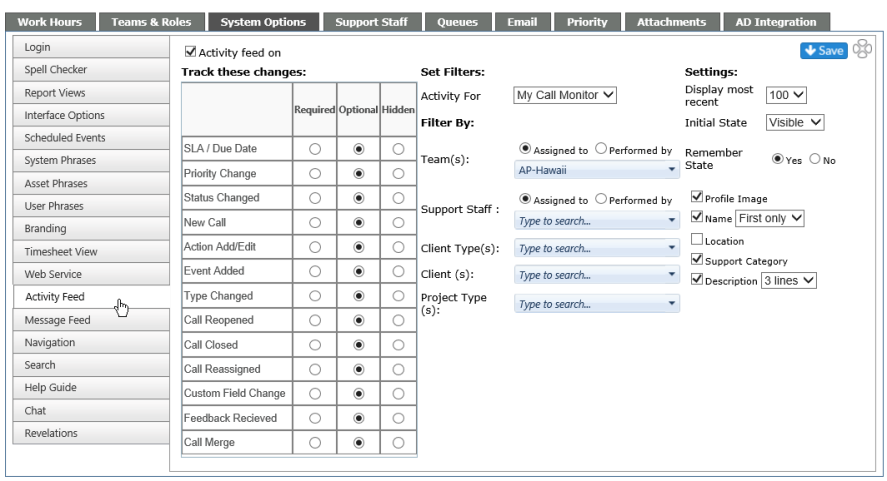
By checking the Activity feed on box, the feed will be visible for your staff and the following can be set:
Track these changes
- Required - Will show in the User's Activity Feed, and they will not be able to remove the option from their controls
- Optional - Will show in User's Activity Feed; they will be able to select if they want to see it or not
- Hidden - Will not show in User's Activity Feed, and they will be unable to select the option
Set Filters
Three options are available:
- My Tickets - Will show only items for tickets assigned to the User
- My Ticket Monitor - Will show items for tickets assigned to anyone on based on the Ticket Monitor settings for the User
- All Tickets - Will show items for all tickets active in Revelation
Filter By
- Assigned To or Performed By for Teams
- Assigned to or Performed By by Support Staff
- Client Type(s)
- Client(s)
- Project Type(s)
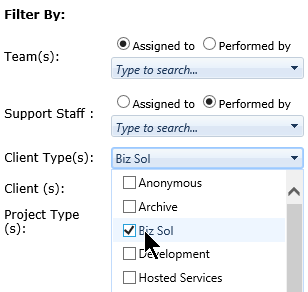
To select specifics for any of the filters, click on the appropriate drop down and check the options needed.
Settings
Allows you to select the default settings:
- Display most recent - 50, 100 or 200 items
- Initial State - Hidden or Visible
- Remember State - Yes/No - Remembers if the Activity Feed is left open or closed when Revelation is closed.
- The following show which items are shown in the items:
- Profile image - if the Profile image is on, and one is uploaded, it will show in the Activity Feed
- Name - Full name or First name only
- Office - if multiple offices are in the system, will show the appropriate office for the ticket
- Project - Project name
- Description - X lines - Select the number of lines shown for the description: 1, 2 or 3
Remember to click the Save button at the top of the screen after changes have been made.