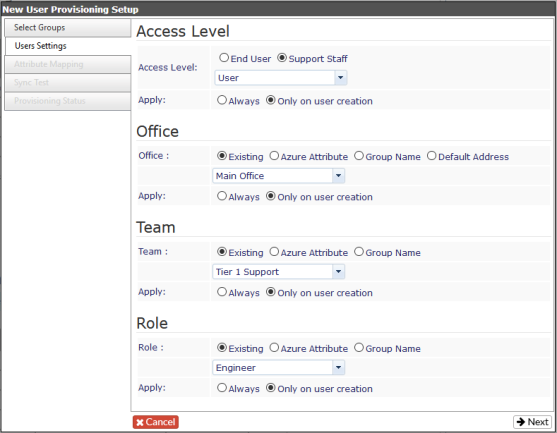
Under the “User Settings” step in the “Access Level” section, choose “Support Staff” and choose the desired access level for your support staff from the dropdown list. It is recommended to set the access level to “User” which has the least privileges. If you leave the option “Only on user creation” it means you can manually change the user’s access level under their Revelation profile after they have been created should you wish to give them more system privileges.
NOTE: If you change the “Apply” option to “Always”, this setting cannot be edited under the user’s Revelation profile.
- Office can either be set to an existing office (set to the “Default Office”) OR it can be set to an Azure Attribute or the user’s Group name. Typically, your helpdesk staff will exist in a single office which has already be created in Revelation. (The term Office may be changed to match your terminology using System Phrases in Revelation.)
- Team should be set to an existing team which has already been created. Just like access level, the team can be updated in Revelation after the user has been created if you leave the apply option as “Only on user creation”.
- Role should be set to an existing Role. Alternatively, you can have it pull the value for Role from an Azure Attribute which is normally the ‘title’ attribute of the user. (The terms Team and Role may be changed to match your terminology using System Phrases in Revelation.)