
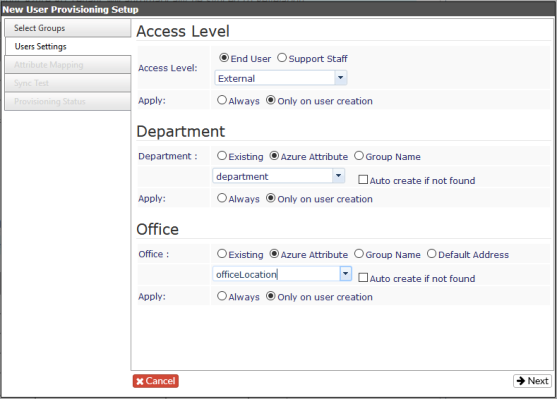
The settings for these users are typically as follows:
- Access level is either ‘External’ or ‘External Admin’ depending on what permissions you want your end users to have. Department can either be set to the Group Name that the user is tied to or it can be set to an Azure Attribute. (The term Department may be changed to match your terminology using System Phrases in Revelation.)
- The ‘department’ attribute usually contains the user’s actual department in your organization. While you can use the ‘Auto create if not found’ option to automatically create the department in Revelation if it doesn’t exist, use this setting with caution. It can lead to unwanted departments being created if the data in your AD is messy or misspelled.
- If you choose not to use the Auto Create option, you MUST ensure all your departments are already setup in Revelation prior to configuring this rule.
- Office can be set to the ‘Default Office’ if your departments and offices are already created in Revelation. Alternatively use the ‘Azure Attribute’ option if you want to create your users under an office based on an attribute value in your AD. Typically this attribute would be ‘officeLocation’. (The term Office may be changed to match your terminology using System Phrases in Revelation.)
- Again, you can use the ‘Auto create if not found’ option to automatically create the office in Revelation if it was not found.
Go on to Attribute Mapping