
The Stopwatch feature gives Internal Users a mechanical way of recording their time in Revelation. The stopwatch is only visible to the user, and would not be visible to anyone not logged in as that user. This is set up in the Action Note Configuration section of the Admin area.
When users create or edit an Action within a ticket, they have the option of starting a timer that will not stop until clicked again.
When the stopwatch icon is clicked, Revelation will ask to confirm the process - using the Stopwatch feature will overwrite any time that's been added to the action.
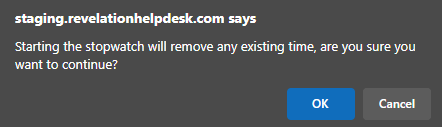
Click OK to confirm. A note will be automatically added into the ticket with the start time, and the clock icon will turn blue.

If the action is saved, but the stopwatch is not stopped, a running clock icon will show on the screen.
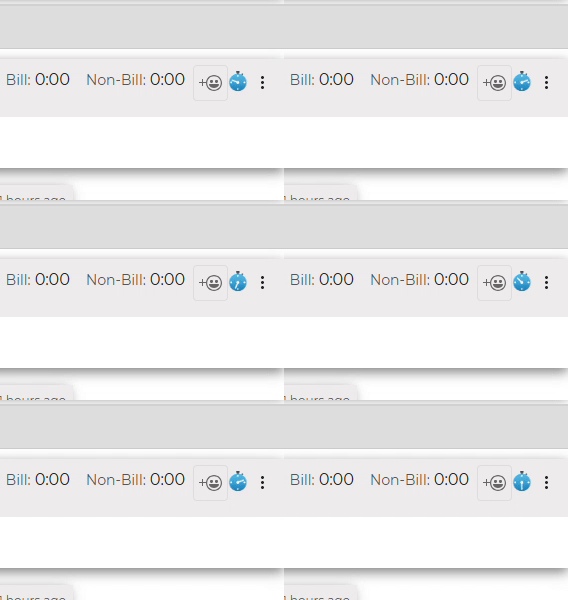
As long as the clock is running, there will be an icon on the home page, and you will be able to sort tickets by the column to see all tickets with a running clock.

Once the timed task is completed, the user must stop the clock. To do so, reopen the action note in the ticket by clicking on the edit pencil, and then click on the blue clock. When the icon returns to its original color, the stopwatch is off. Revelation will record the stop time and note it in the description. The elapsed time will automatically populate in the relevant time field.
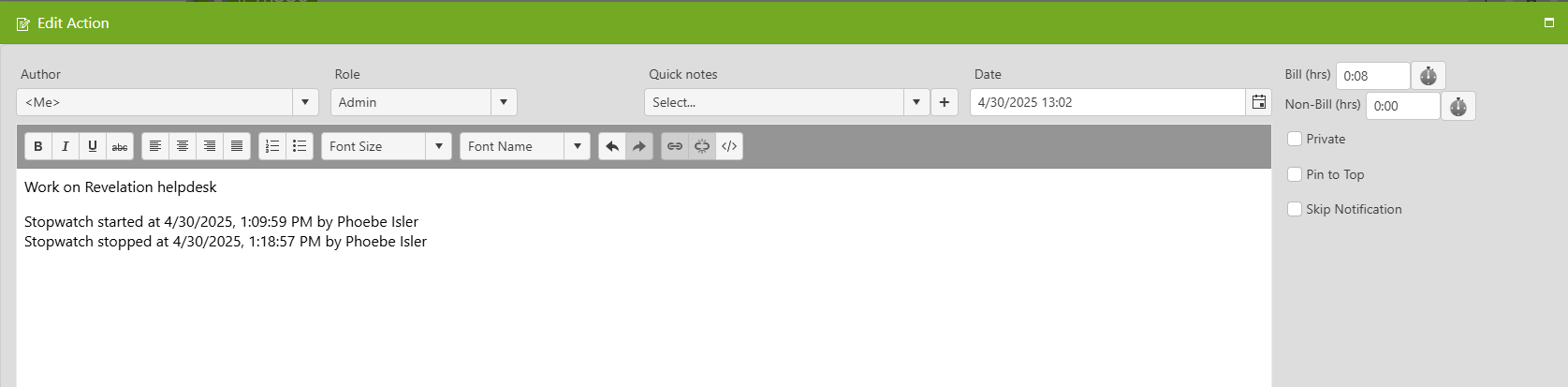
NOTE: Users can add their own summary of the timed action into the Add Action description field.
If no tickets have a stopwatch running, the column will not be visible on the home page.