
With this Outbound Email Account type, it allows an Azure tenant Admin the ability to securely configure your own outbound email address using Office 365 (Oath). This requires your organization to have an Azure Active Directory account – click here for more information.
This configuration can also take place through the Parser Account settings; however, by configuring this setting through the Outbound email section of the Helpdesk setup; it will automatically allow you to select & align the Parser account to the email/account that is granted permissions (as most users will use the same email account for outbound and inbound emails; although this is not a requirement).
In most cases, Microsoft accounts are Worldwide accounts and can send email from Revelation helpdesk using the built-in Application (Client) ID, however different types of Microsoft accounts will require different authorization endpoints to be used. Because of that, Microsoft US Government DoD or US Government GCC High tenants require additional steps to configured OAuth for inbound / outbound email. These steps can be found here: Configure Email In Revelation Helpdesk Using OAuth 2.0 For Microsoft US DOD or GCC High Tenants
Note:This feature requires you to be an Azure tenant Admin in order to allow Revelation helpdesk to send emails.
1.) Select ”Sign in and consent.” You will need to sign in with the account that you would like to use as your system email address (usually helpdesk@yourcompany.com).
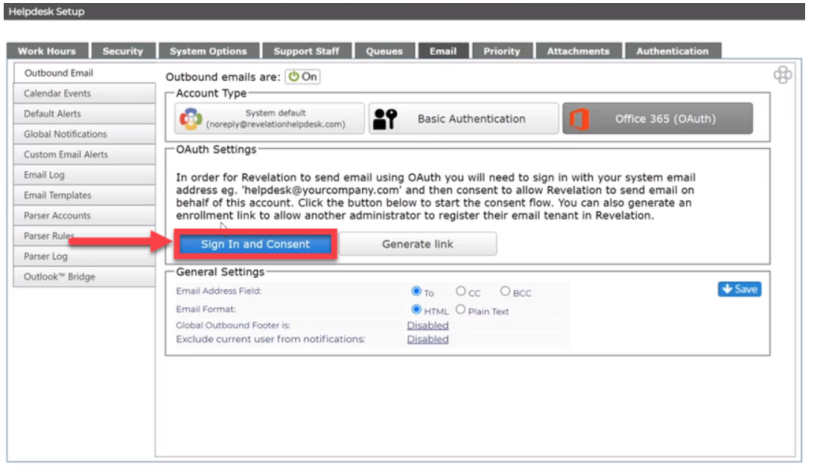
Note: The option is available to generate an enrollment link to send to allow another administrator to register their email tenant in Revelation helpdesk.
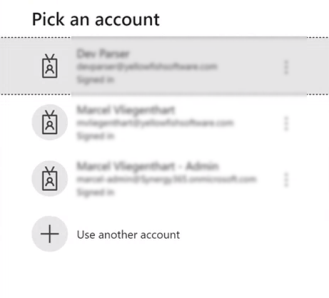
2.) When prompted the second time to authenticate, pick an Azure AD admin account so you can consent to the required application permissions.
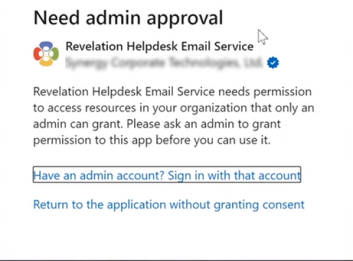
If you select an account that DOES NOT possess the permissions, you will be redirected to a screen indicating that it requires admin approval. You may either try a different account that is granted admin permissions, or return to the previous screen.
3.) Next, you will be directed to provide consent/permission for the Revelation helpdesk (app) to do the following:
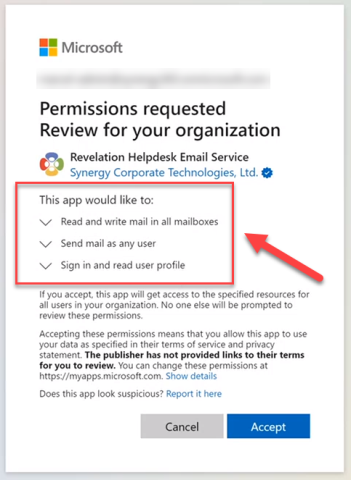
Note: “Synergy Corporate Technologies, Ltd” which appears with the blue badge in the consent popup is the verified publisher name and is the holding company for “Yellowfish Software, LLC” who are the makers of Revelation Helpdesk. Click here for more information on published verification,
While these permissions might appear extremely broad, this is essentially just allowing Revelation Helpdesk to read the email content from the configured parser email account(s), and marking the email as read. This is only applicable when using inbound email into the system (email parser feature). Revelation Helpdesk will only send email as the default system account unless you have granted permissions to “Allow support staff to send email as themselves” in the options below. Unfortunately, due to application permission limitations in Azure AD, it does not allow the Revelation Helpdesk Email Service to request only one specific user/email account mailbox access, thus requiring the app to be granted permission to all mailboxes. Revelation helpdesk will ONLY have access to the mailboxes & users that you specify & grant access to within the product.
4.) Once you have selected Accept, you will be returned to the Revelation helpdesk outbound email configuration setup. You will notice a green check mark next to the newly added email account. This is the account that will be used for all outbound email and can be changed if you have multiple OAuth accounts configured.
By default, the “Allow support staff to send email as themselves” will be unchecked. If remained unchecked, all outbound emails will only be sent from the system default account provided in the previous step.
If you want to grant access to support staff to send email as themselves, select the box next to that statement.
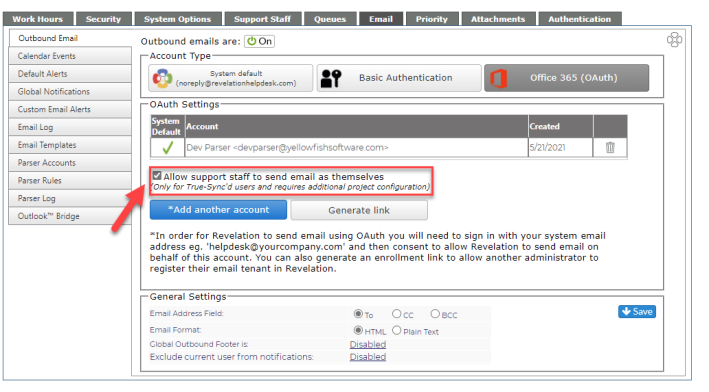
Note: This permission is only granted for True Sync’d users and might require additional project configuration. Click here to be directed to the Default Alerts section of the Helpguide for further information about this setting.
To use Office 365 (OAuth) as an email parser, visit the Helpdesk Set Up section of the Helpguide for Parser Accounts, or click here.