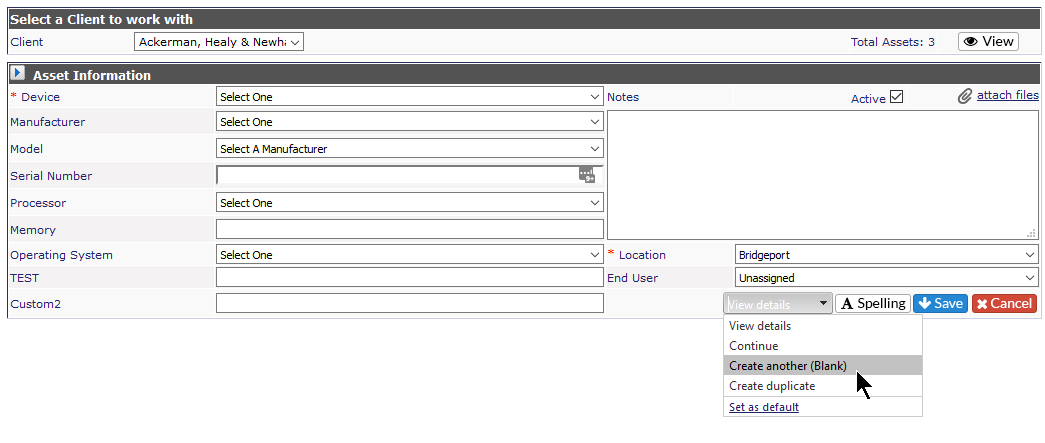
From this screen, you can select a company and add an asset using the available drop downs. However, only Super Admins or Admins can add assets to Revelation. You will also be able to add an asset by right clicking on the Asset button in the Nav at the top of the page.
Once you select a company, there is a "counter" which lets you know how many assets are logged against this client. By clicking on the View button, all the active assets for the Company will be listed. By clicking on an asset, a list of open tickets against the asset will be visible.
Assets have access to 40 fields which can be configured for use and named as needed. Current data will automatically transfer to the new field layout without your intervention.
There are several options to add assets into Revelation helpdesk. Select the option or options from the drop down at the bottom right of the screen. If this is how you wish to have your tickets log all the time, click on Set as default
- View Details - Form will stay open after you enter the information
- Continue - Goes back to your home page
- Create Another (blank) - Begins a new Add Asset screen
- Create Duplicate - Duplicates the asset information/settings. Helpful if you're adding in multiples of the same item. You can then modify the serial number, etc. as needed.
Assets can also be added from the Company Information and User Information pages.