
If you have multiple regions and want to group them accordingly, you can roll them up into Territories.
- Click on the New button

- Put in the Territory Name
- A list of the Available Regions will appear on the left side; select the appropriate locations.
- If you want to assign a Territory manager, select the Managers tab and type in the name of the appropriate user. Revelation will populate a list to select from.
Note: Each Region can only be assigned to one Territory. Revelation will hide Regions that already are associated with a Territory unless the option is unchecked.
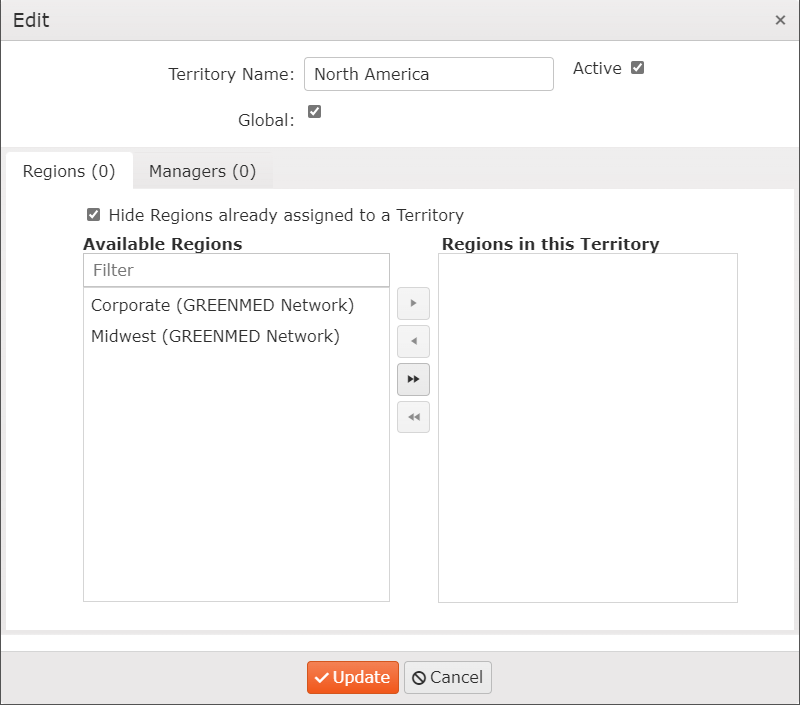
- Once all desired Regions and Managers have been selected, click Update.
Anyone selected as a Territory Manager will become an External Administrator for the Client. However, they will only see the tickets for their Territory, not for all the End Users for the client.
Once you have completed the selections, the Territories tab will reflect the newly added Territory and display the Creator, the number of Regions associated with the Territory, and the number of Managers.

Edit Territory
To edit a Territory, click the Edit button to the right of the Territory listing. This will open the same pop-up window that you used to create the Territory - make your changes and click Update to save them. If you don't want to save your changes, click Cancel.
Delete Territory
To delete a Territory, click the Delete button to the right of the Territory listing. You will get a warning to confirm you want to delete the Territory. Click OK to delete or Cancel to keep the Territory as-is.