
To re-baseline or modify an existing ticket, you need to start by doing the following:
- Select the ticket
- Click on the ticket's edit button
Select one of these options for additional steps depending on what you need to do:
Re-baseline a Ticket
The Start and End date of a Gameplan ticket can be adjusted after the ticket is logged.
- The Duration grid will appear on the left side of the screen
- Adjust the Start and/or End date as needed
- Click on Save
Modify Ticket Estimates
- Enter the revised Effort in the Duration area
- Click on Save
Allocate a New Resource to an Existing Ticket
- In the top left of the screen, click on the edit pencil next to Allocation
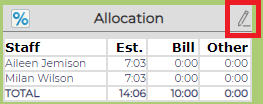
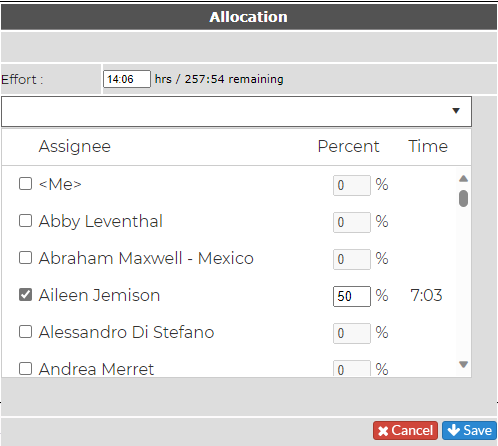
- Select the appropriate resource by putting a check in the box in front of their name
- Readjust the allocated percentages as needed, ensuring the percentages equal 100%
- Click Save
Re-baseline a Workstream
- Go to the Gameplan dashboard
- Click on the edit button

- Adjust the start and/or end date by dragging the slider
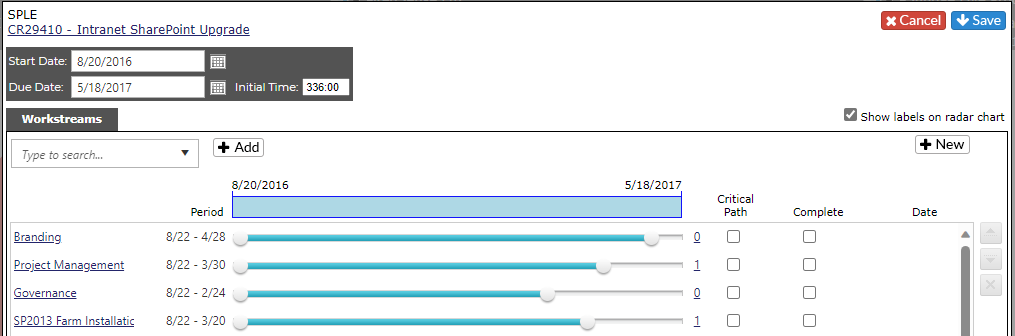
- Click on Save
Close a Workstream
Note: All tickets within the Workstream must be closed before you close the Workstream.
- Go to the Gameplan Dashboard
- Select the appropriate Client and project
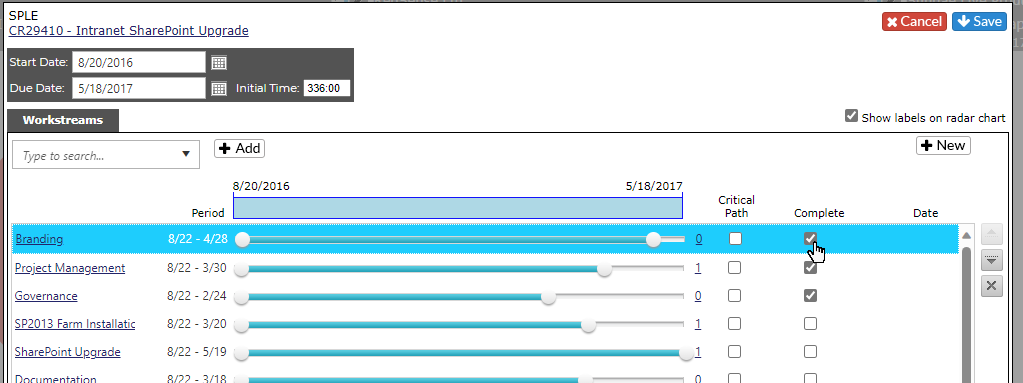
- Click on the Edit button
- Check Complete box next to the appropriate Workstream
- Click Save
Reopen a Workstream
- Go to the Gameplan Dashboard
- Select the appropriate Client and project
- Click on the Edit button
- Uncheck the Complete box next to the appropriate Workstream
- Click Save